...
- Click on the Group email in your inbox to see the message from the group.

- Type a response to the email and then click send (by default responses will only go to the sender, to reply to the Group change Reply to Reply all).

Read and Respond to Posts from your Google Groups Homepage
- Open Google Groups and click on the name of the Group you want to read.
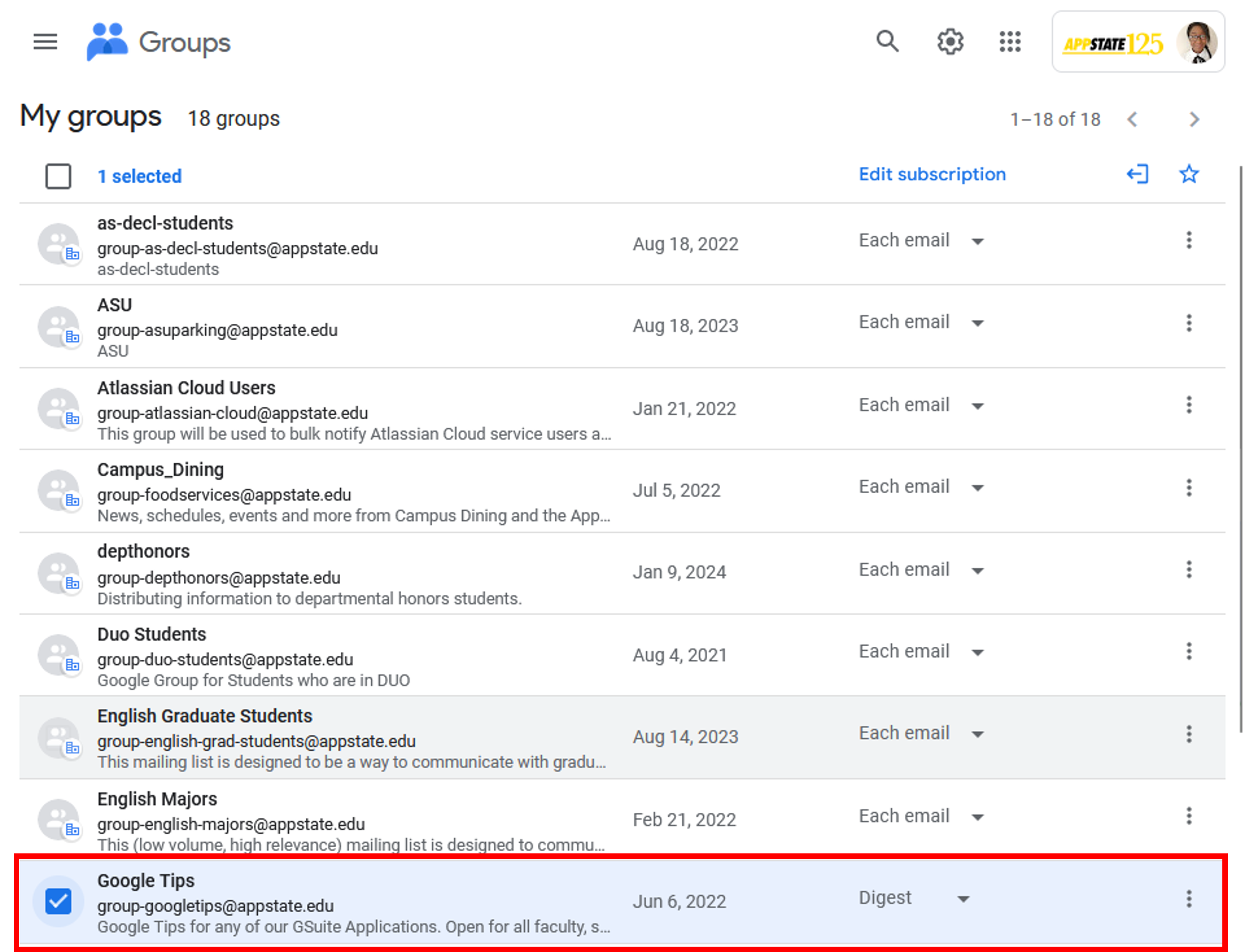
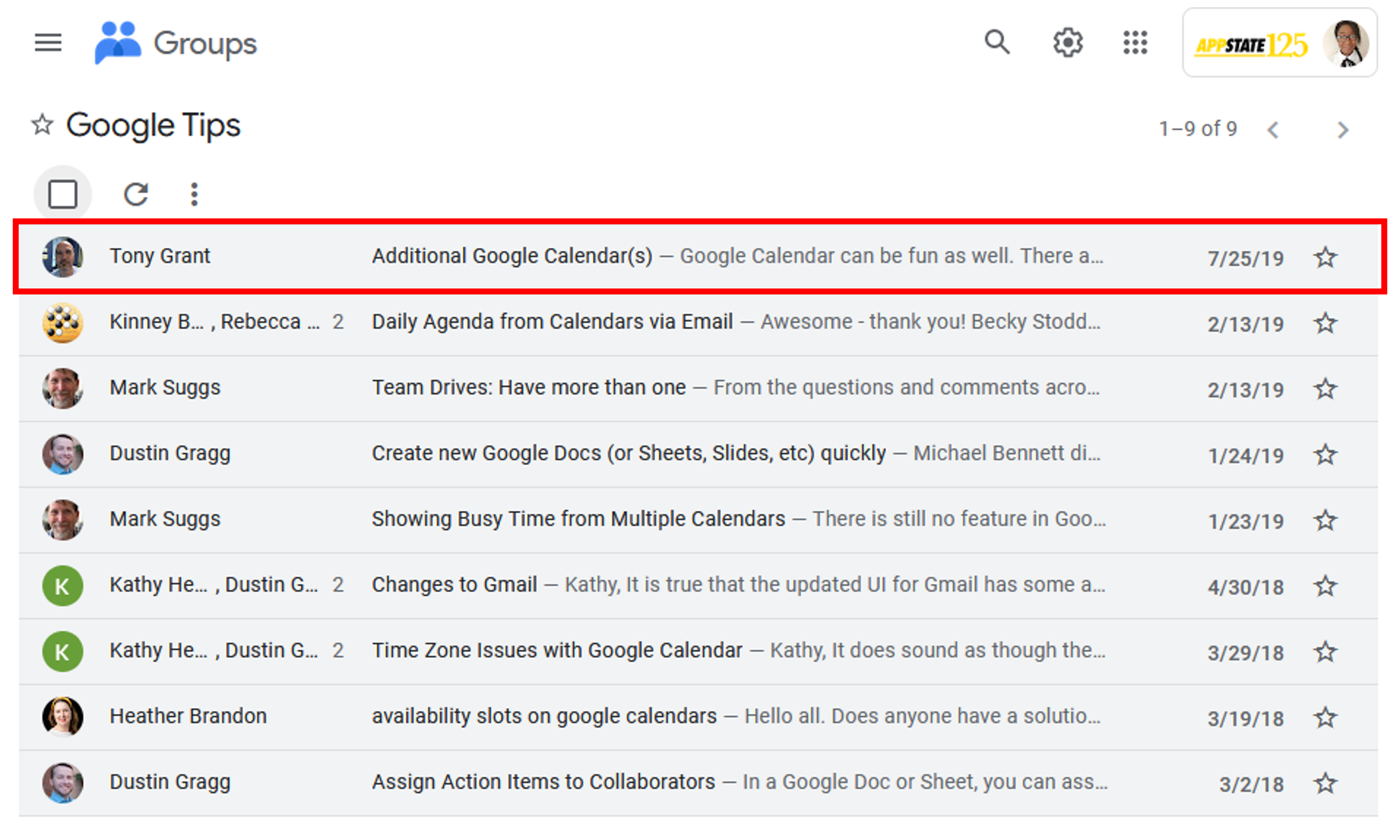
- The topics group home page appears with a list of all current topics (All of the unread posts for a topic will be listed in bold). Click on the topic you want to read.
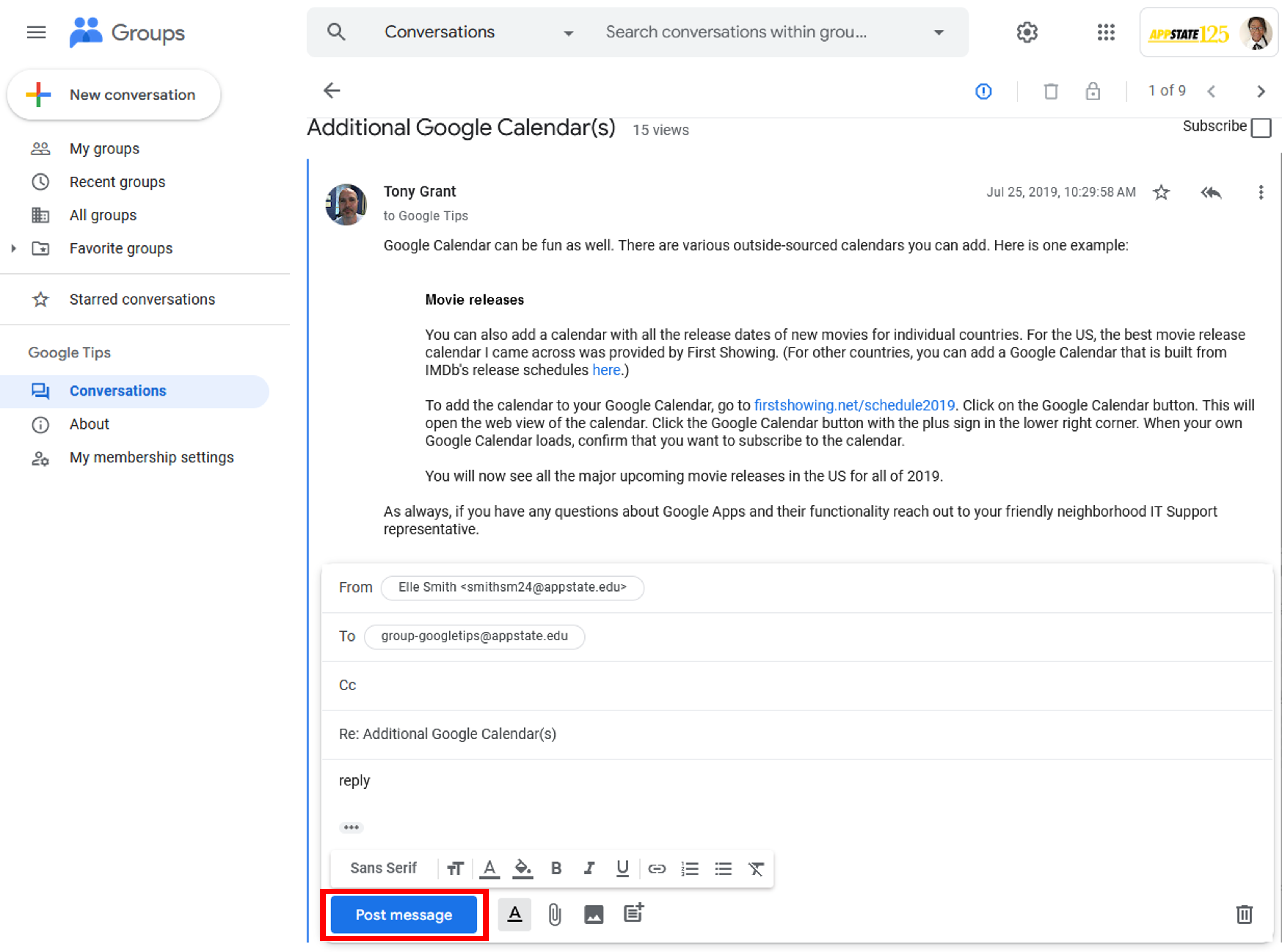
- The first post in the topic (created when the topic was created) is displayed on top followed by any responses.
(1) Click the right arrow at the top of the post to toggle between the other topics posted.
(2) You can check the subscribe box under the right arrow to receive notifications any time a new response is posted.
(3) Click reply all to add a message to the topic’s thread.
(4) Replying to the author will only send your response to the creator of the post.
(5) Clicking Forward will allow you to forward the entire post to another user using Gmail.
- Type your reply in the reply field and then click Post Message to reply to that post.
Related articles
| Content by Label | ||||||||||||||||||
|---|---|---|---|---|---|---|---|---|---|---|---|---|---|---|---|---|---|---|
|
Search Knowledge Base
Submit a Service Request
| Page properties | ||
|---|---|---|
| ||
|
...