See Upload a File for steps to upload from your computer.
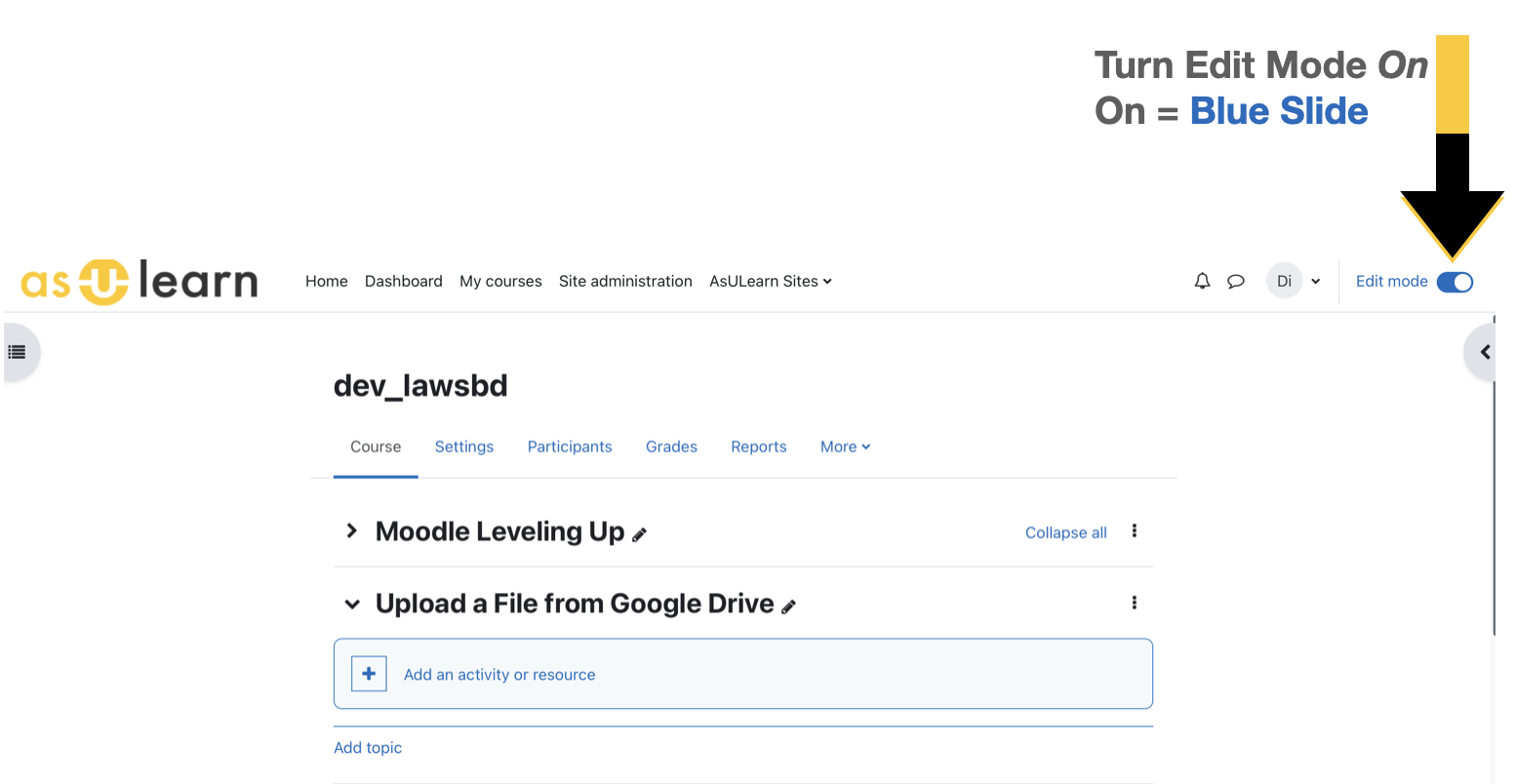
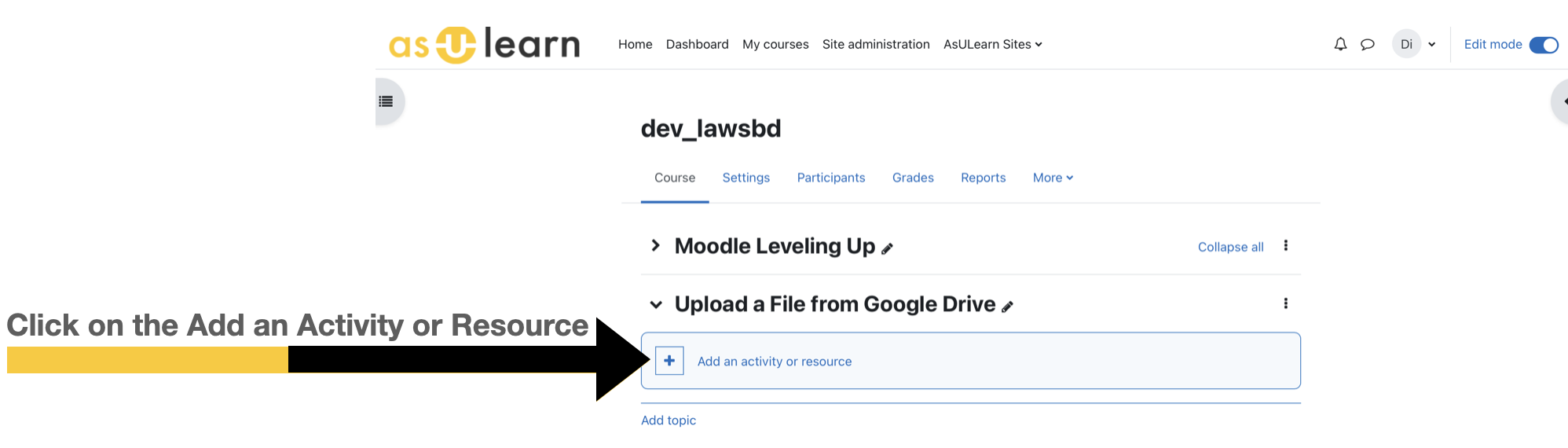
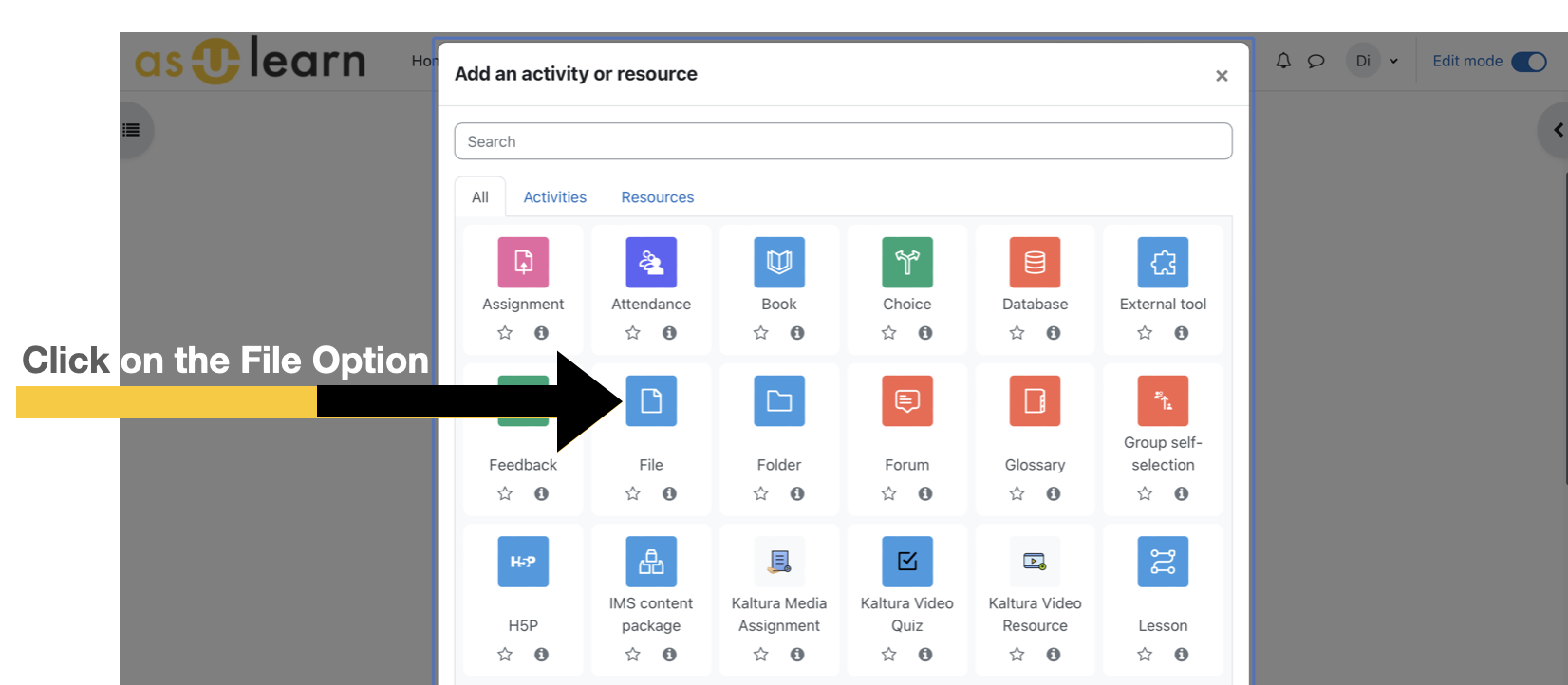
If you have a file that you want to share with your AsULearn participants to download, but it's on your Google Drive, follow these steps:
Select GoogleDocs (1) and than click on My Drive (2).
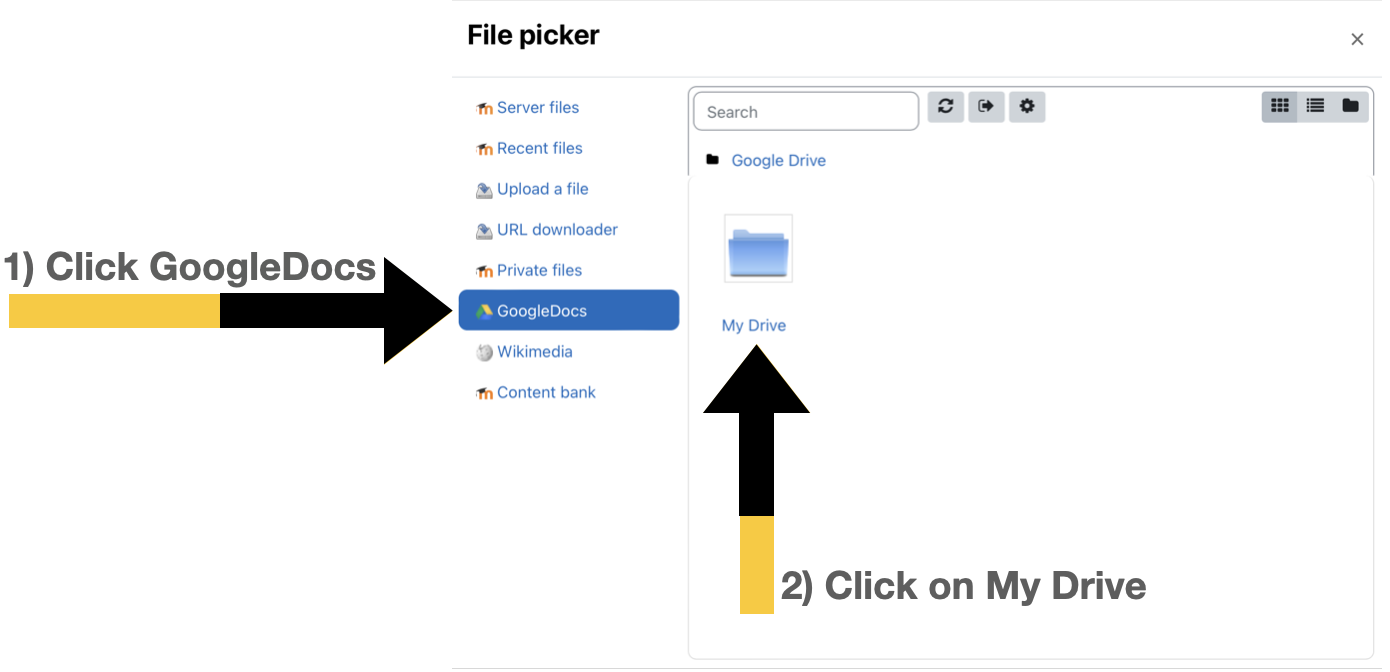
Please Note: You may be prompted to Log in to your account , simply click this and and it will connect you into the Google Drive that is associated with your AsULearn login.
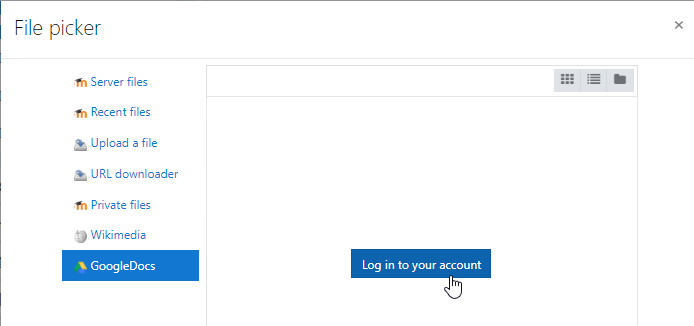
Now you can locate and select the document you would like to allow participants to download.
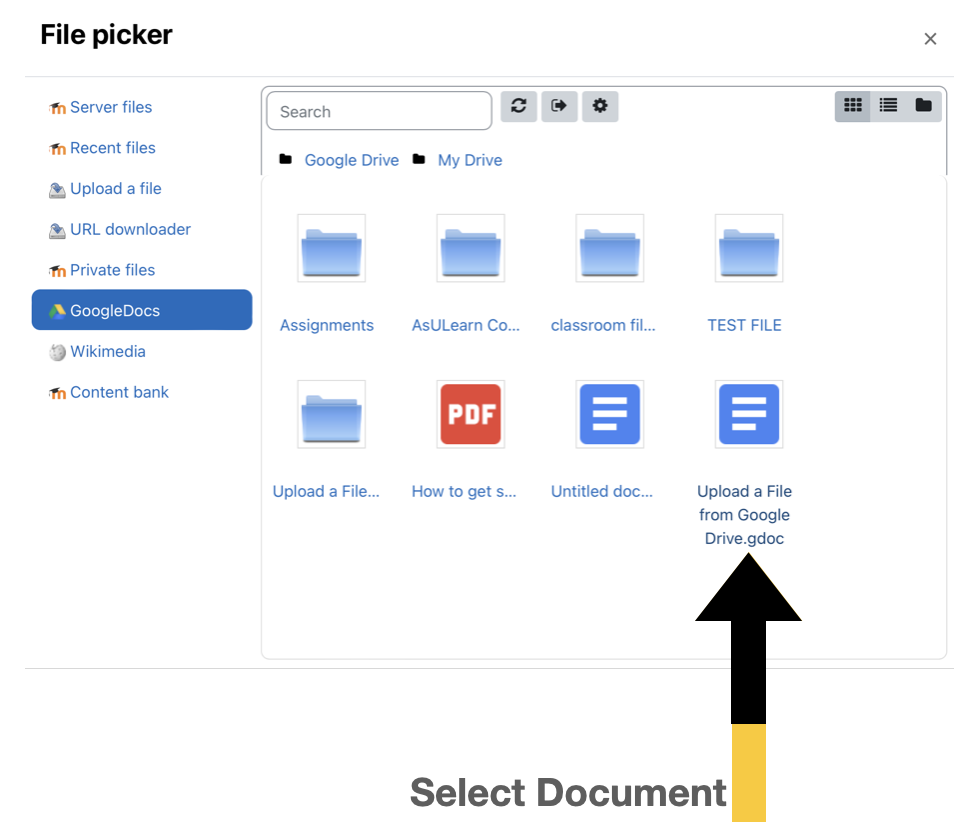
Please note that your cannot drag-and-drop from GoogleDoc into AsULearn's File Picker or course page. |
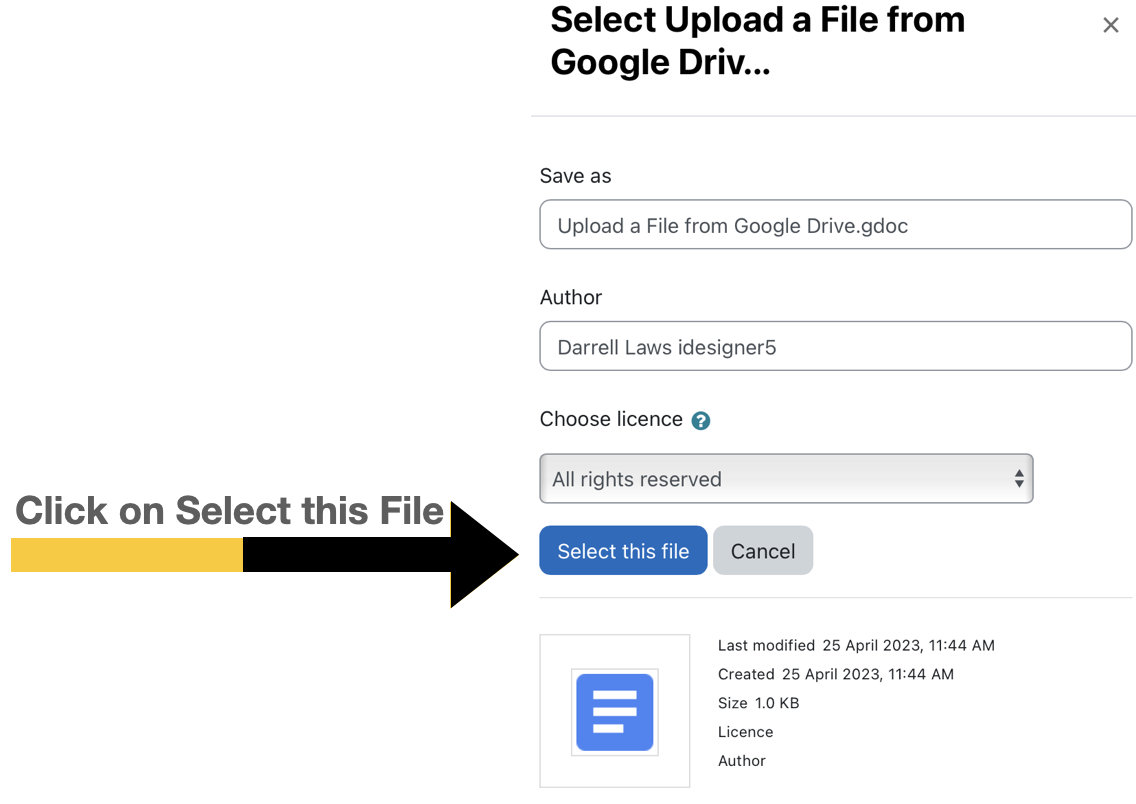
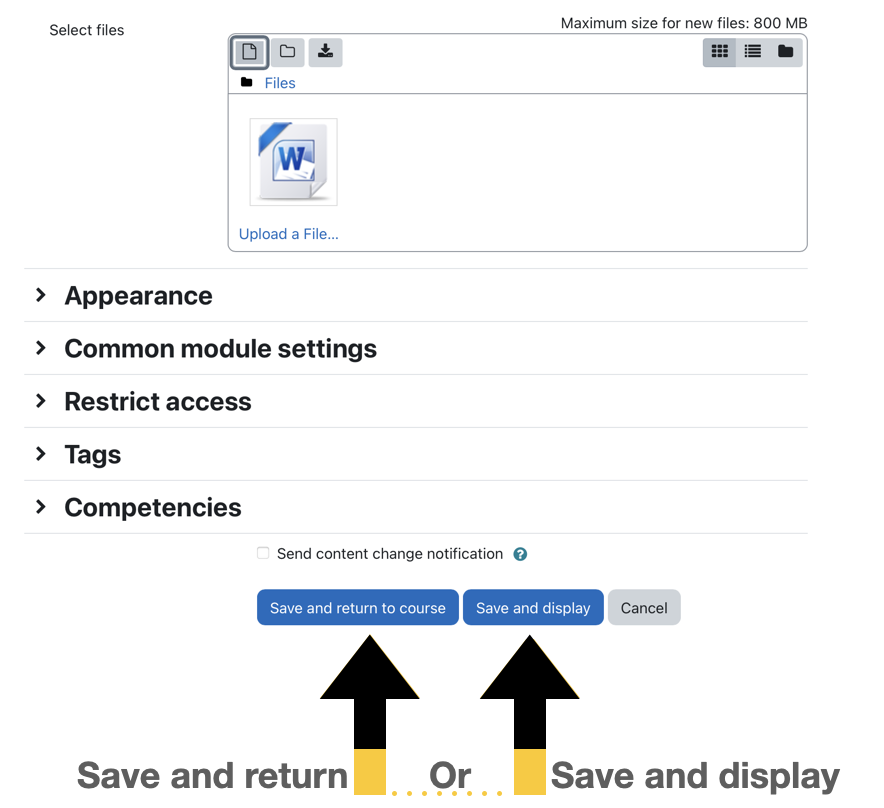
Not all file types can be uploaded, so the file list is filtered. A Google Docs file will be converted to a Word document, and a Google Sheets file will be converted to an Excel file and will open in those applications. The link is to the uploaded file, a copy of the original, and the file is not updated when the file on Google Drive is modified. You will need to Edit settings for the File link on AsULearn and upload the modified file. |
Related articles appear here based on the labels you select. Click to edit the macro and add or change labels.
|