Google sends automatic alerts to users when they are close to reaching or have reached the storage limit for their My Drive and Shared drives.

Google Apps that will Display Alerts

When your account's storage is between 80% and 100% capacity, you'll receive notifications in Drive, Gmail, and the Drive for Desktop app.

When you view Storage in Google Drive (by clicking Storage in the left sidebar menu), you will see storage low (at 80% capacity) or storage full (at 100% capacity) notifications indicating how much of your individual storage space has been used. 

80% Capacity Yellow Banner Notification

Faculty/Staff account:
Faculty and Staff 80% Capacity Yellow Banner Notification

Student account:
Student 80% Capacity Yellow Banner Notification

100% Capacity Red Banner Notification

Faculty/Staff account:
Faculty and Staff 100% Capacity Red Banner Notification

Student account:
Student 100% Capacity Red Banner Notification

To prevent interruptions or free up space, submit a support ticket.


Google Drive Red Sidebar Notifications

When you reach your storage limit, users accessing your shared files and folders will see a notification indicating that the user who owns the shared content has met their storage capacity.

Faculty/Staff account:
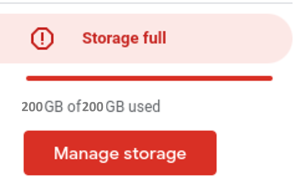
Faculty and staff Google Drive Red Sidebar Notifications
Student account:
Student Google Drive Red Sidebar Notifications

When a shared drive’s storage is between 80% and 100% full, you will receive the following banner notifications at the top of the Drive page.

Managers and Content Managers View

Shared Drive Storage Low Yellow Banner Notification
Manager and Content Manager message a Yellow Banner Notification indicating Shared Drive Storage Low

Shared Drive Storage Full Red Banner Notification

For Manager and Content Managers Shared Drive a Red Banner Notification indicatingStorage Full

Contributors, Commenters, and Viewers View

90% Capacity Red Banner Notification

For contributors, commenters, and viewers a Red Banner Notification indicating 90% Capacity

100% Capacity Red Banner Notification

For contributors, commenters, and viewers a Red Banner Notification indicating 100% Capacity

Other users:

Outside of your Shared Drives, any collaborators you’ve shared individual files and folders with will receive an error message when attempting to move those items.
Error message for moving files and folders.

All members and collaborators can still view, comment on, and edit existing files and folders within the Shared Drive (depending on their permission level). However, some actions are restricted when the shared Drive is full. Users will not be able to:

Create New Files

When a Shared Drive is full, creating new files, (Docs, Sheets, Slides, Forms, etc.) within the Shared Drive will be temporarily disabled. Users will receive this error message in the Google file attempting to be created.
Error message for creating new files or folders.

Upload Files or Folders

Attempting to upload new files or folders will be temporarily disabled in full Shared drives and users will receive this error message pop-up after attempting to upload new files or folders.

Error message for uploading files or folders.

Copy and Paste a File or Folder

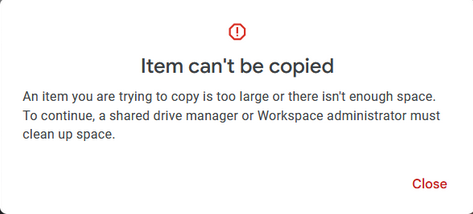
Attempting to copy or paste a file or files within a Shared Drive will be temporarily disabled and users will receive this error message after attempting to copy/paste.
Error message for copying and pasting files or folders.
 

Google Storage 95% Full Notification Banner

95 full notification banner.

80% Capacity Desktop Notification

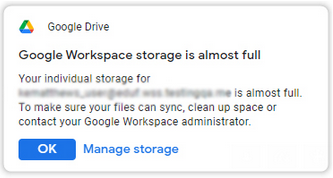
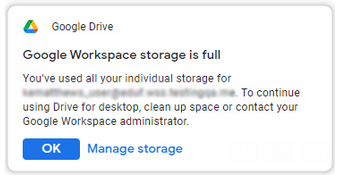
The Google Drive for Desktop App will display the following notifications when storage is 80% and 100% full or if you attempt to upload a file or folder that will exceed your storage limit capacity.
80 % capacity notification banner

100% Capacity Desktop Notification

100% capacity notification banner

The storage notifications will disappear once your account/shared drive usage falls below 80% of your limit.

Here are some ways to free up space.


Search Knowledge Base

Submit a Service Request