There are three major steps to creating a quiz: - Creating a question bank (see separate topic)
- Creating the Quiz activity and specifying name, timing, grading, and other details
- Adding questions to the quiz (see separate topic)
|
This video walks through the standard setup for a Quiz. (Does not cover creating questions.)

Step-by-step guide
- From the course page, enable the Edit mode toggle (top right).
- At the bottom of your desired topic, click + Add an activity or resource.
- Within the Activity Chooser, on the All or Activities tab, select Quiz.
- On the Adding a New Quiz screen, complete the required settings and any optional settings for the Quiz. See details below.
Click the blue question marks  on the page for more help with settings.
General
- Give the quiz a (required) Name which will appear as a link on the main course page in the topic you selected.
- Use the (optional) Description field for any instructions or expectations for students. This is displayed on the screen where the Student clicks the Attempt quiz now button. If you tick the Display description on course page box, the description will also display under the quiz link on your course homepage.
Timing
To set times, click the Enable option to the right of each. Time uses 24-hour settings, so 00 = midnight at the start of the date; 13 = 1:00 PM; 23:59 minutes = 11:59 PM. History has shown that 23:59 is a better choice that 00:00 (midnight), since student won't confuse 11:59 PM with noon (12:00 PM).
- The Open the quiz date and time defines when the quiz is will begin to allow submissions.
- The Close the quiz date and time defines when the quiz will no longer allow submissions.
- The Time limit determines how much time is allowed for a single attempt. It provides a countdown timer in the attempt window for the student. Using a time limit is very highly recommended.
- When time expires specifies what happens when attempts are started but not submitted before the Time limit expires. Open attempts are submitted automatically is very highly recommended.
- Submission grace period applies to the grace period option for When time expires.
The Close the quiz time has primacy over the Quiz's Time limit. Example: If a quiz's Time limit is set to 30 minutes, and a student begins their attempt 10 minutes prior to the set Close the quiz time, the student will only get 10 minutes to complete the attempt. |
Grade
- Select the Grade category for the quiz if you have created categories in your gradebook.
- Grade to pass determines the minimum score to pass used in Completion Tracking.
- Attempts allowed is the maximum number of attempts students are allowed to submit for the quiz. This can help make the process of quizzing more of iterative rather than a summative "one-time" assessment. If the questions on the quiz are randomized then the student will get a new version for each attempt. This is useful for formative, multiple attempt quizzing scenarios.
- Note: You can change the number of attempts allowed, open/close dates, for different groups or for individual users with the Overrides option on the Quiz's More... menu item (just click on the quiz's link):
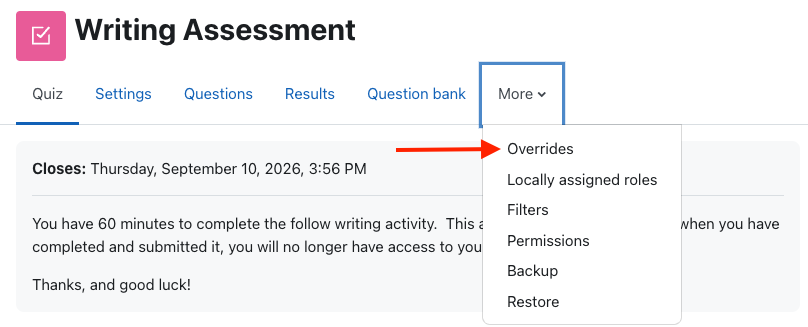
A User override is a common solution for making changes related to a student's accommodation plan (such as a longer time limit), and a Group override is a common solution for differing dates/times needed for sections in a metacourse.
- Grading method applies when multiple attempts are allowed. There are different ways to calculate the student's final grade for the quiz when multiple attempts are allowed, like Highest grade, Average grade, etc.
Layout
New page: For longer quizzes, it makes sense to stretch the quiz over several pages by specifying the number of questions per page. When adding questions to the quiz, page breaks will automatically be inserted according to the setting you choose. You can move questions and page breaks around when you place questions on the quiz . TIP: For the best logging/reporting after the fact, one question per page is highly recommended.
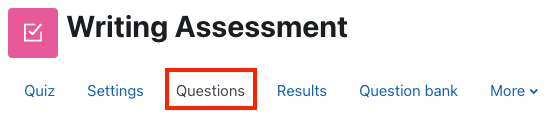
Changing this setting has no effect on questions you have already added to the quiz. Changing the setting will only apply to questions you add subsequently. To change the page breaks after questions are already added, click on the quiz link, then click the Questions tab in the quiz's top menu, drag the move icon to the left of the question to move it, or use the Repaginate button to distribute questions per page.
|
Navigation method: Free allows students to return to questions after proceeding to other questions. It is the default setting and the option most commonly used by faculty. Sequential forces the Student to progress through the questions in order without being able to go back to a previous question.
Since answering a question is not required to proceed, selecting Sequential for this setting means a Student could advance to the next question without answering, and then be unable to return to the unanswered question. |
Question behavior
- Set Shuffle within questions to Yes to enable the parts of the question (e.g., the options in a multiple choice or matching question) to be shuffled randomly each time the student takes the quiz. Each question must also have the Shuffle the choices option selected as well. If that option is off for a question, it will not shuffle the choices. Also, if the Shuffle within questions option for the quiz is set to No in the quiz settings, none of the the questions will shuffle the choices regardless of the question setting. NOTE: These settings have nothing to do with shuffling the question order within a quiz, on the answers on individual (multiple choice or matching) questions.
- See Moodle documentation for details of other settings.
Review options
See separate topic
Appearance
See Moodle documentation
Extra Restrictions on Attempts
More options to govern additional attempts at the quiz. See Moodle documentation
Overall Feedback
Overall feedback is shown to a Student after completing an attempt at the quiz. The text that is shown can depend on the grade the Student got. See Moodle documentation
Common Module Settings
- Availability specifies whether to Show or Hide the Quiz on the the main course page.
- ID Number for the quiz activity is optional. It can be used in grade calculations and reporting.
- If Groups are set up, set Group mode and Grouping options for the quiz activity.
Restrict Access
More options to govern restrictions for who can access the quiz and when. See Moodle documentation
After options are set
Click Save and display to save your settings. Some general settings will be highlighted on the screen with a notice that "No questions have been added yet". Click the Questions item in the quiz menu along the top add questions to your quiz; or click Back to the course to skip this step for now. To add questions later, from the main course page click the Quiz name, then the Questions item in the top menu.
Related Articles
Related articles appear here based on the labels you select. Click to edit the macro and add or change labels.

