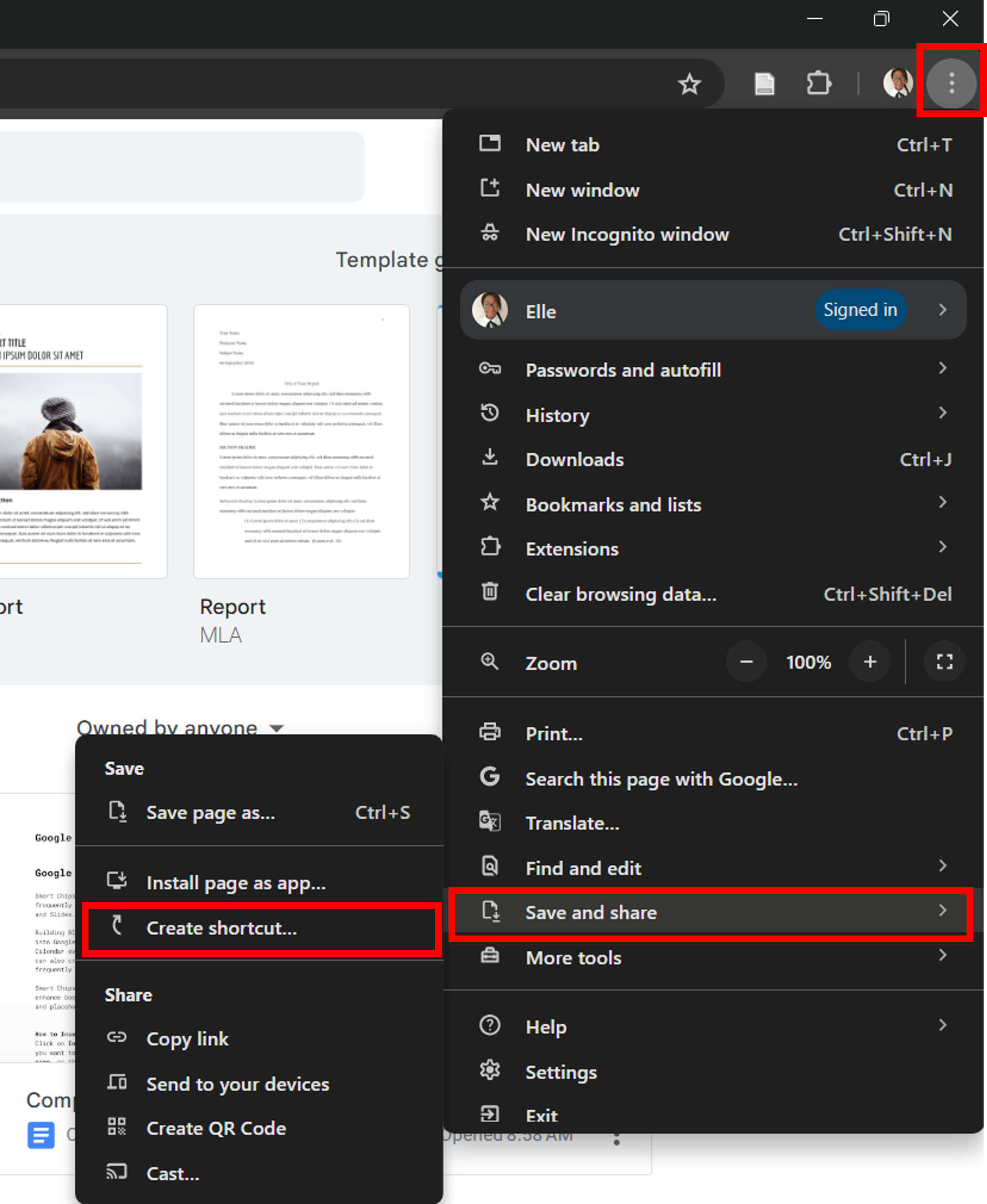
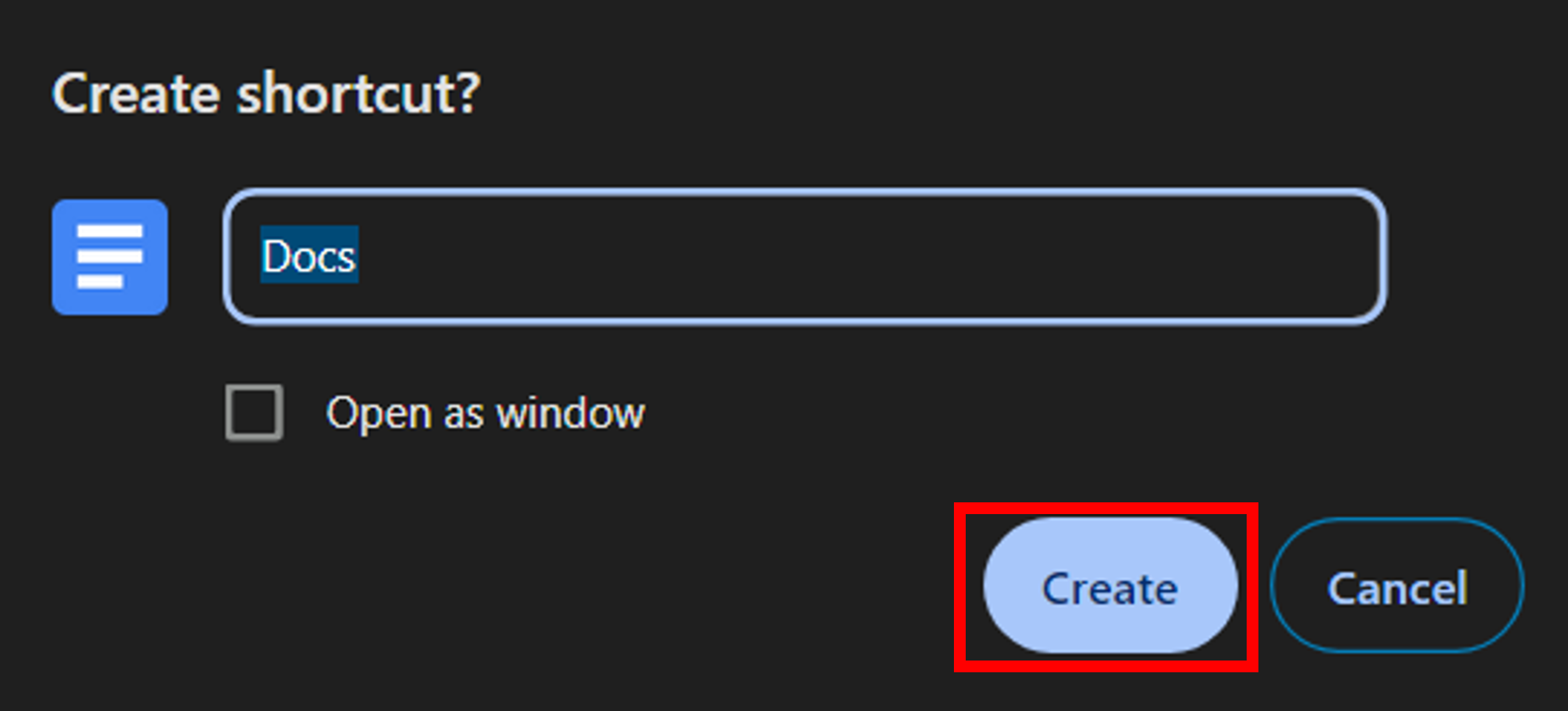
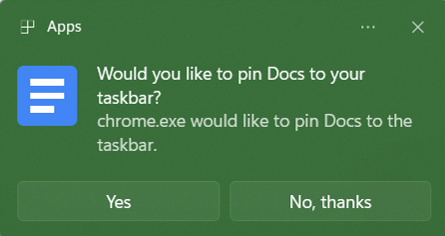
In your browser, type doc.new into the search bar.
This will open a new Google doc in your browser.

In your browser, type doc.new into the search bar. This will open a new Google doc in your browser. |
|
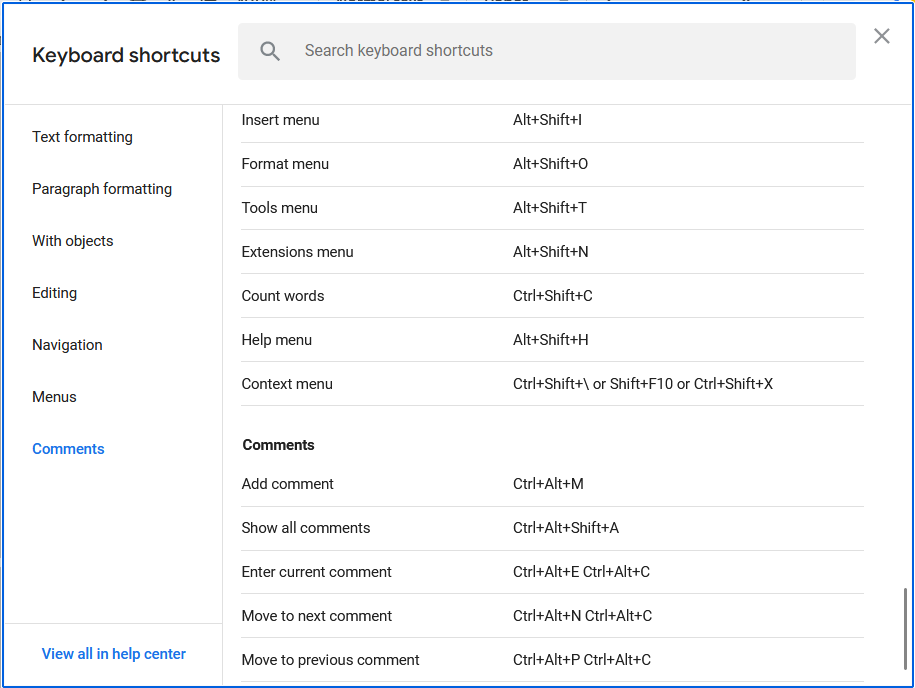
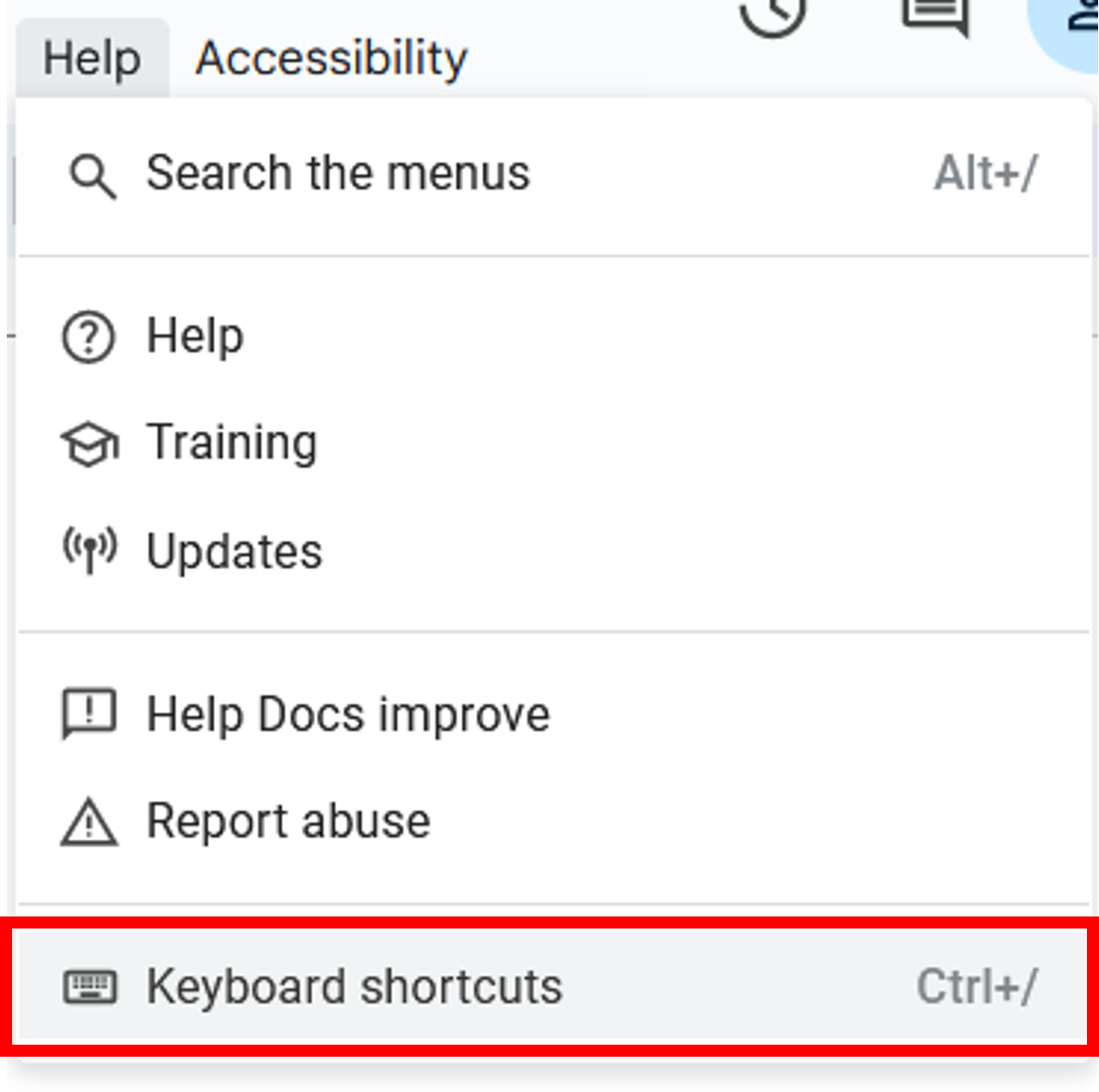
From within any Google Workspace product, type Ctrl+ (for Windows, Cmd+/ for Mac), and the shortcut menu will reveal every keyboard shortcut available. Alternatively, you can click Help in the menu, and then click Keyboard shortcuts. |
Highlight a word, then press Ctrl+Shift+Y (or Cmd+Shift+Y on a Mac) to open the Google Dictionary and quickly check its definition. |
Navigate to this Building Blocks and Smart Chips guide to learn how to use these resources to automate repetitive tasks and connect your document to key information (locations, files, people, tasks, dropdown menus, and more). Building blocks can be used to draft emails, calendar invites, and meeting notes. Type @email draft, @calendar event draft, or @meeting notes to quickly add these building blocks to your Doc. You can also create custom building blocks to quickly insert bios and signatures. |
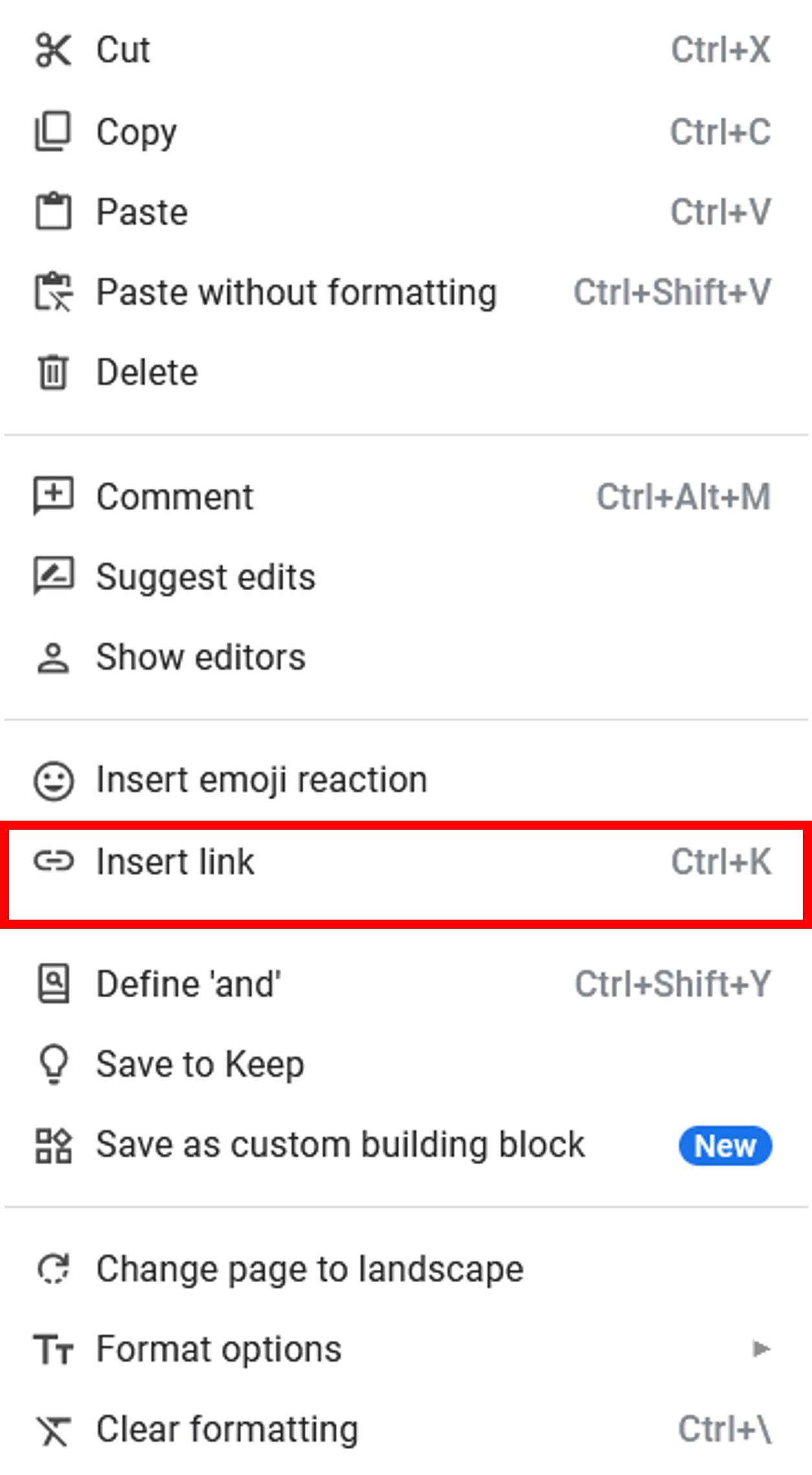
Highlight the text you want to link then enter For Windows: Ctrl+K For Mac: Cmd+K Alternatively, you can also right-click and select Insert Link. |
Click the counter-clockwise clock icon at the top right of your Doc to view the revision history (You can also hover on this icon to see when the last edit was made.)
|
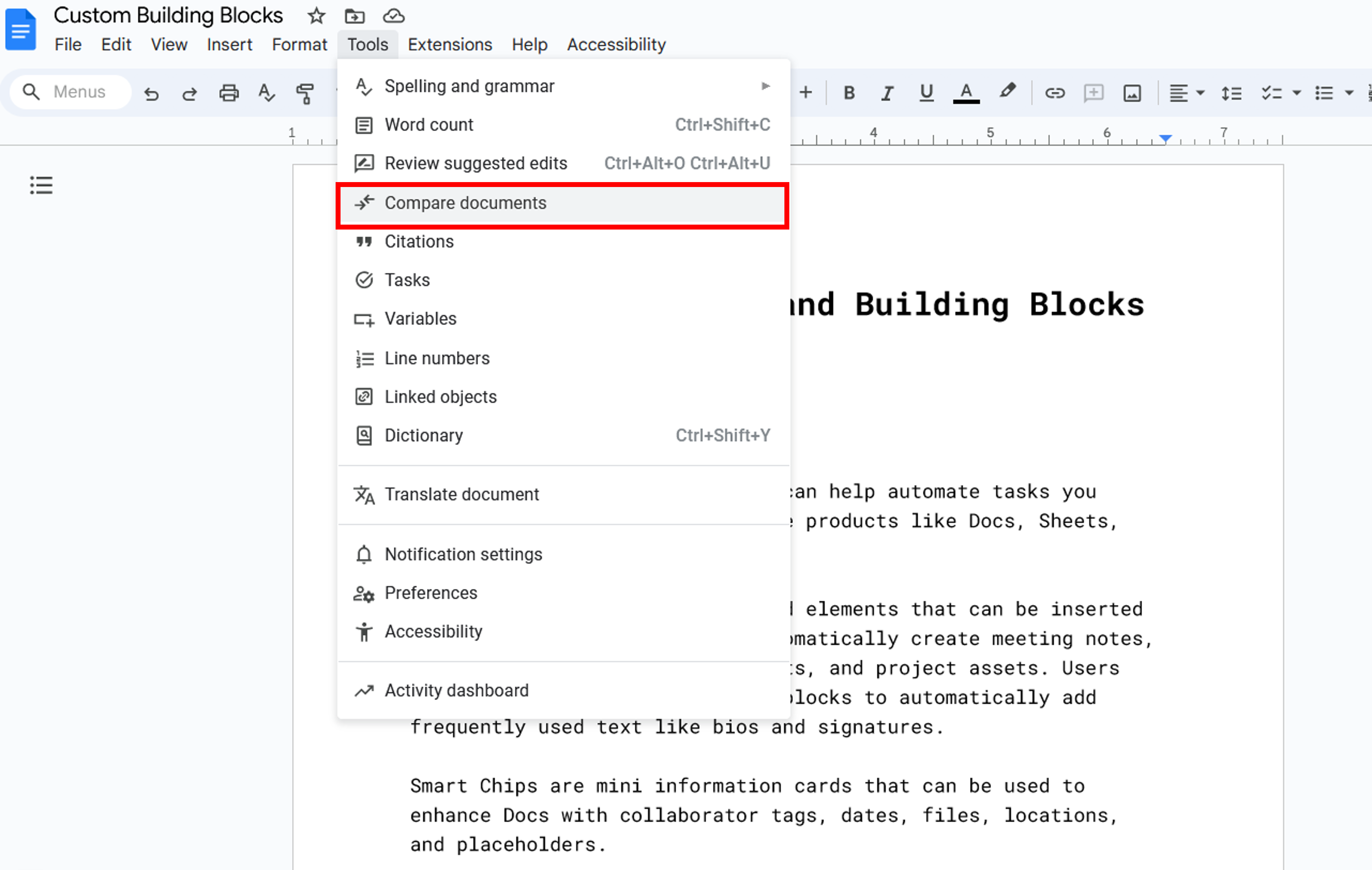
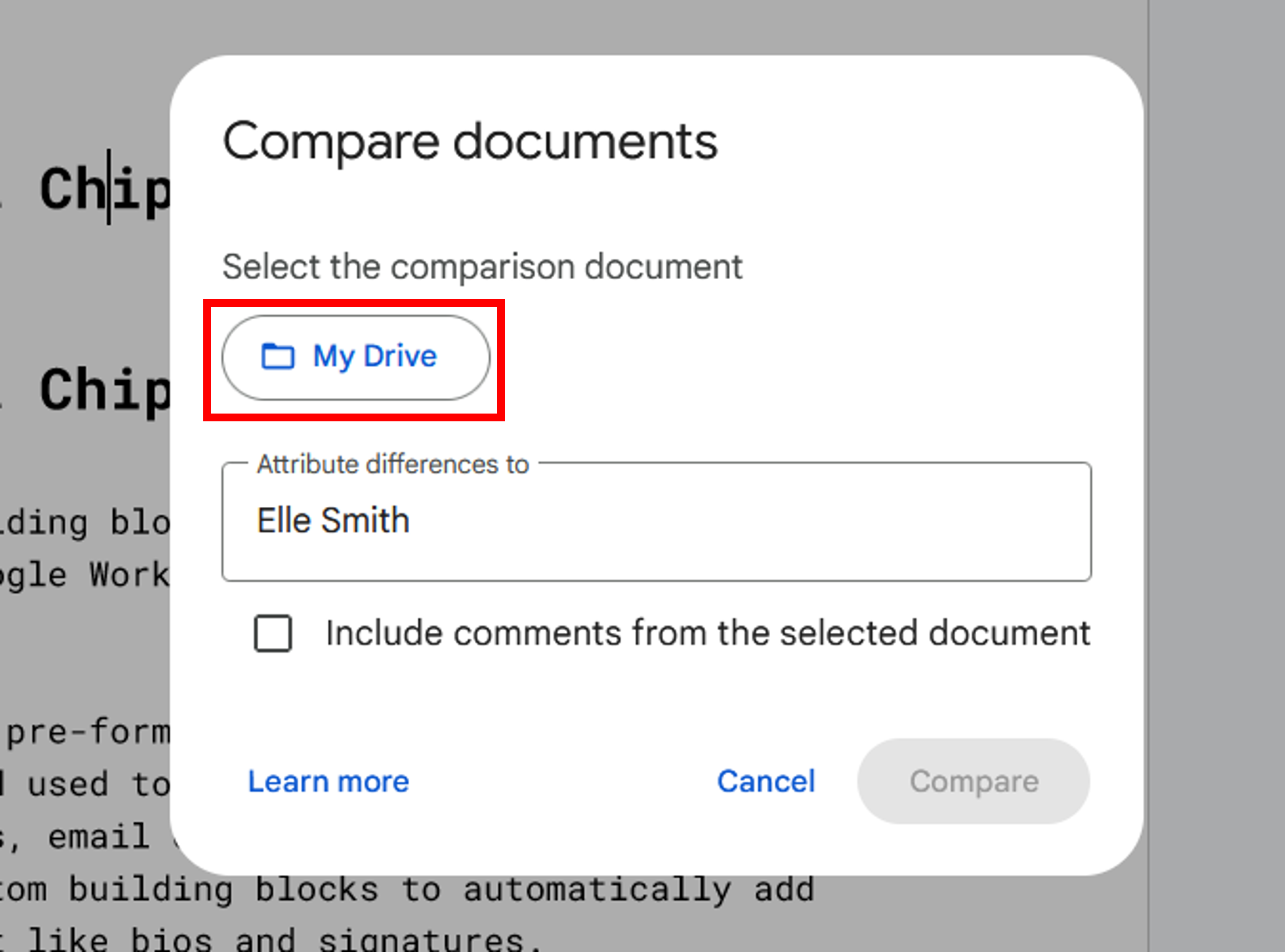
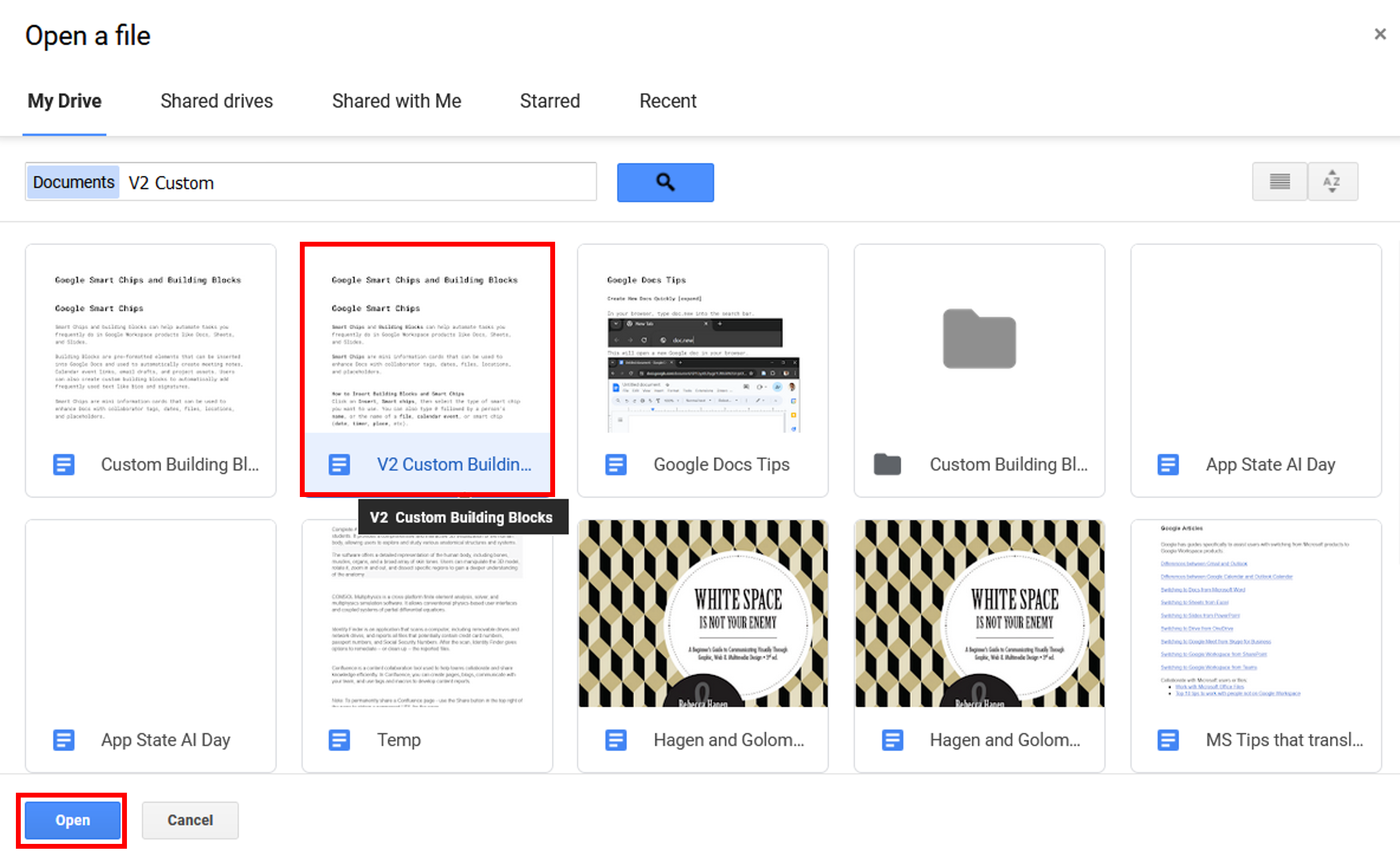
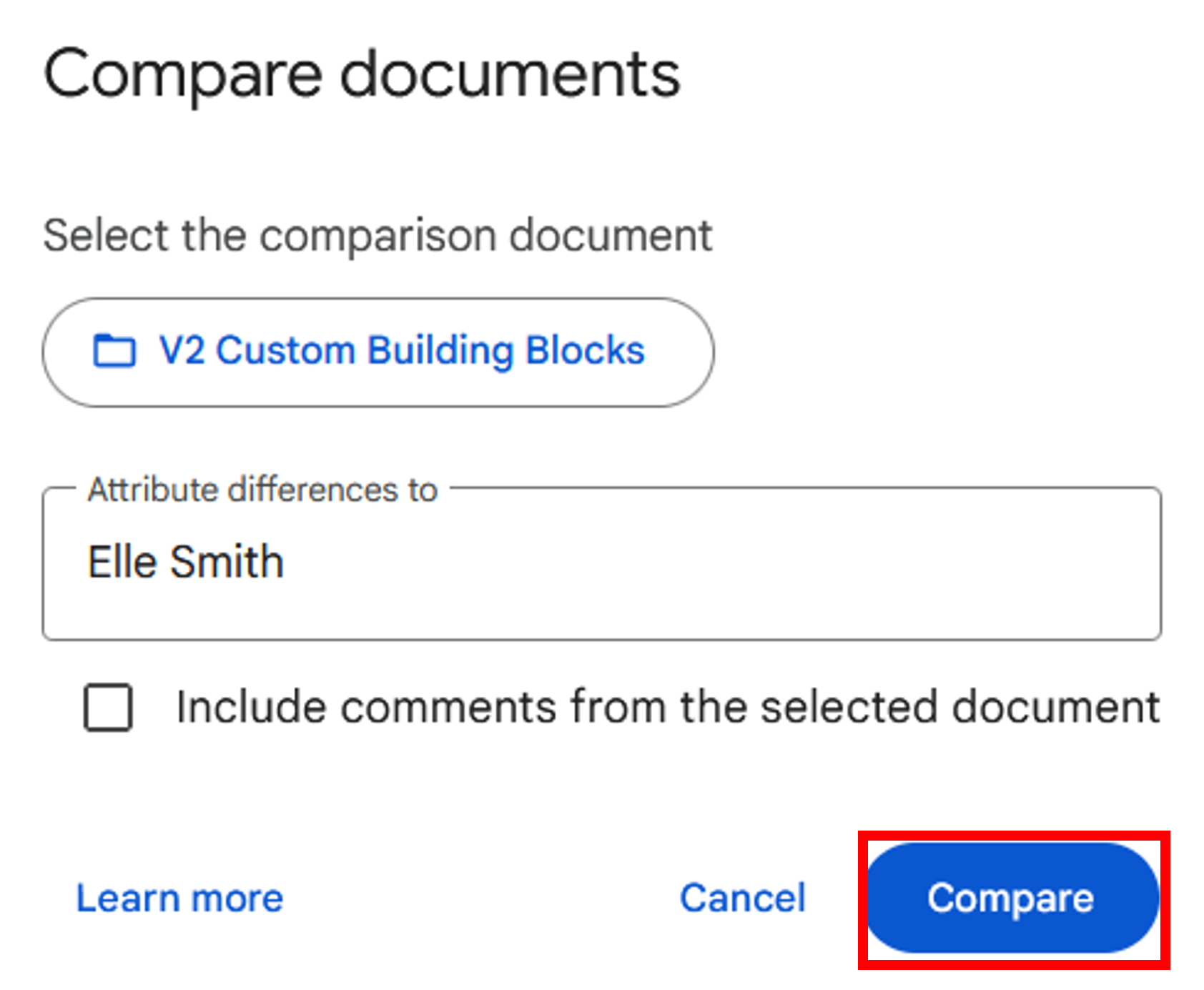
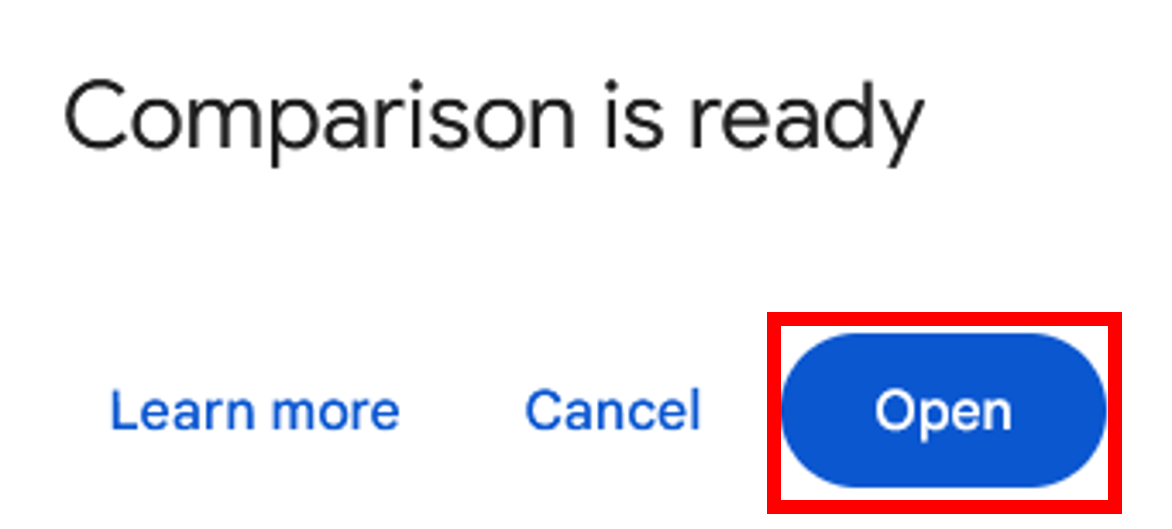
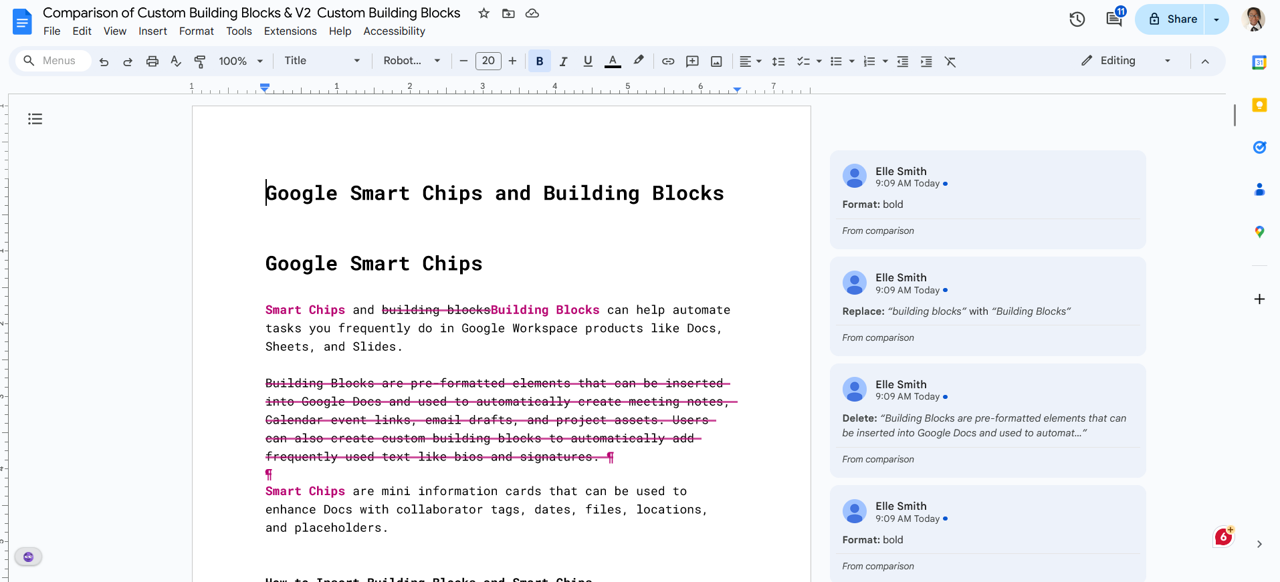
To compare two documents:
|
See the Confluence guide, Saving a Document as a PDF. |
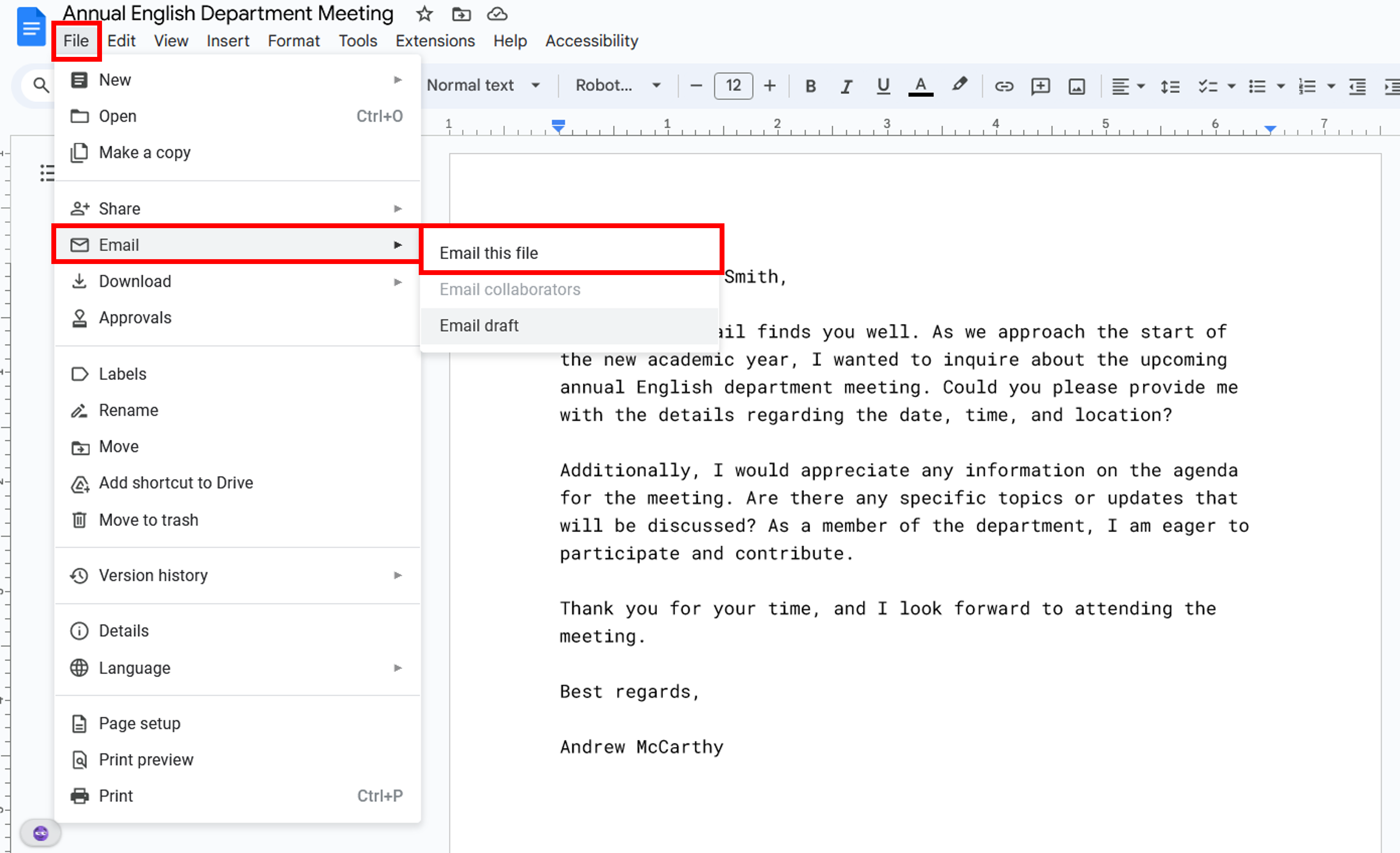
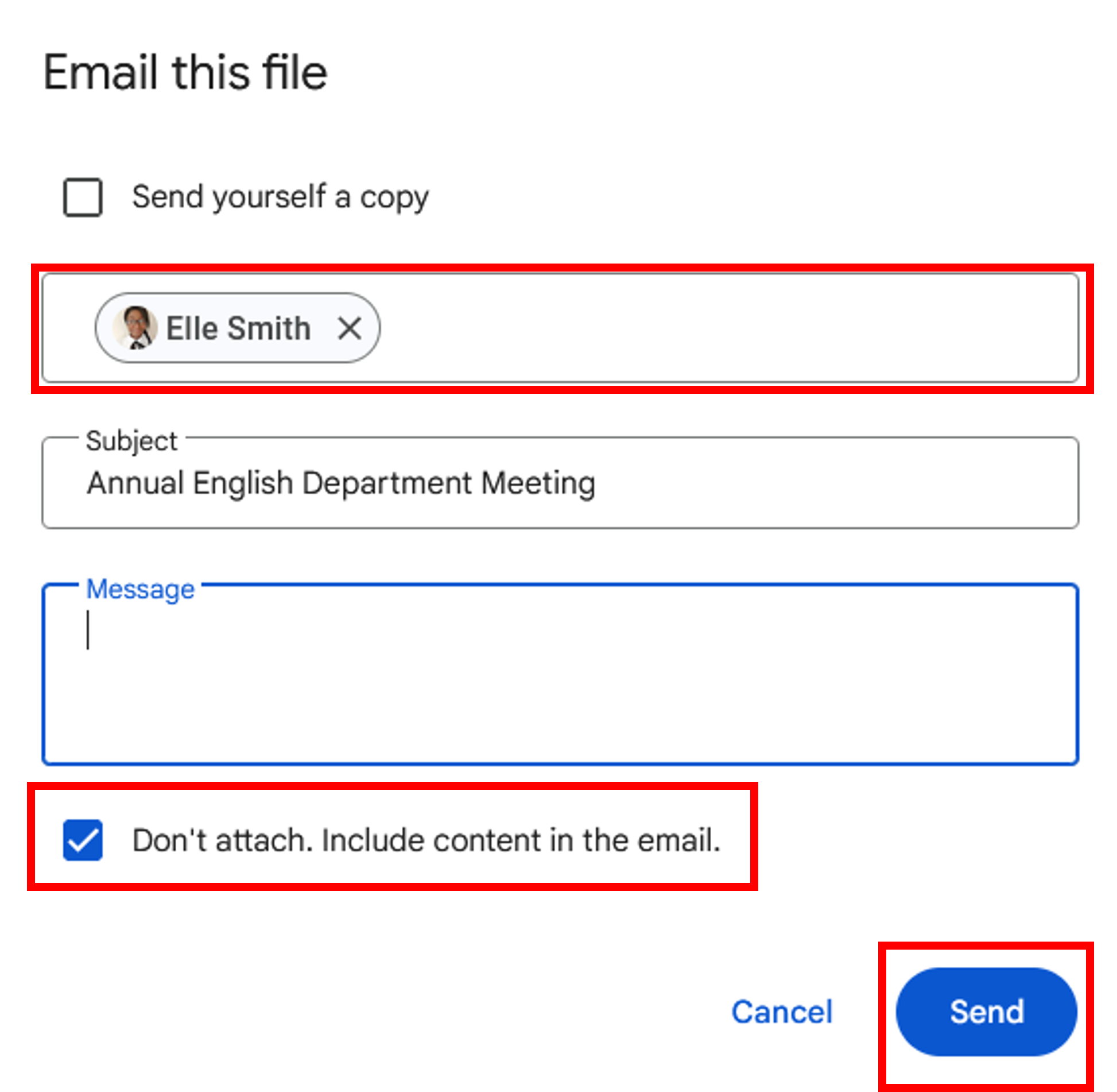
To send a Doc as an email rather than an attachment:
|
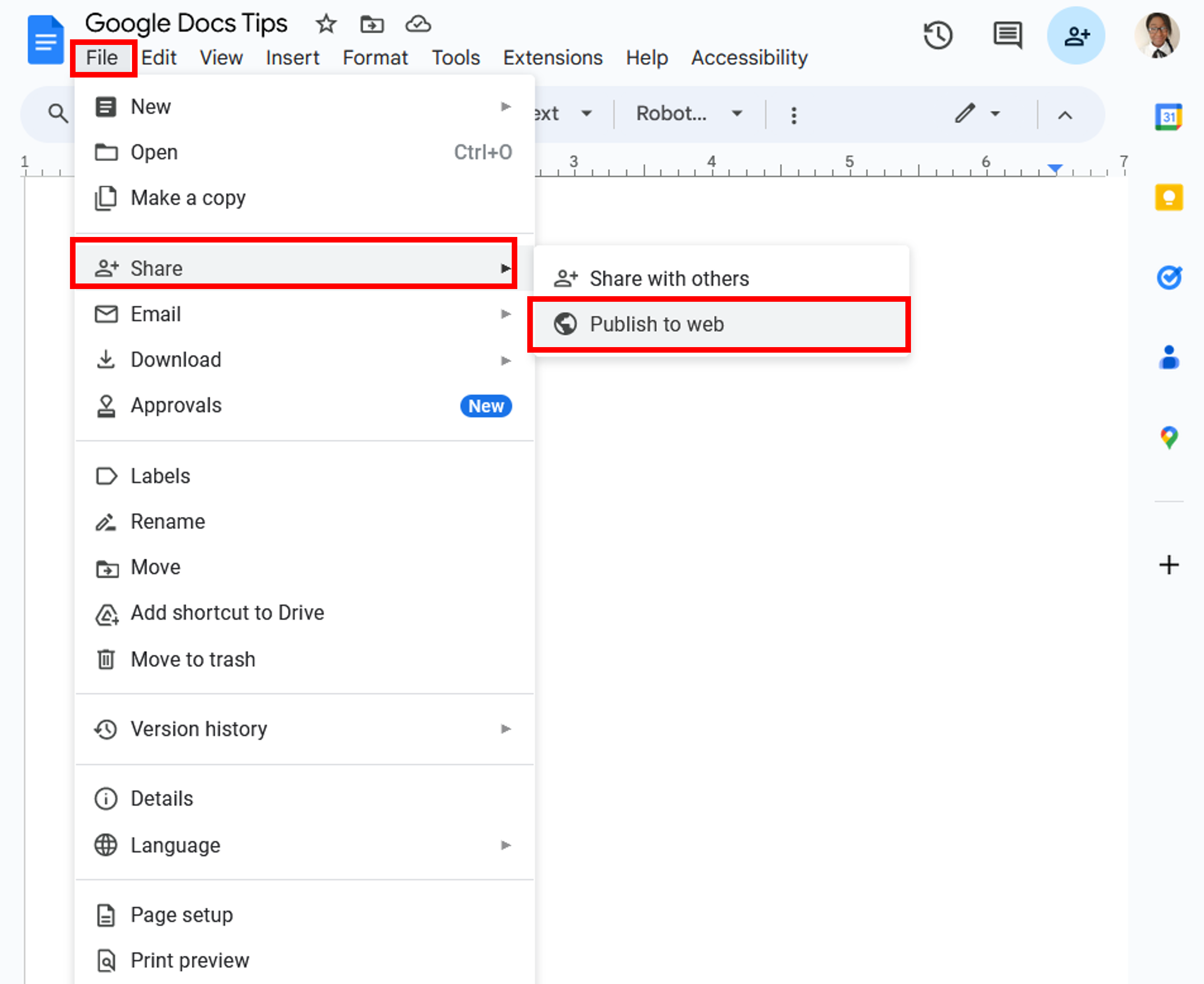
If you want to share your Google Doc with more than 100 people, the easiest thing to do is publish it and share the URL. In the Doc you want to share, click File, Share, and then Publish to the web. |
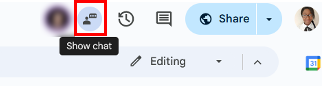
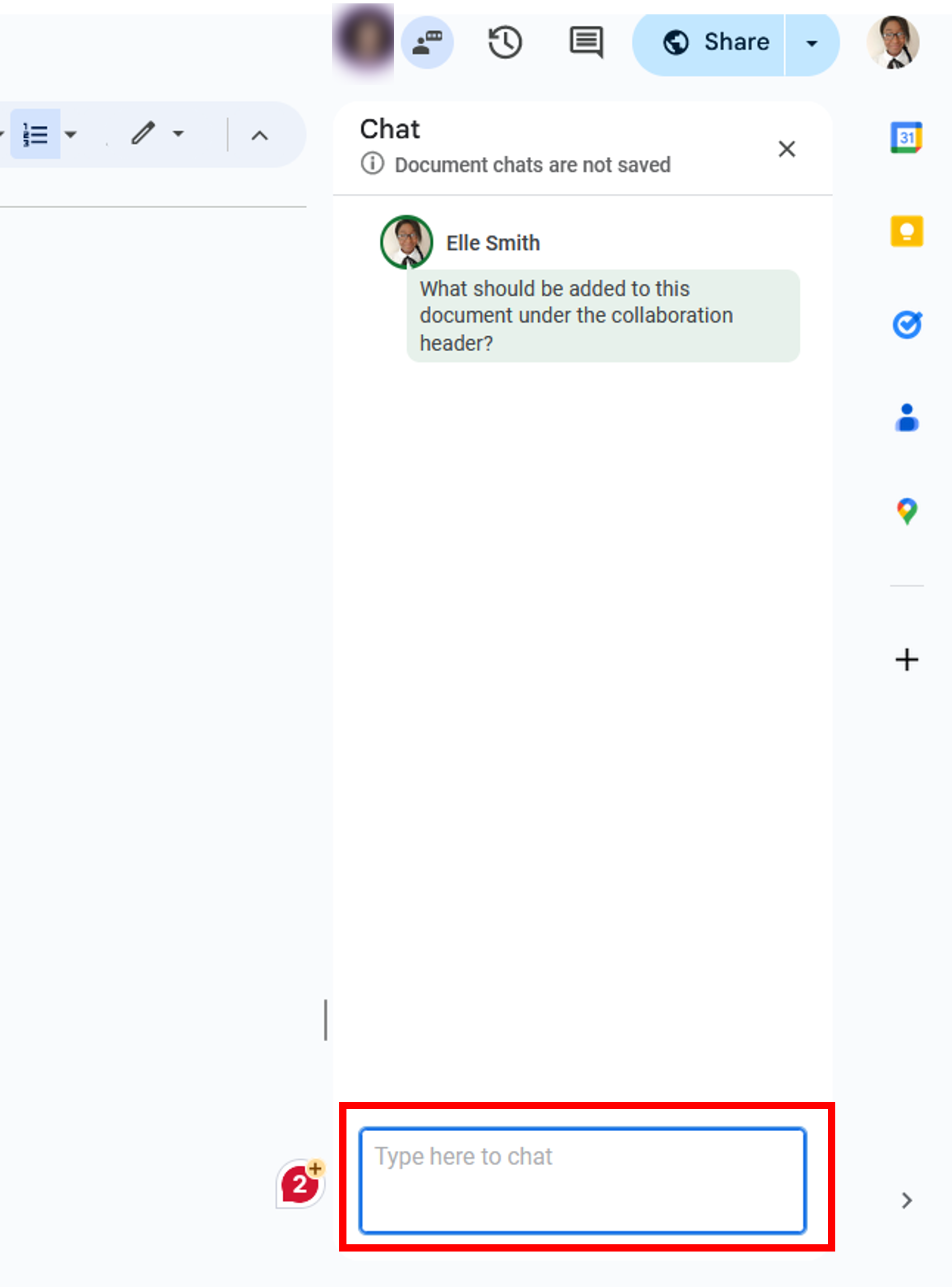
When there is more than one person in a Doc, users can collaborate through the Doc Chat.
|
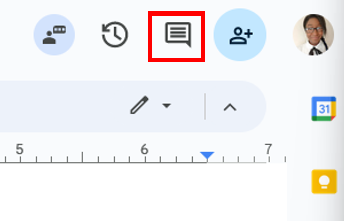
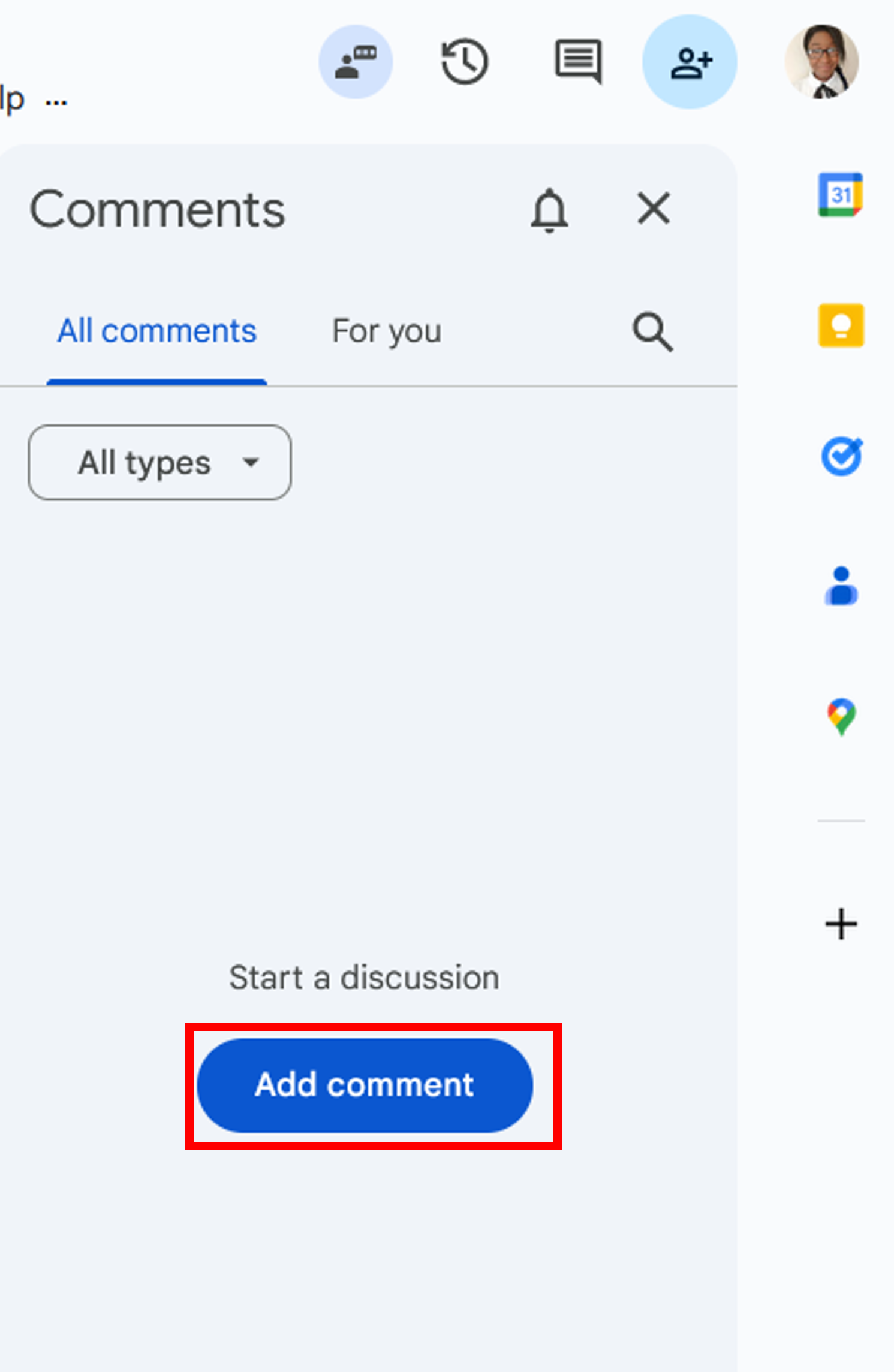
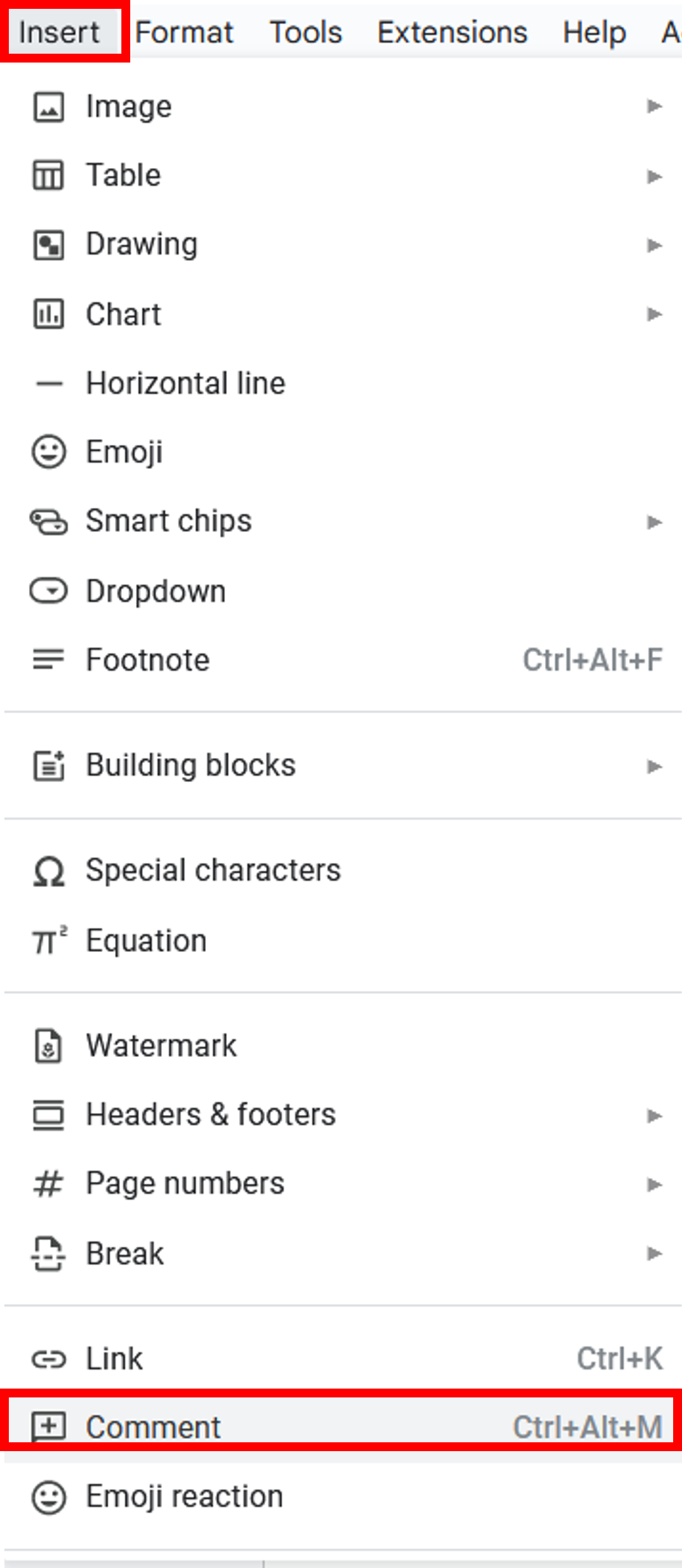
Users can add comments to a Doc, which can be viewed by all collaborators by clicking the comment icon at the top right of the Doc and then clicking the add a comment button.
|
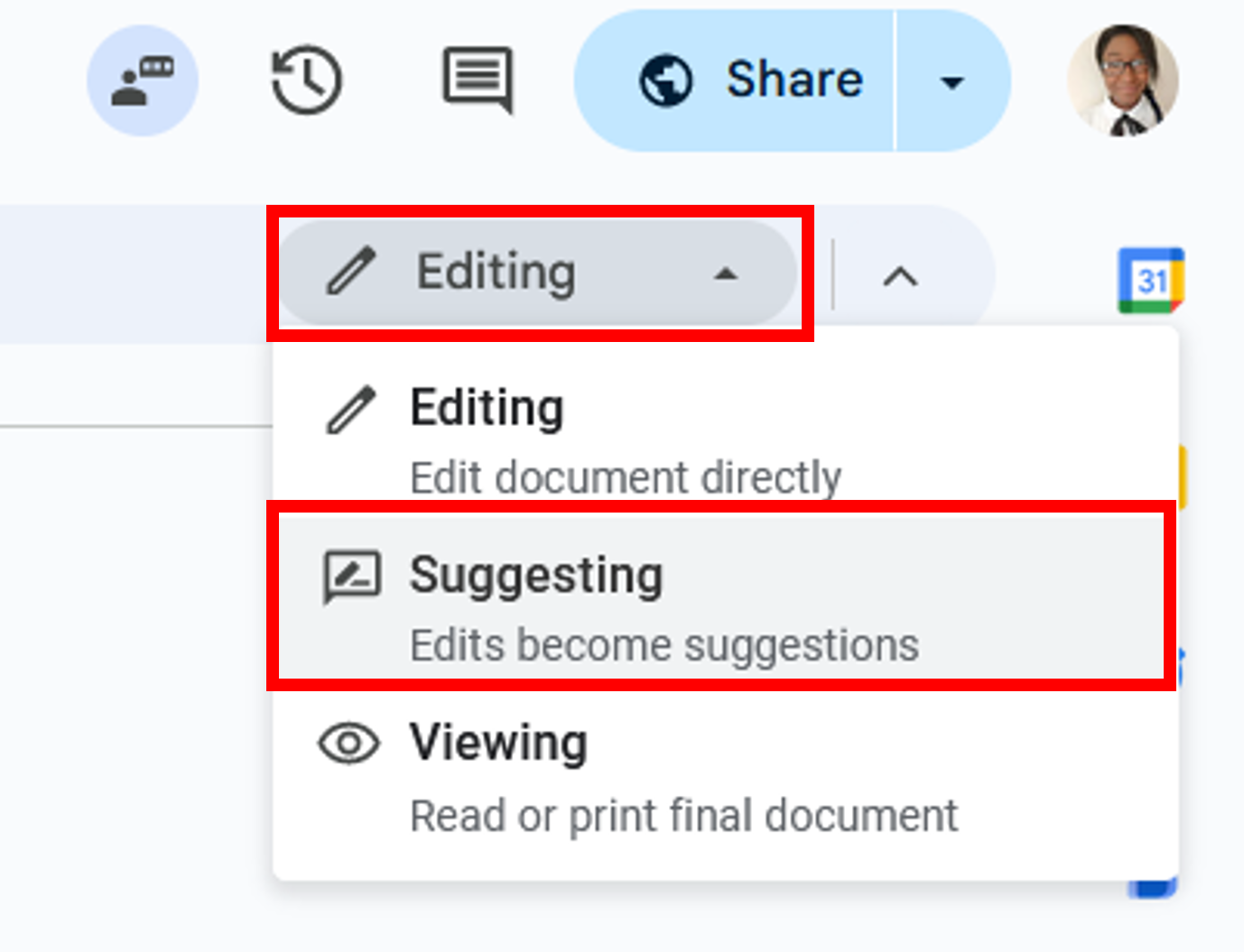
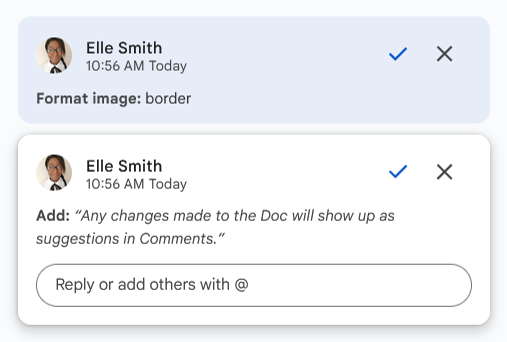
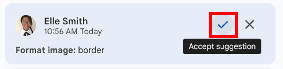
Rather than directly editing a Doc, users can opt to suggest edits to other collaborators.
|
Docs Quick Start Guide - What you can do with Docs Switching from Microsoft Word to Google Docs - Learn the differences between Microsoft Word and Google Docs as well as best practices for collaboration. Tips to Format and Customize Documents - Learn how to create and use templates, add and edit images, create an outline, and more. Google Docs Cheat Sheet - provides quick references on how to edit text; add images, tables, and links; copy, email, or version your document; and share and collaborate. |
Tips to edit and collaborate on files will show you how to use shortcuts to create new files, use text-to-voice, track file updates, and comments, and get notifications about changes in your files. Tips for Strong Proposals can show you how to use templates, quickly add citations, track drafts, and add visuals. |
The following Google Help Center Articles and Guides provide resources for troubleshooting common issues in Google Docs and Workspace products: Trouble Opening Google Files or Folders
|