Overview
Autodesk software is a powerful suite of design and engineering software tools used in many fields and disciplines. These programs enable users to design, visualize, simulate, and analyze everything from large-scale architectural projects to complex mechanical parts.
Autodesk Software
- AutoCad - Software for 2D and 3D CAD. Subscription includes AutoCAD, specialized toolsets, and apps.
- Revit- Plan, design, construct, and manage buildings with powerful tools for Building Information Modeling.
- Maya- 3D animation, modeling, simulation, and rendering software for film, games, and TV.
- Fusion 360 - Fusion 360 unifies design, engineering, electronics, and manufacturing into a single software platform.
- MeshMixer - 3D modeling software developed by Autodesk. It is primarily used for manipulating and editing 3D meshes, especially for tasks related to 3D printing and digital sculpting.
How to Access Autodesk Products
- Open Software Center or Self Service on your computer and search for the Autodesk product you want to download.
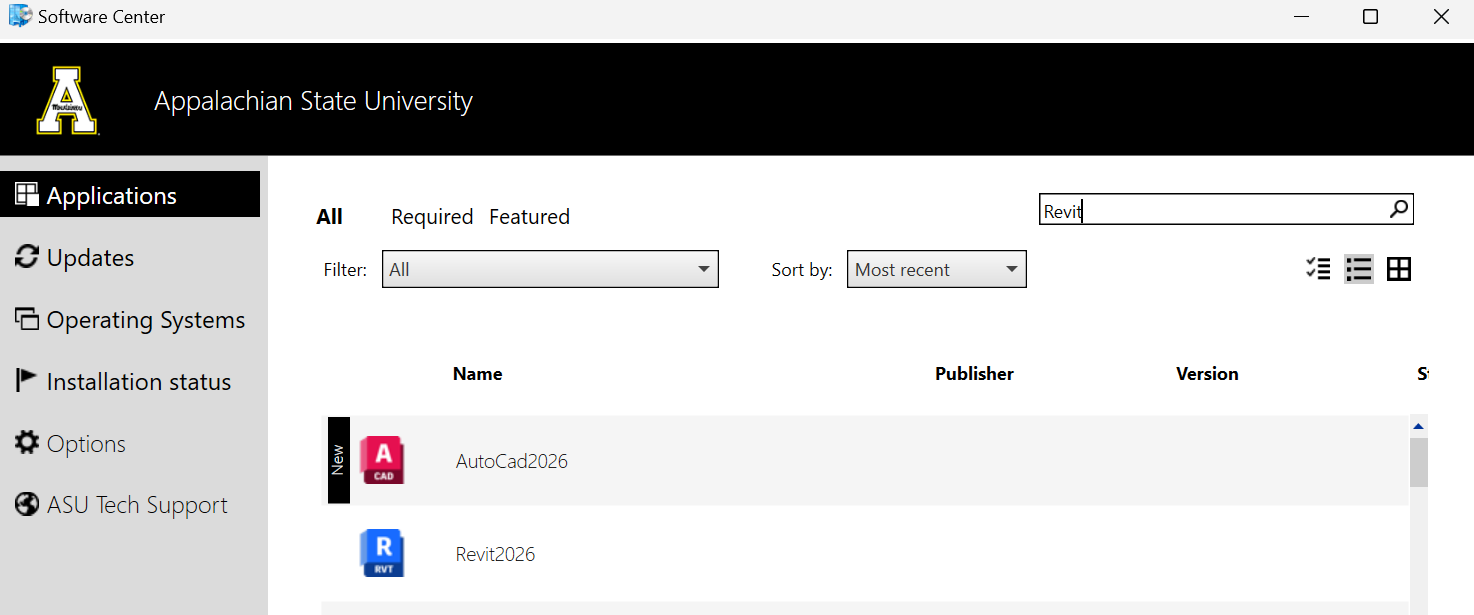
- Click on the application, then click install.
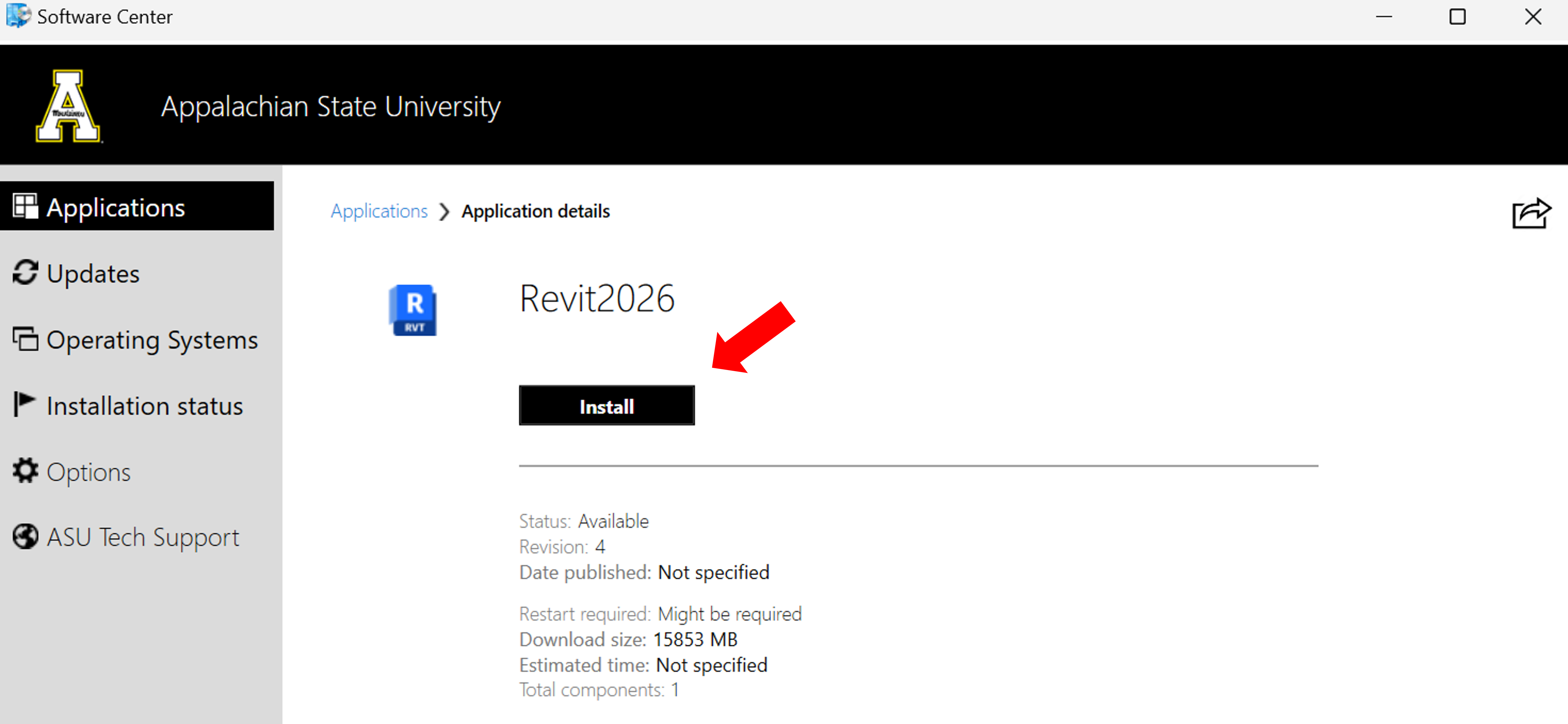
- Once the installation is complete, the application will open automatically and should prompt you to log in through your browser. If not, click Sign In in the top menu bar of the application to prompt the browser sign-in.

- Open the installed Autodesk application on your computer and click Sign In.
If you have a Mac, you will only see AutoCAD. Windows computers will have all of the applications.

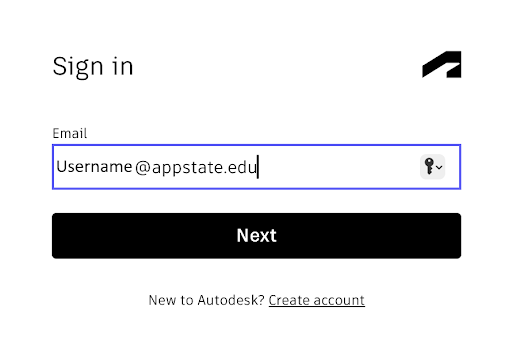
- Once your web browser opens to the Autodesk login, enter your App State email address.
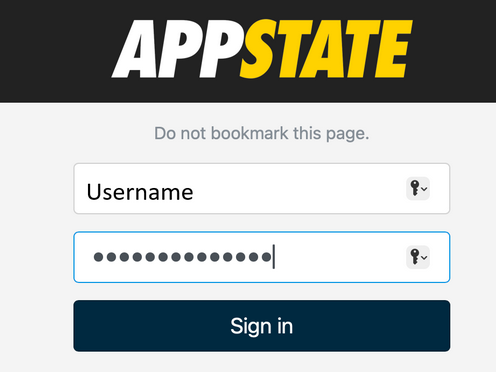
- On the Shibboleth authentication page, enter your App State username and password and sign in.
- Click Open Product to go back to the Autodesk application.
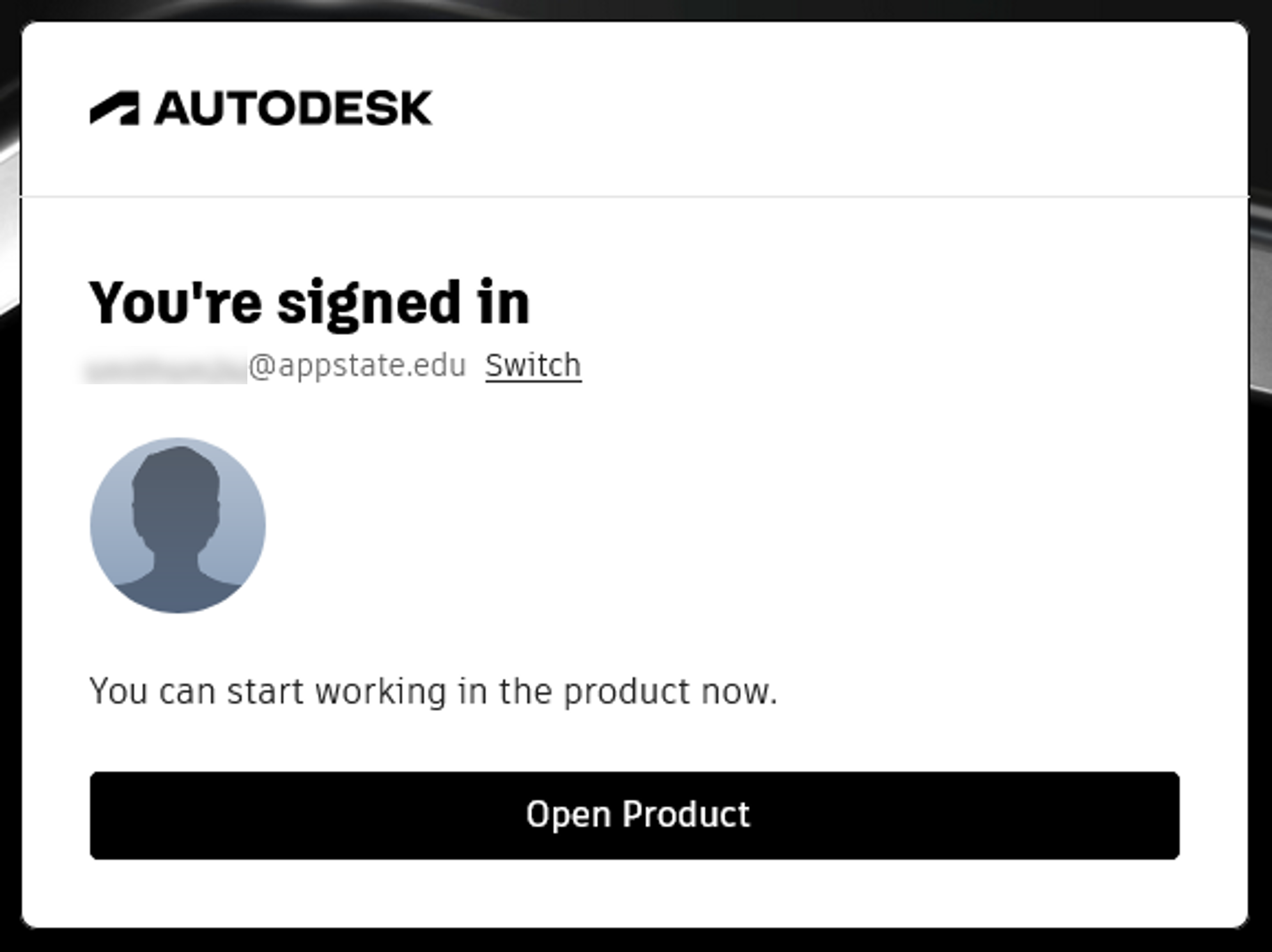
Faculty, staff, and students can download and install Autodesk on their personal machines for free from the Autodesk website with an App State email address.
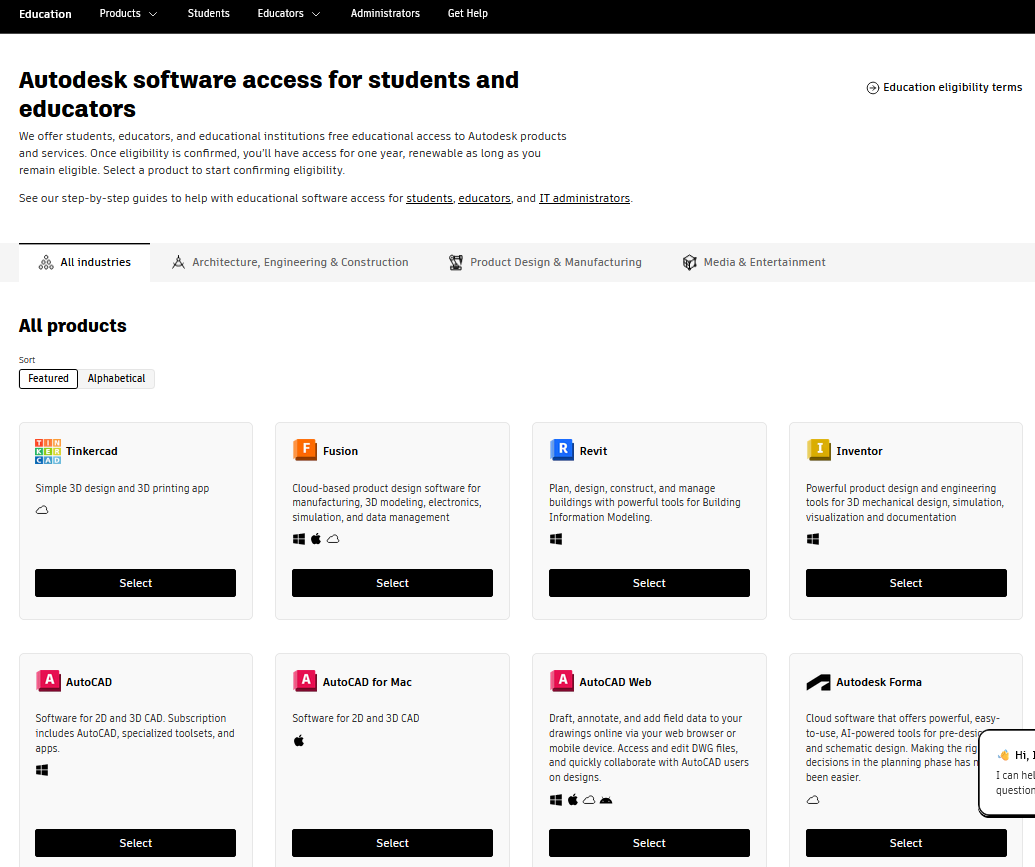
- Click on a product on the Autodesk software access for students and educators webpage.
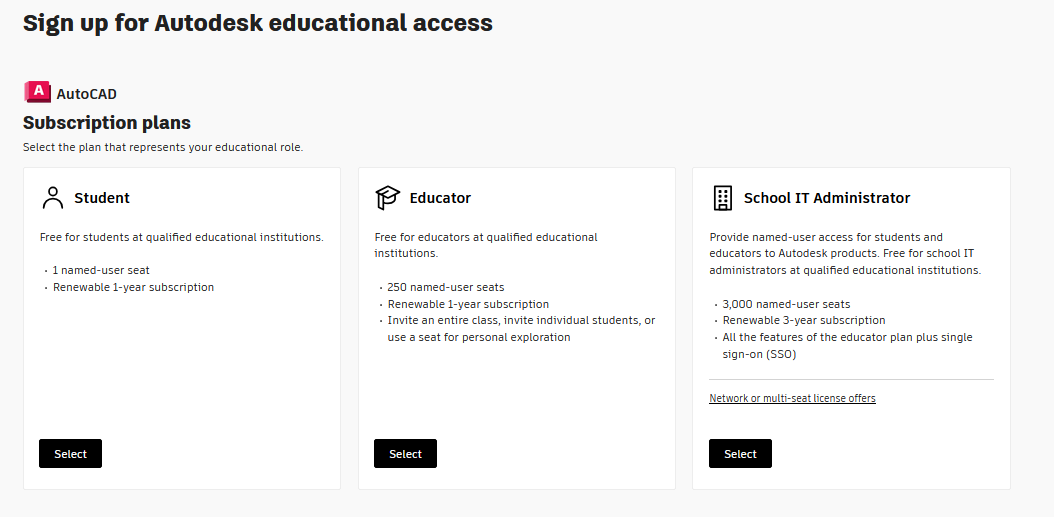
- Sign up for Autodesk educational access by choosing your role.
- Enter your info for the verification process.
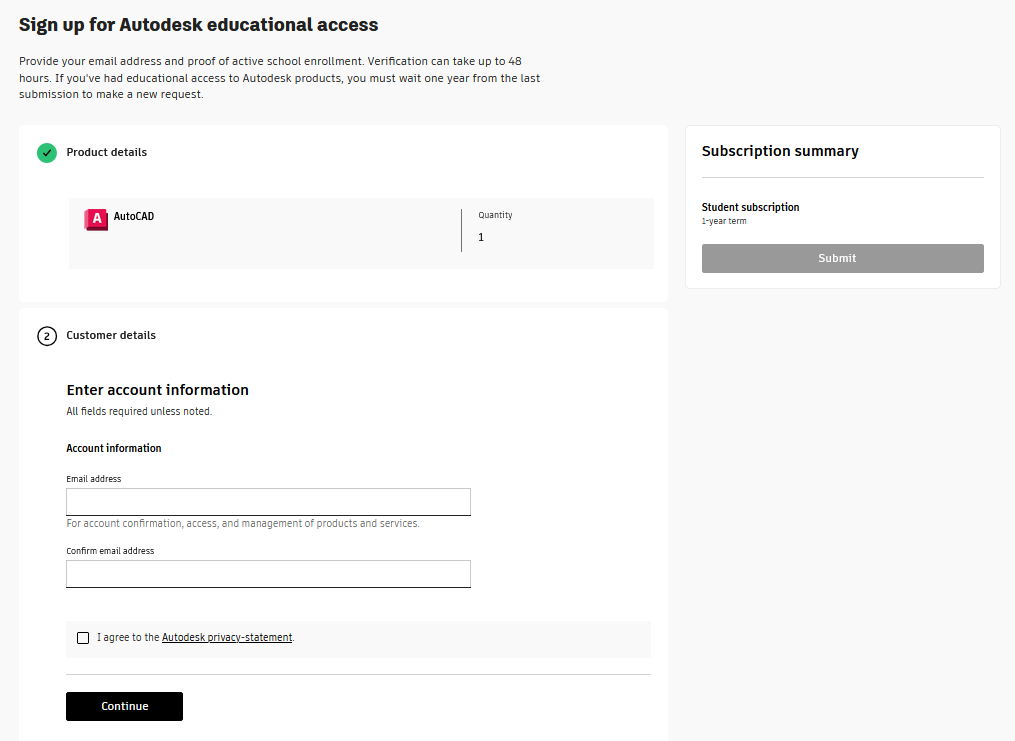
- Verify your affiliation with the university to gain access.
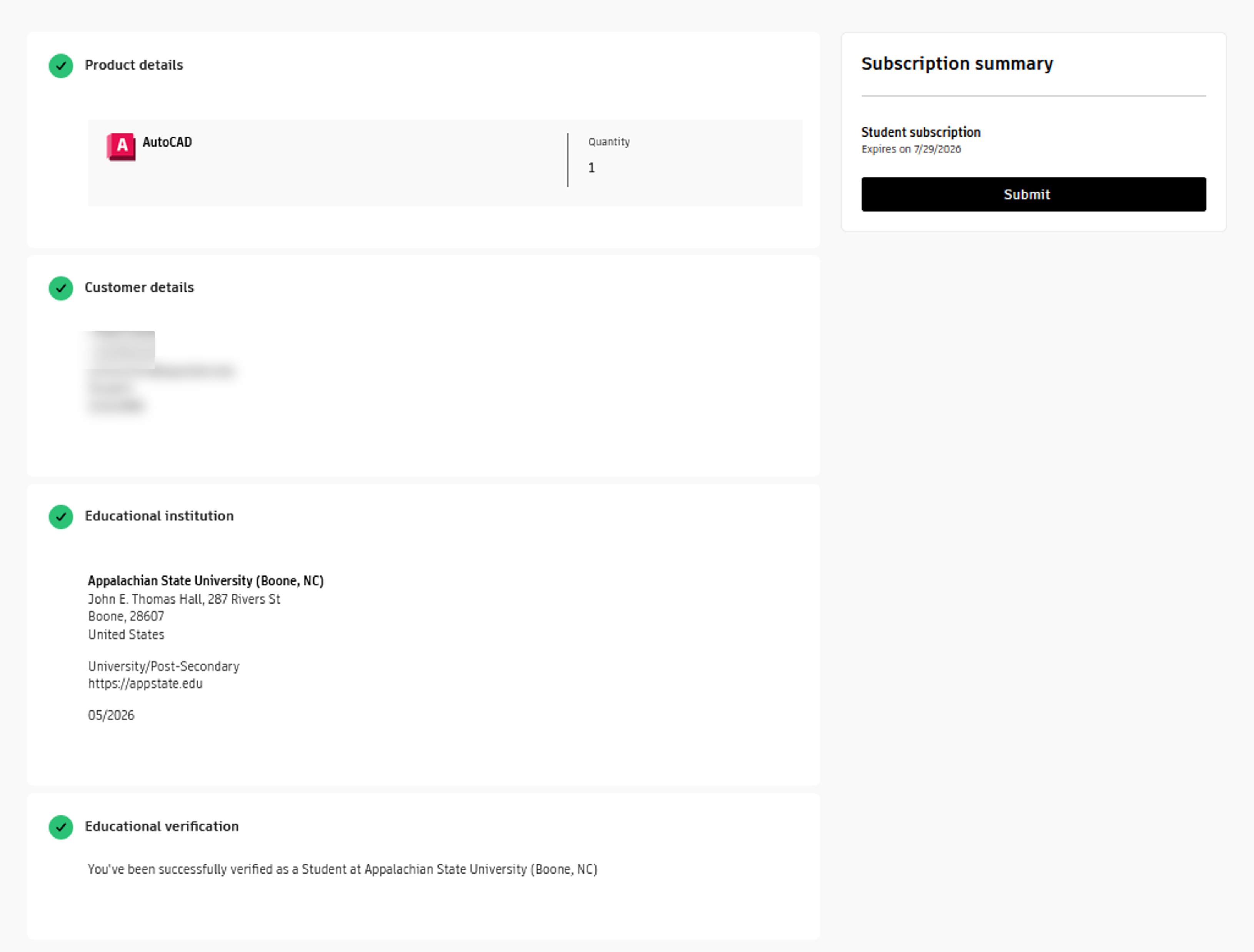
- You’ll get an email explaining your eligibility for free Autodesk educational access and how to begin using the available tools.
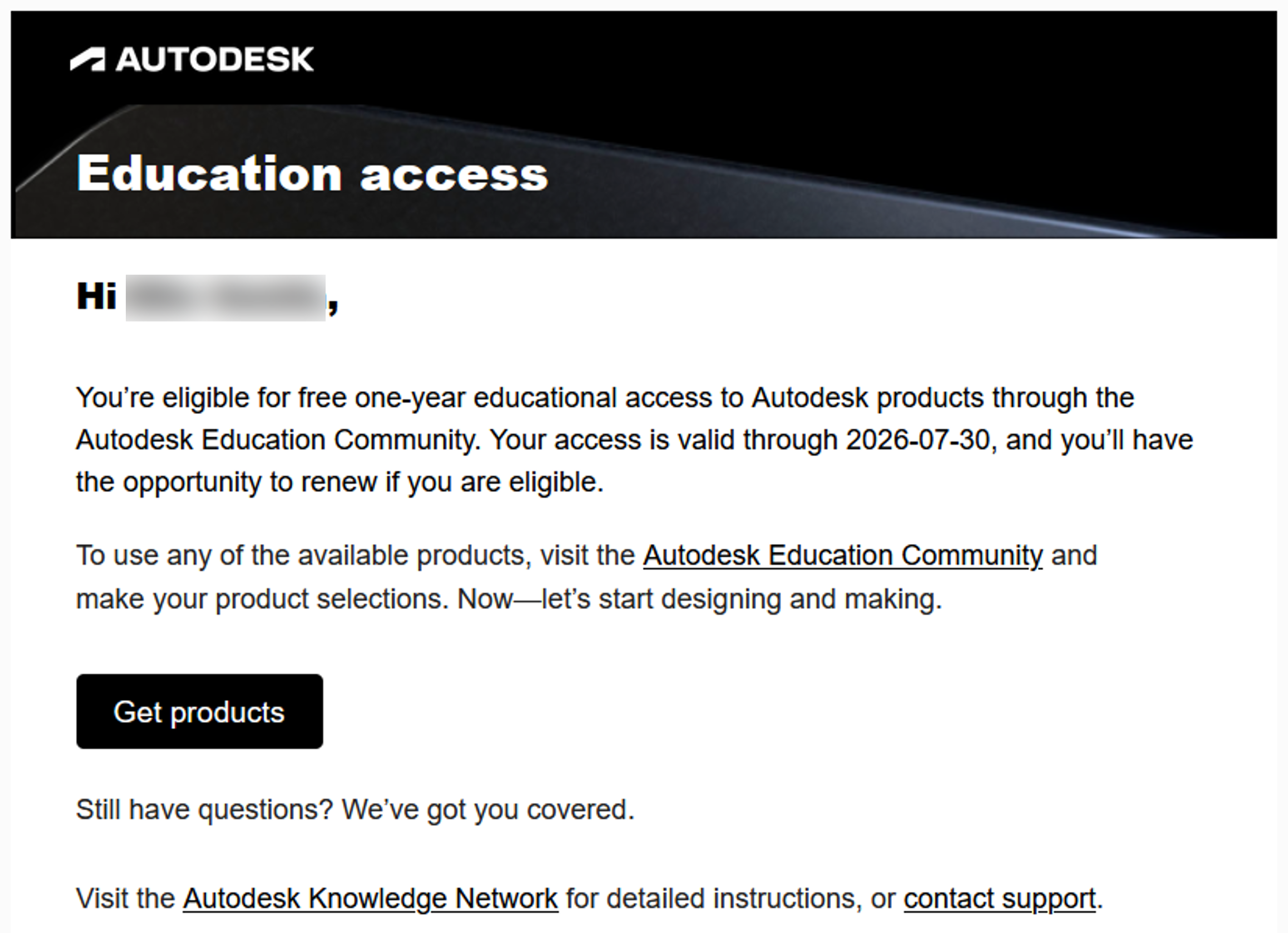
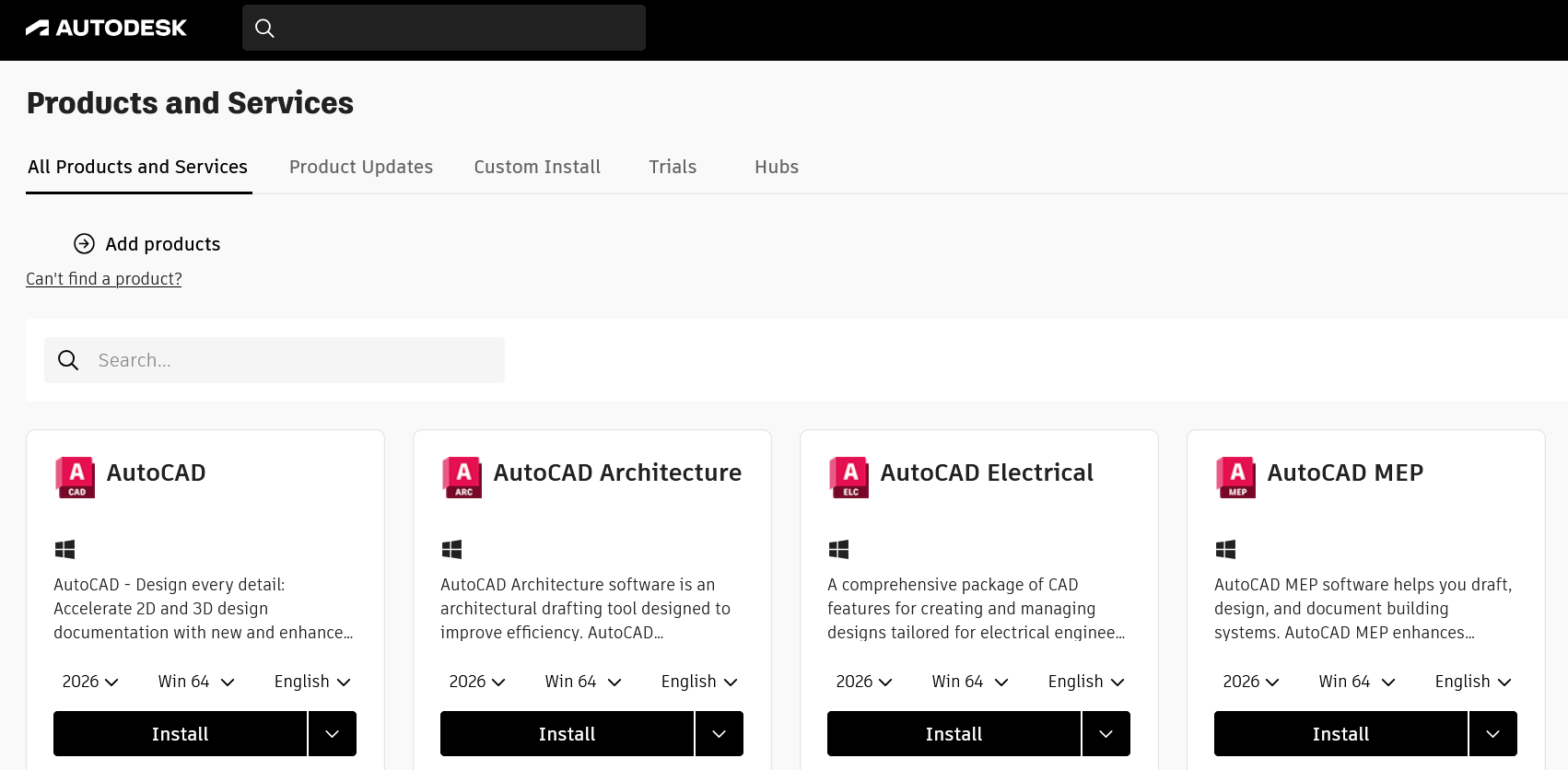
- Click Get Products from the signup confirmation email or click Products and Services in the autodesk portal after signing in.
- Click install next to the product you want to download.
- After your installation is complete, open the product to sign in automatically, or click the Sign In link in the top menu bar.
Support
For help with Autodesk licensing, installation, or troubleshooting, enter a Service or Software Request ticket, and indicate:
- The username of the person who needs the software
- Whether the device is a Mac or a Windows computer
Resources
Linkedin Learning