...
3. On the printer home screen, click Copy/Fax (the middle button).
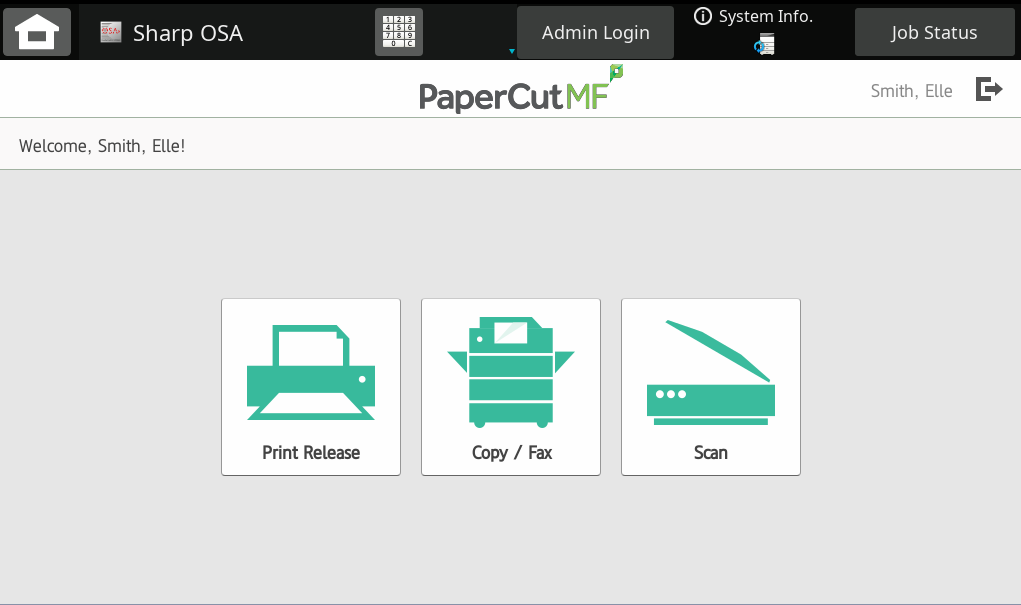 Image ModifiedCopy/Fax Button
4. Next, click the account that you want to copy from. Either a personal student account, or a department account (for Faculty, Staff, Graduate students, and student employees).
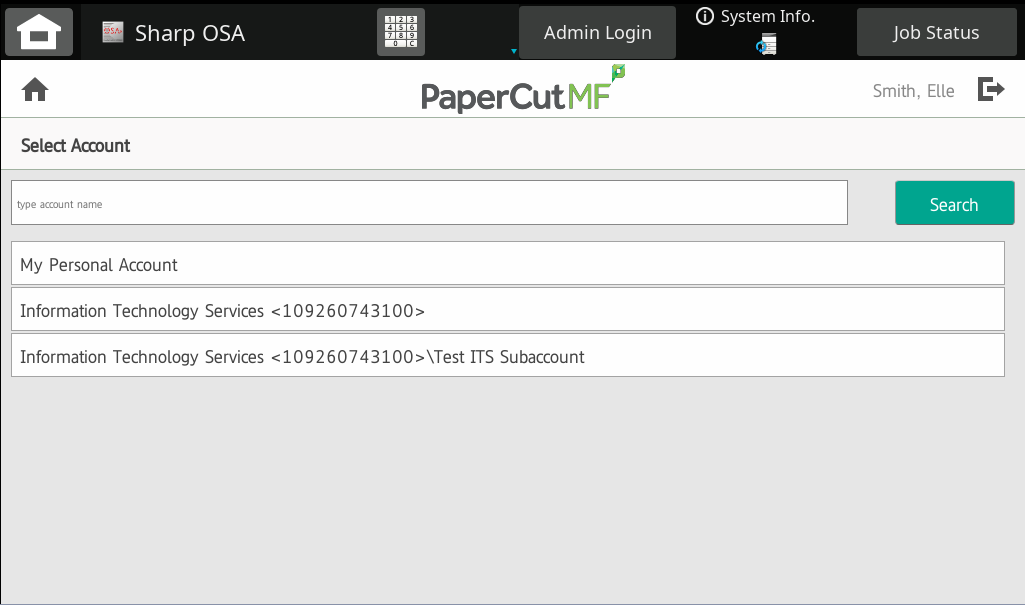 Image ModifiedSelect Account
5. Click Copy.
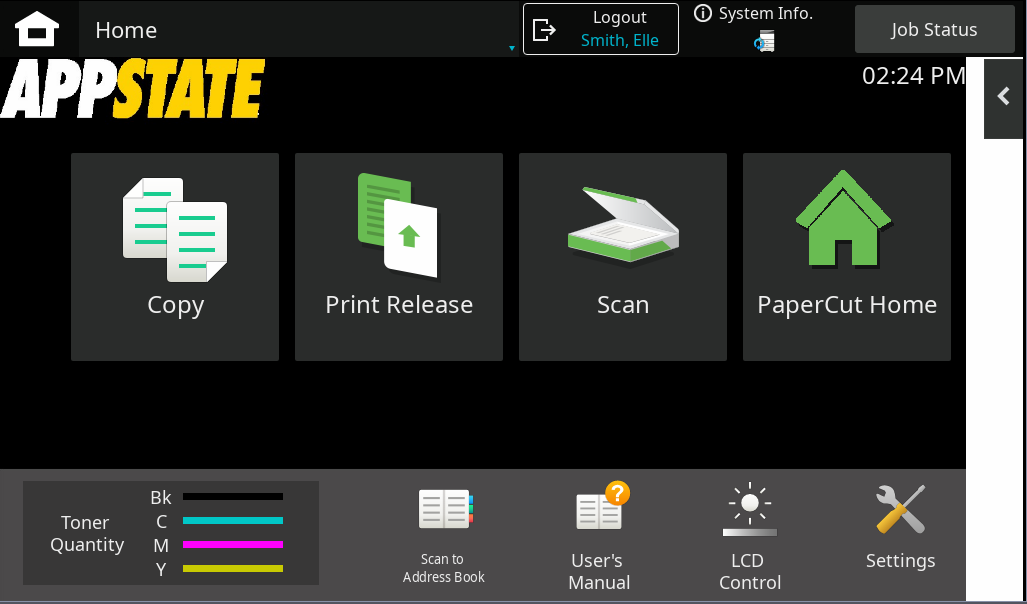 Image ModifiedCopy
6. From the next screen you can adjust copier settings, as usual, such as color mode, paper type, two-sided printing, staple, hole-punch, etc. click Click CA to clear everything back to default or click C to clear the number of copies.
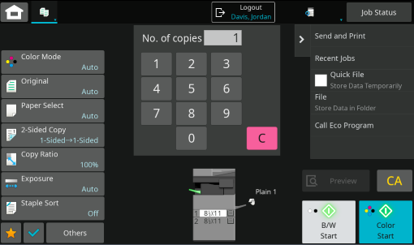 Image ModifiedCopy Settings.
5. Once you have adjusted any settings, click either the B/W Start or Color Start button in the bottom right of the screen, to begin copying your document.
...
| Expand |
|---|
| title | Choosing Paper Drawers |
|---|
|
The copier will automatically choose the type of paper. To Choose Another Drawer- Click Click Paper Select in the left sidebar menu on the Copy homepage.
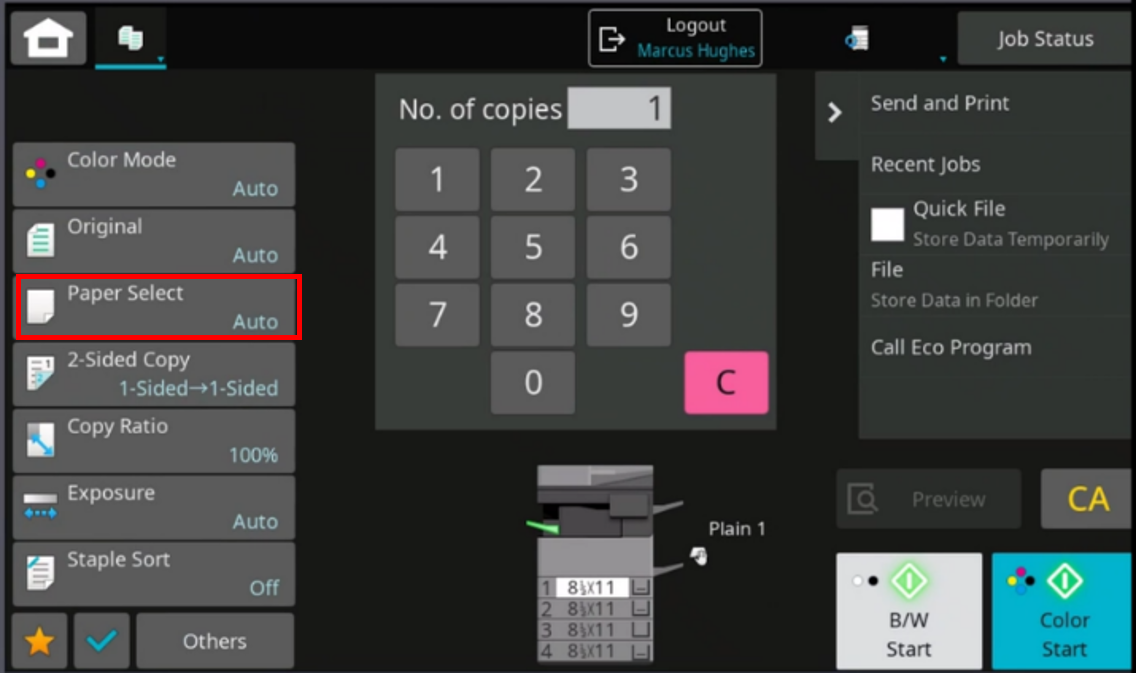 Image ModifiedPaper Select Image ModifiedPaper Select
- Choose another drawer by touching the copier image in the center of the screen and choosing the drawer, or choose one of the listed trays on the left.
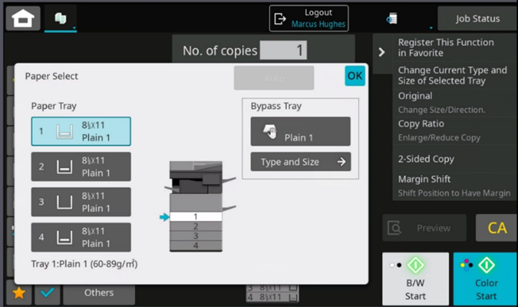 Image ModifiedChoose a Drawer Image ModifiedChoose a Drawer
|
| Expand |
|---|
|
- Click 2-Sided in the left sidebar menu on the Copy homepage.
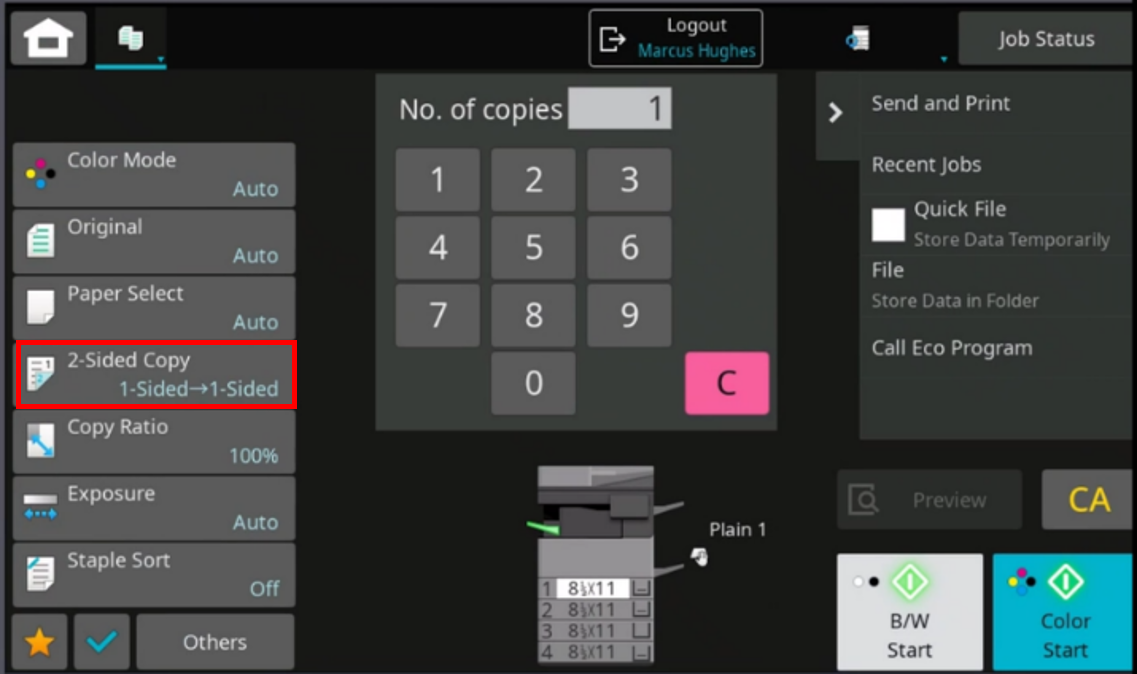 Image ModifiedTwo-sided Copy Image ModifiedTwo-sided Copy
- The image on the left is what your pages look like before they are copied, one-sided or two-sided. The second image is what you want your copy to look like when it comes out. The default setting, Book, will print long side. Choosing Tablet will print short side.
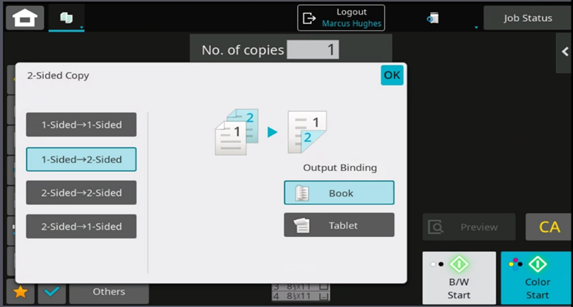 Image ModifiedSet Tablet or Book printing. Image ModifiedSet Tablet or Book printing. - Click the OK button in the top right corner to accept.
- Click Preview to verify the orientation or click Start to begin copying.
|
...
| Expand |
|---|
|
To Reduce or Enlarge Your Copies- Click Copy Ratio in the left sidebar menu on the Copy homepage.
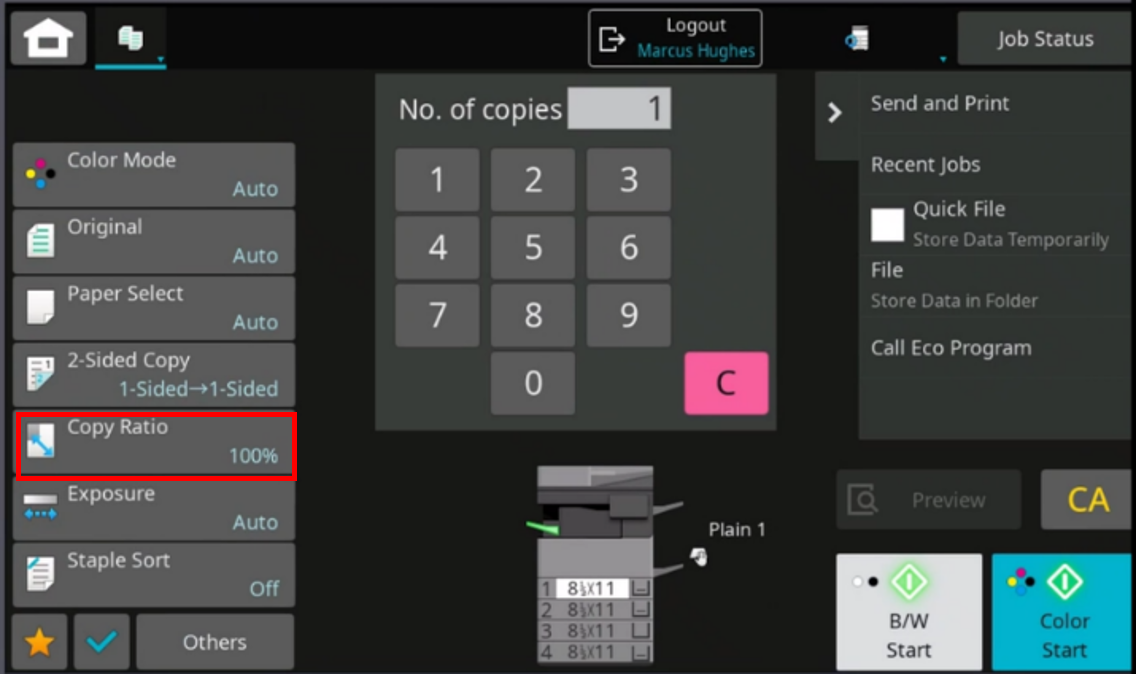 Image ModifiedCopy Ratio Image ModifiedCopy Ratio
- Choose a preset or use the - or + icons to adjust. Users can also click the white box that says 100% to manually enter a ratio using the keyboard.
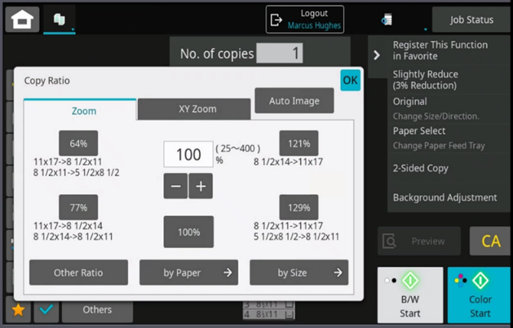 Image ModifiedSet Ratio. Image ModifiedSet Ratio.
|
| Expand |
|---|
|
- Click Exposure in the left sidebar menu on the Copy homepage.
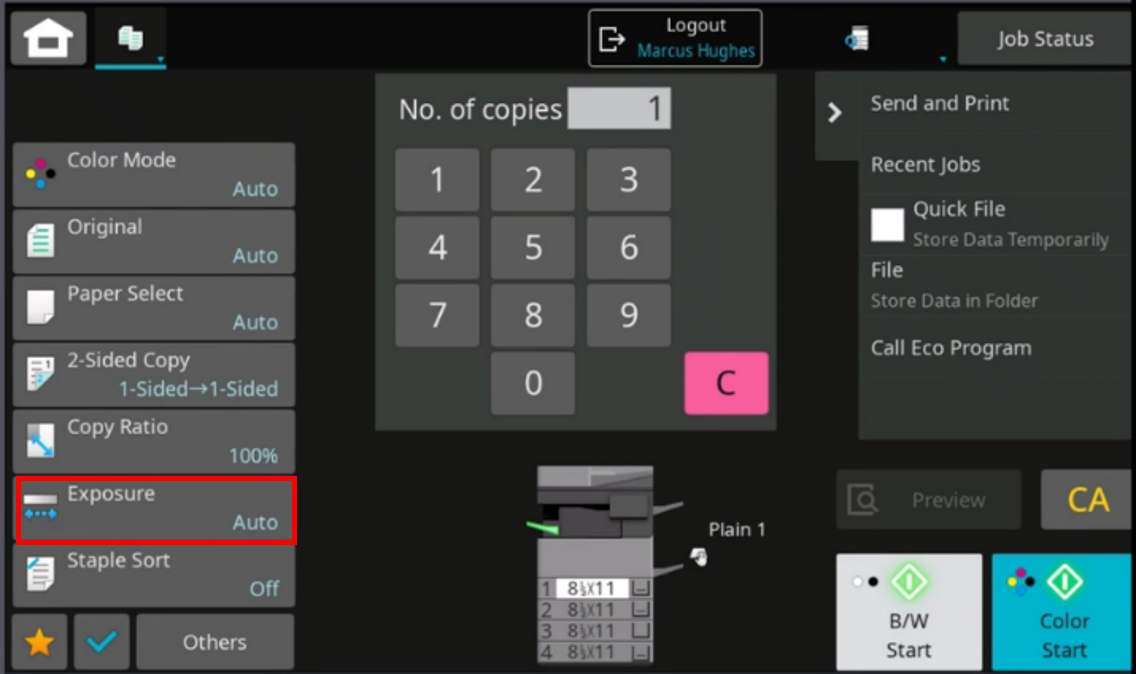 Image ModifiedSelect the number of copies. Image ModifiedSelect the number of copies.
- To lighten adjust the slider to the left, to darken adjust the slider to the right, or select a preset exposure setting based on the type of the original document (photo, text, etc.)
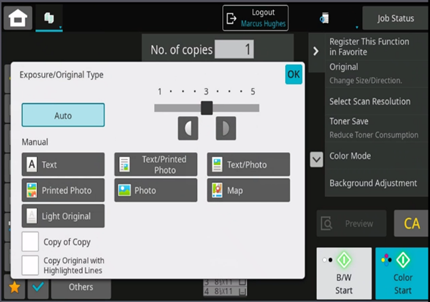 Image ModifiedAdjust the slider to set the exposure. Image ModifiedAdjust the slider to set the exposure.
|
| Expand |
|---|
|
For Copiers with Stapling Functionality- Click Staple Sort in the left sidebar menu on the Copy homepage (If you don’t see Staple Sort, click Others to find this option).
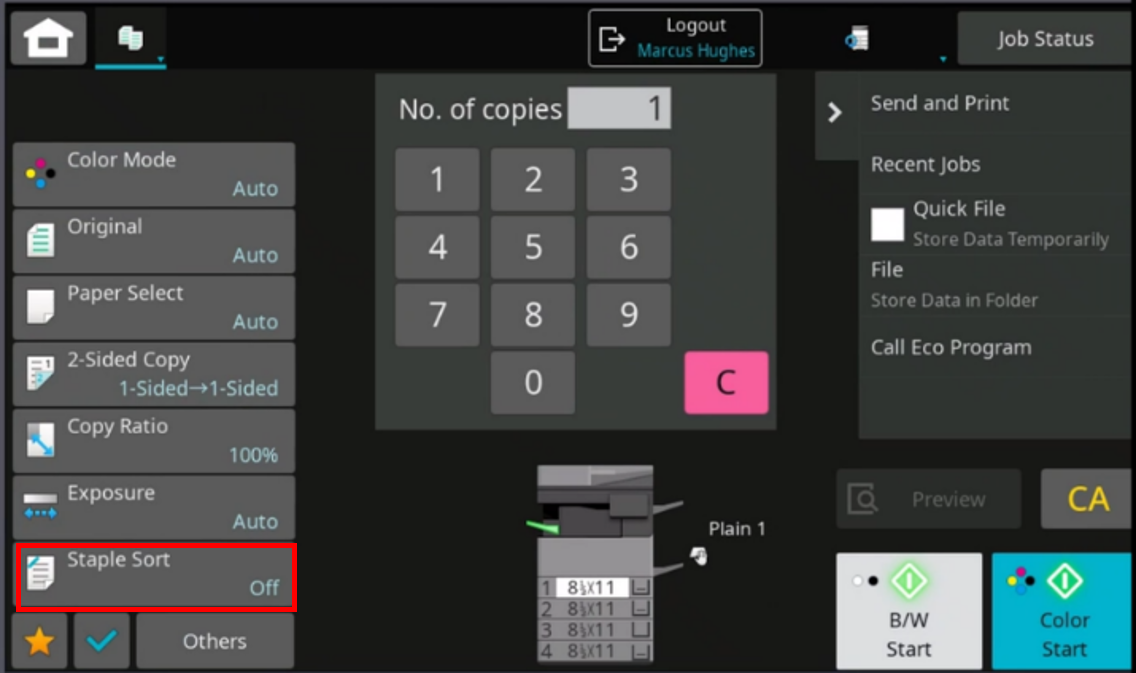 Image ModifiedSelect the staple sorting options. Image ModifiedSelect the staple sorting options.
Choose the position where you want your staple. 1 staple or or 2 staples, or, If applicable, stapleless staple.
| Info |
|---|
Copiers with traditional stapling can staple up to 50 pages. Copiers with stapleless stapling functionality can stapleless staple up to 8 pages with the newer models (5 on the older models). |
|
...