PaperCut Printer Management Software
How Does it Work
Employees print, make copies, and scan using a Mobile AppCard tap, physical AppCard tap, or App State username and password to authenticate (identify themselves) at the printer.
Downloading PaperCut
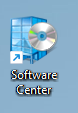
- Open Software Center on your Windows computer.
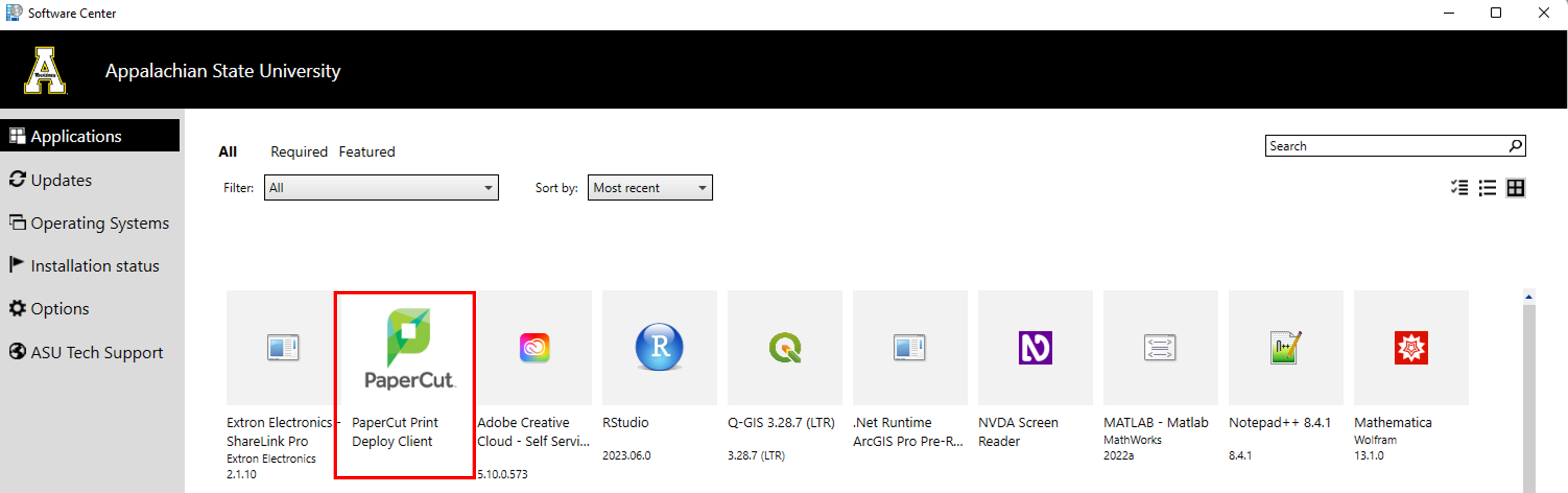
- Click on the PaperCut icon, or search for PaperCut in the search bar.
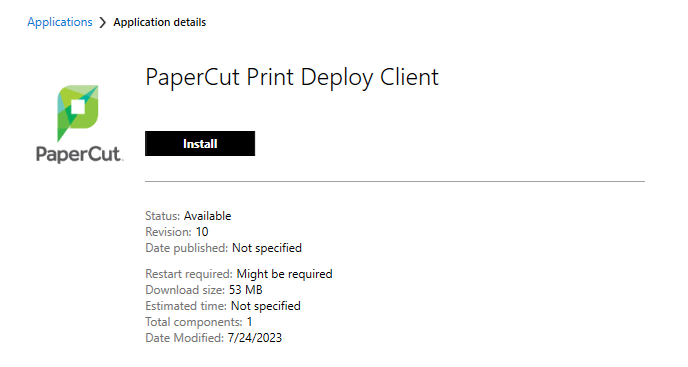
- Click Install.
- After installation, PaperCut will be installed under Printers & Scanners.

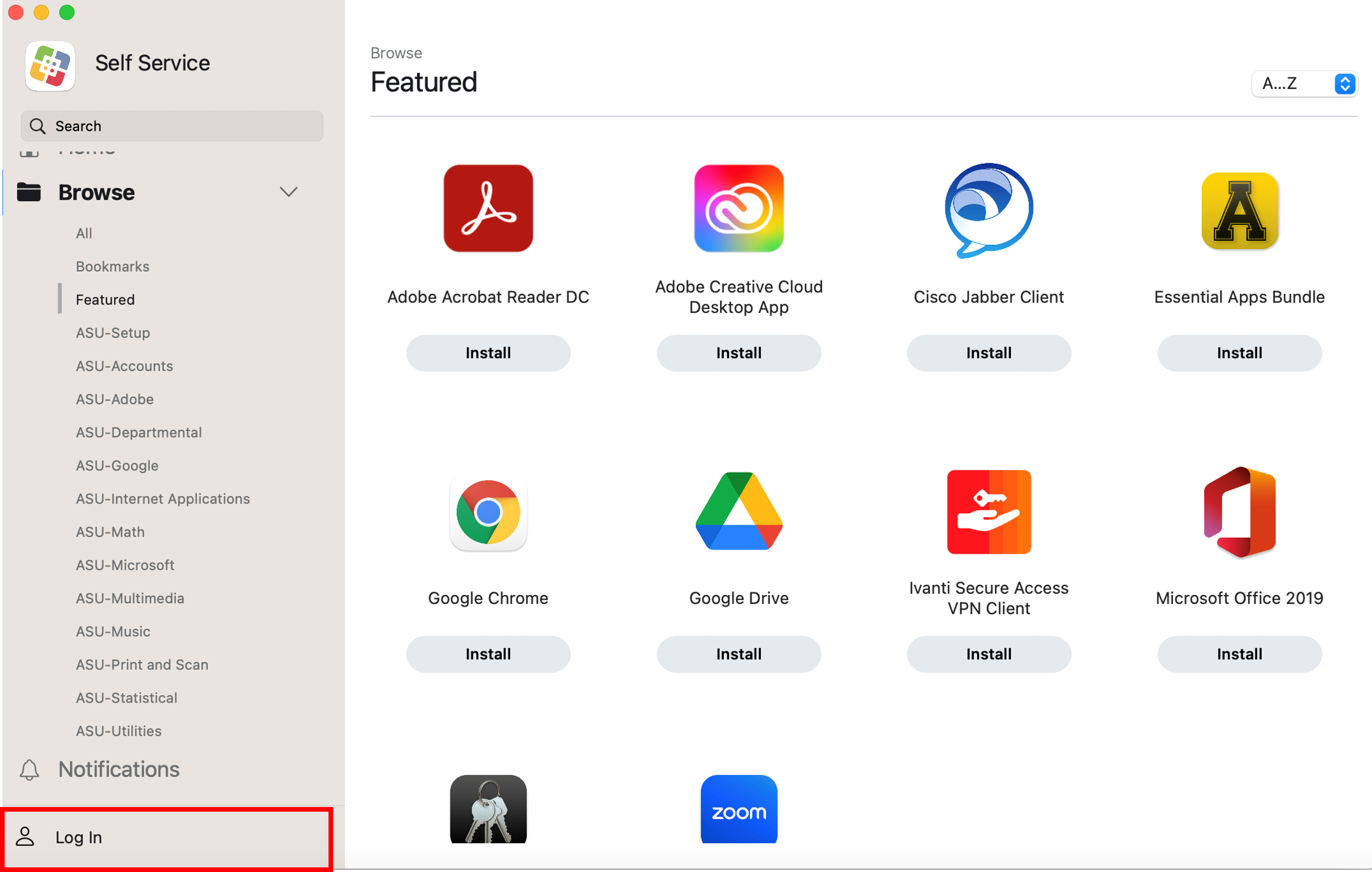
- Open Self Service on your computer.

- Click Log In and sign in with your App State credentials.
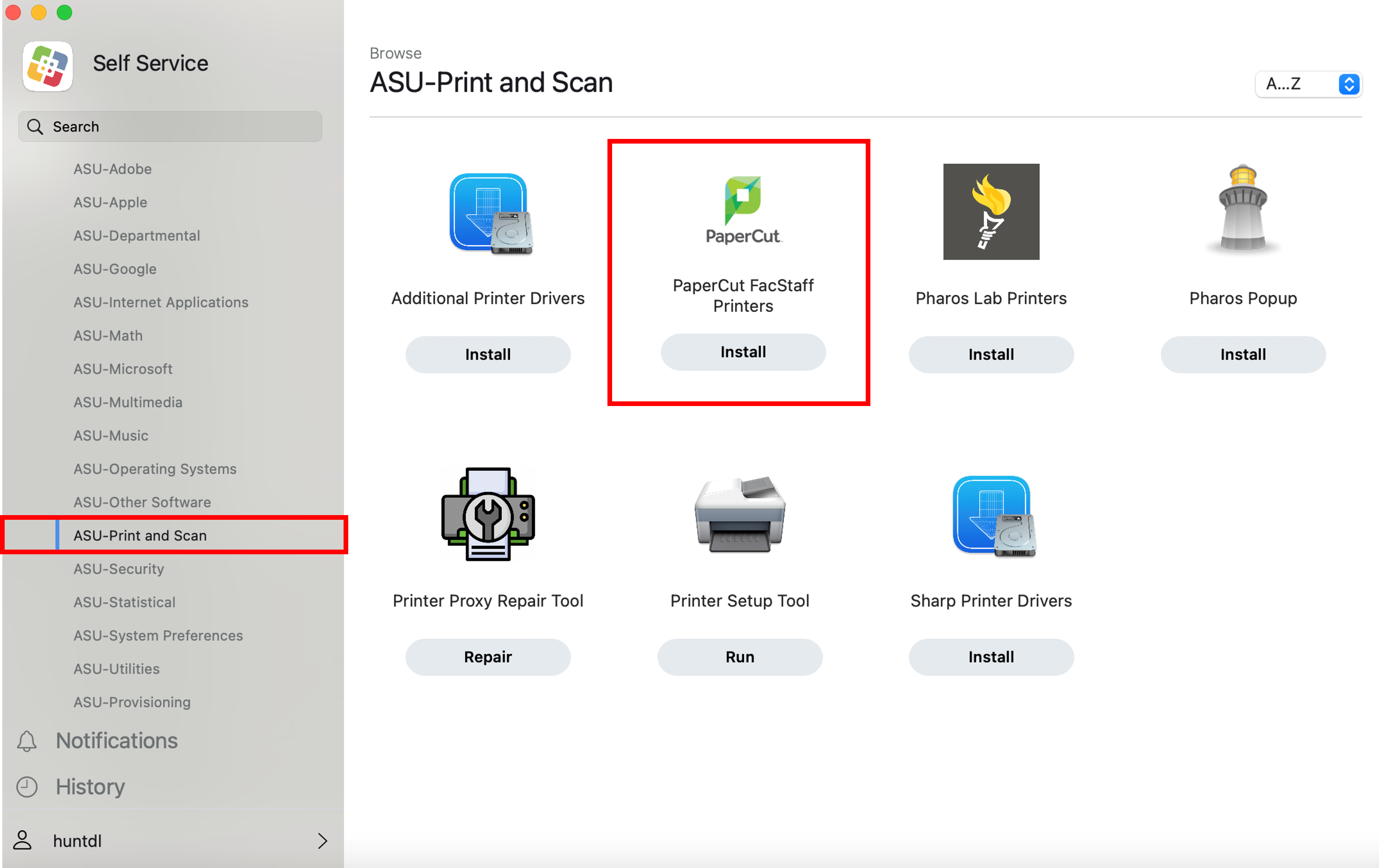
- Find PaperCut under ASU-Print and Scan and click Install to download.
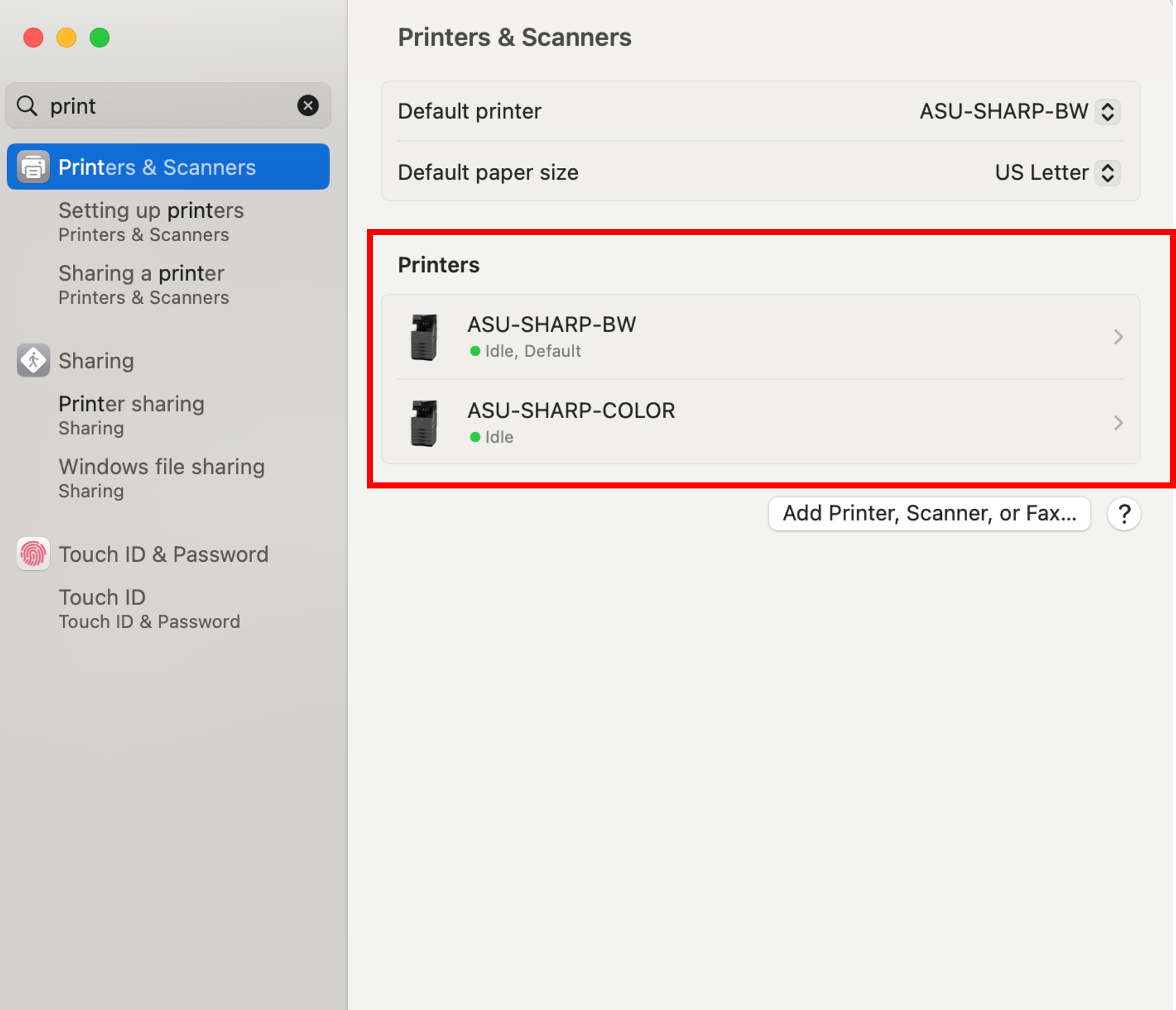
- After installation, you can see PaperCut installed in system settings under Printers & Scanners.
Logging into the Printer
- Mobile AppCard Tap
Locate the tap panel on the printer and tap your physical AppCard to authenticate. - Physical AppCard Tap
Locate the tap panel on the printer and tap your mobile phone (You don't need to bring up your AppCard for the tap to work). - Username and Password Authentication
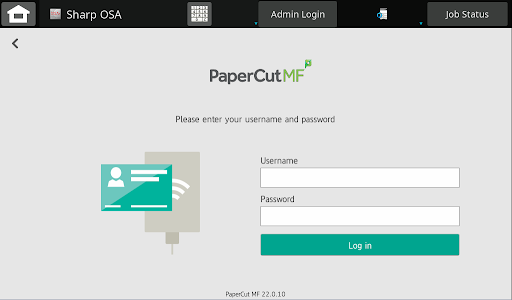
On the printer touchscreen, press the Username and password button to log in by using your App State credentials. You can use the keyboard that appears on the screen or the physical keyboard that you can pull out from underneath the screen.
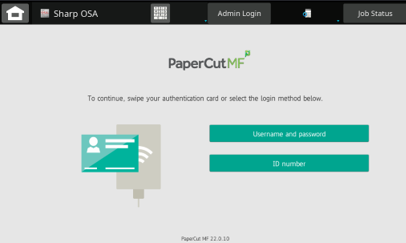
Enter your App State username (without the @appstate.edu) and password, and press Log in.