Content Creation, formatting, and Tools
In your browser, type doc.new into the search bar.
This will open a new Google doc in your browser.

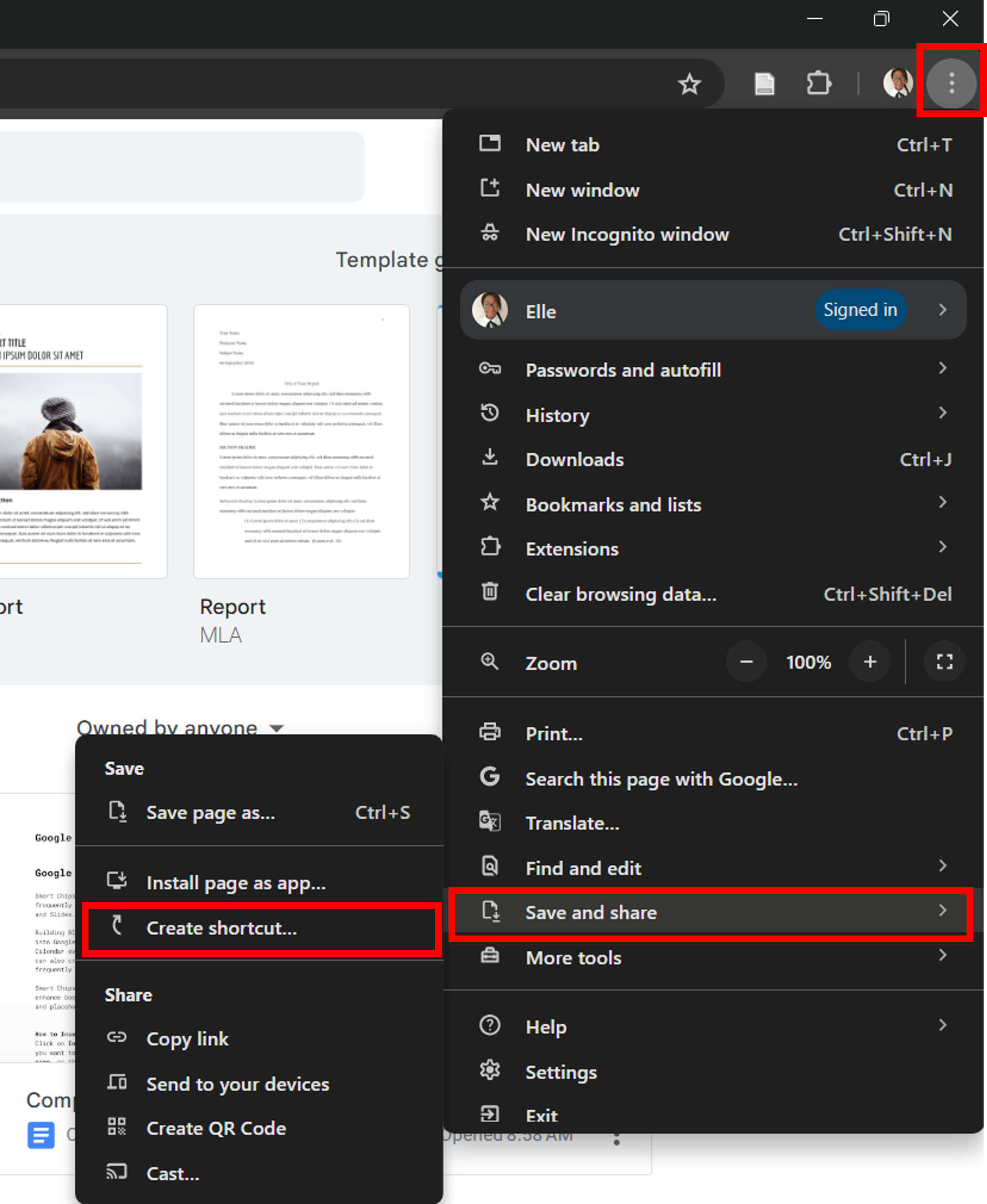
- In your Chrome browser, navigate to the Docs homepage and click the three-dot icon at the top right next to your profile picture. Click on Save & share then click Create shortcut.
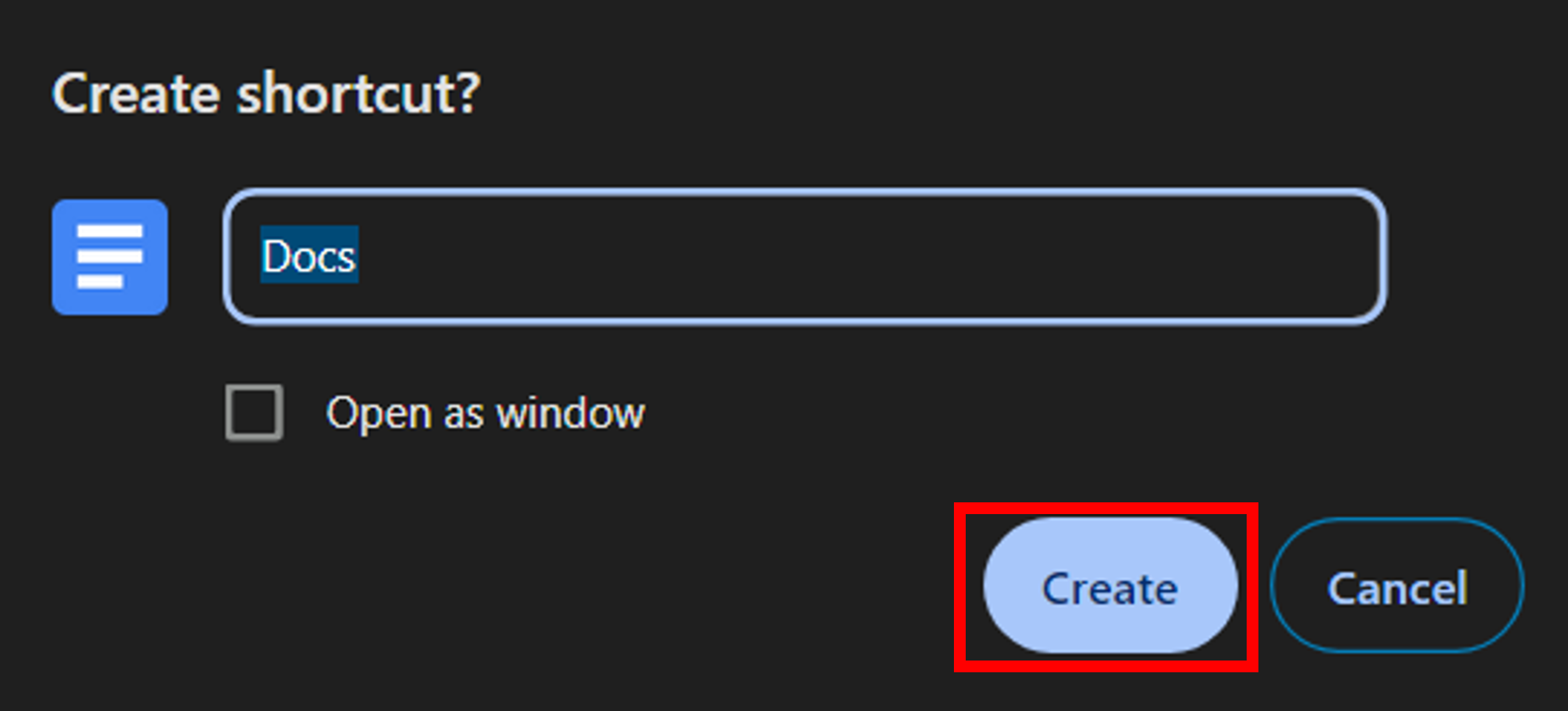
- Name your shortcut and click Create.
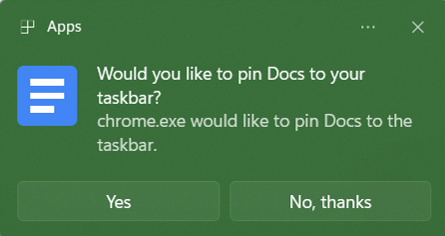
- Choose whether you want to pin the Docs button to your taskbar.
- Your shortcut can be located on your Desktop.

From within any Google Workspace product, type Ctrl+ (for Windows, Cmd+/ for Mac), and the shortcut menu will reveal every keyboard shortcut available.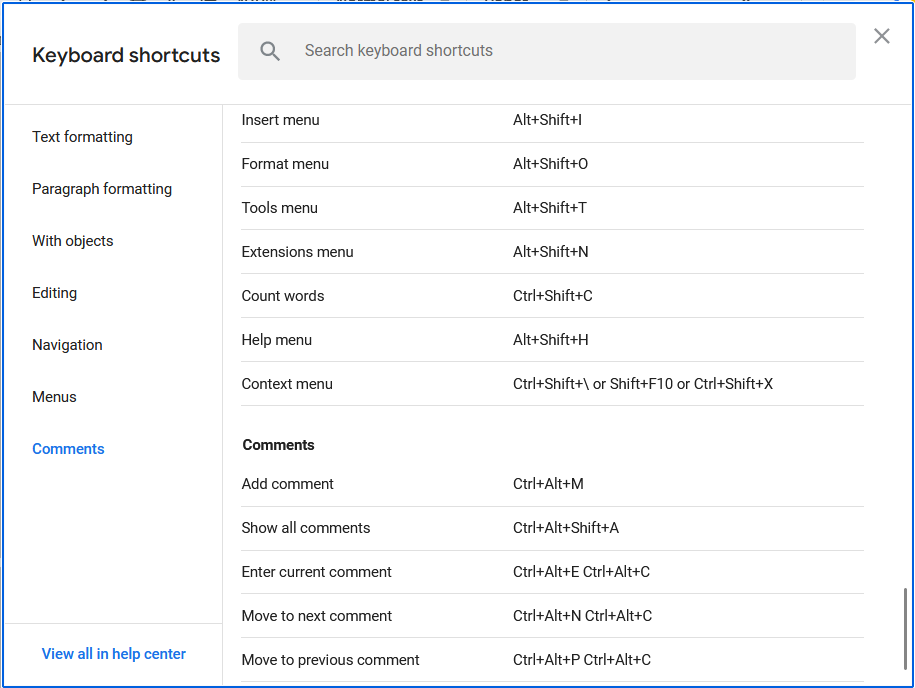
Alternatively, you can click Help in the menu, and then click Keyboard shortcuts.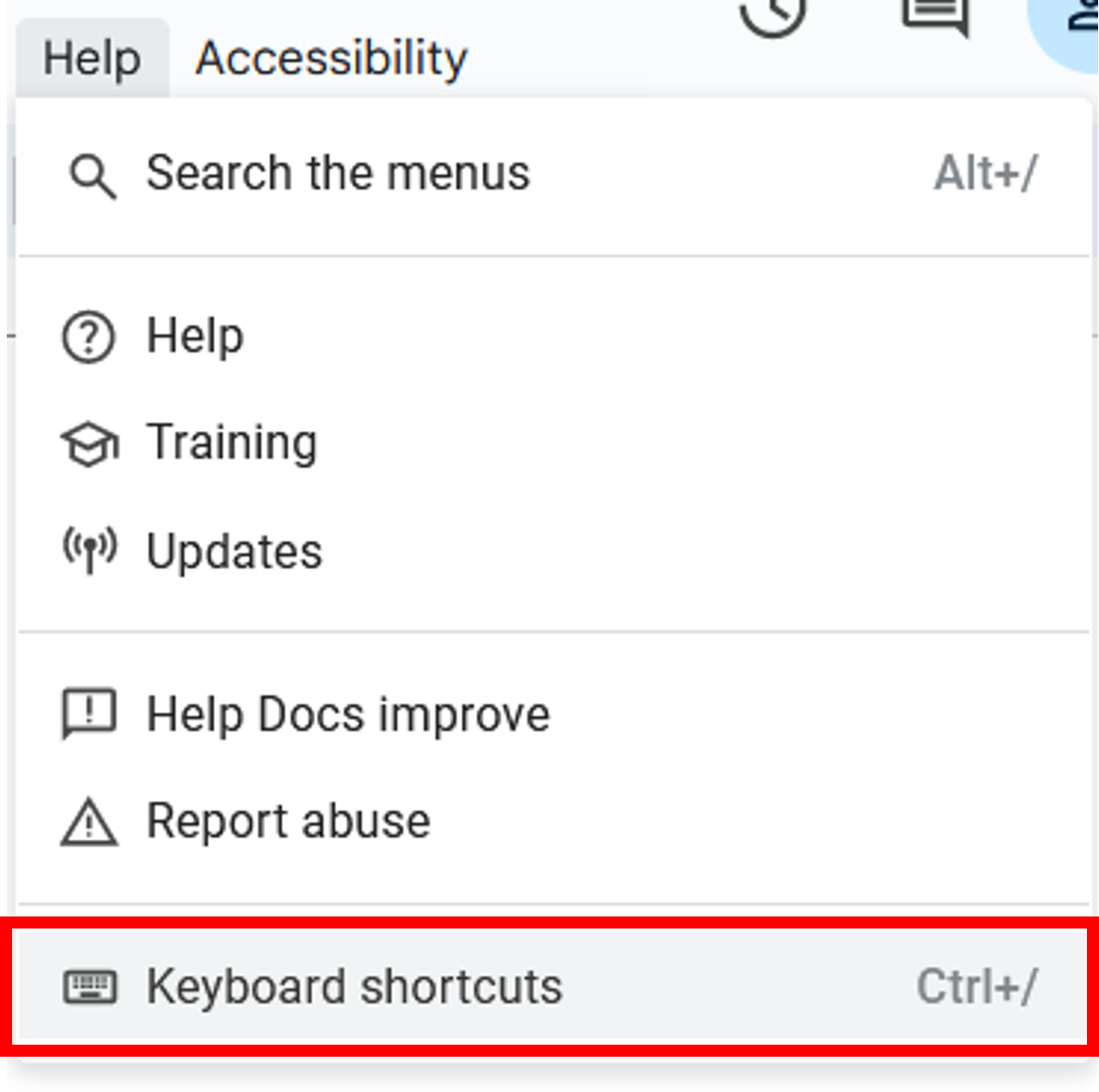
Highlight the text you want to link then enter
For Windows: Ctrl+K
For Mac: Cmd+K
Alternatively, you can also right-click and select Insert Link.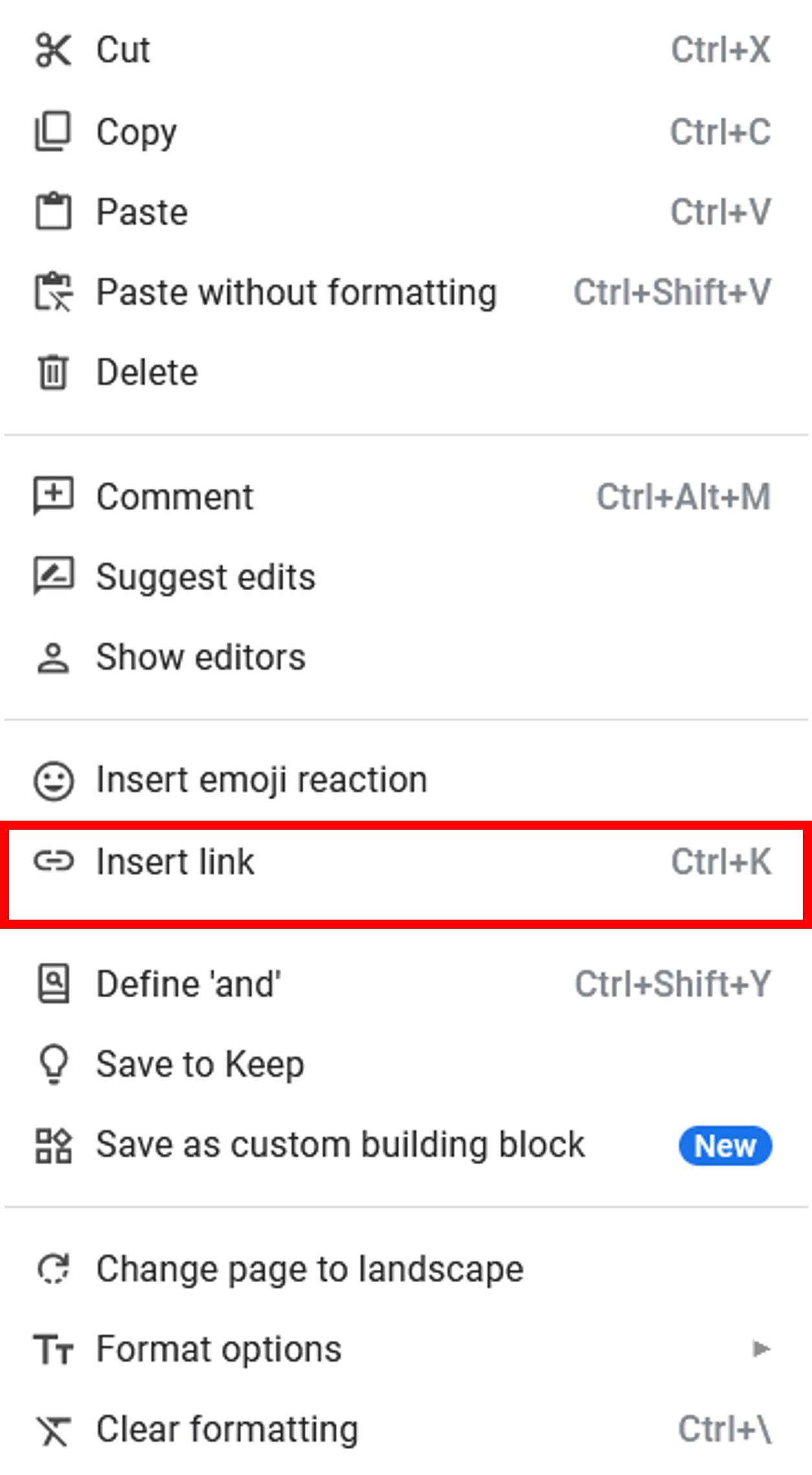
Click the counter-clockwise clock icon at the top right of your Doc to view the revision history (You can also hover on this icon to see when the last edit was made.)
From here, scroll through edits and versions, make copies of specific versions or rename them, and revert to earlier versions of your document. Check Show changes to see visual representations of what has changed.

To compare two documents:
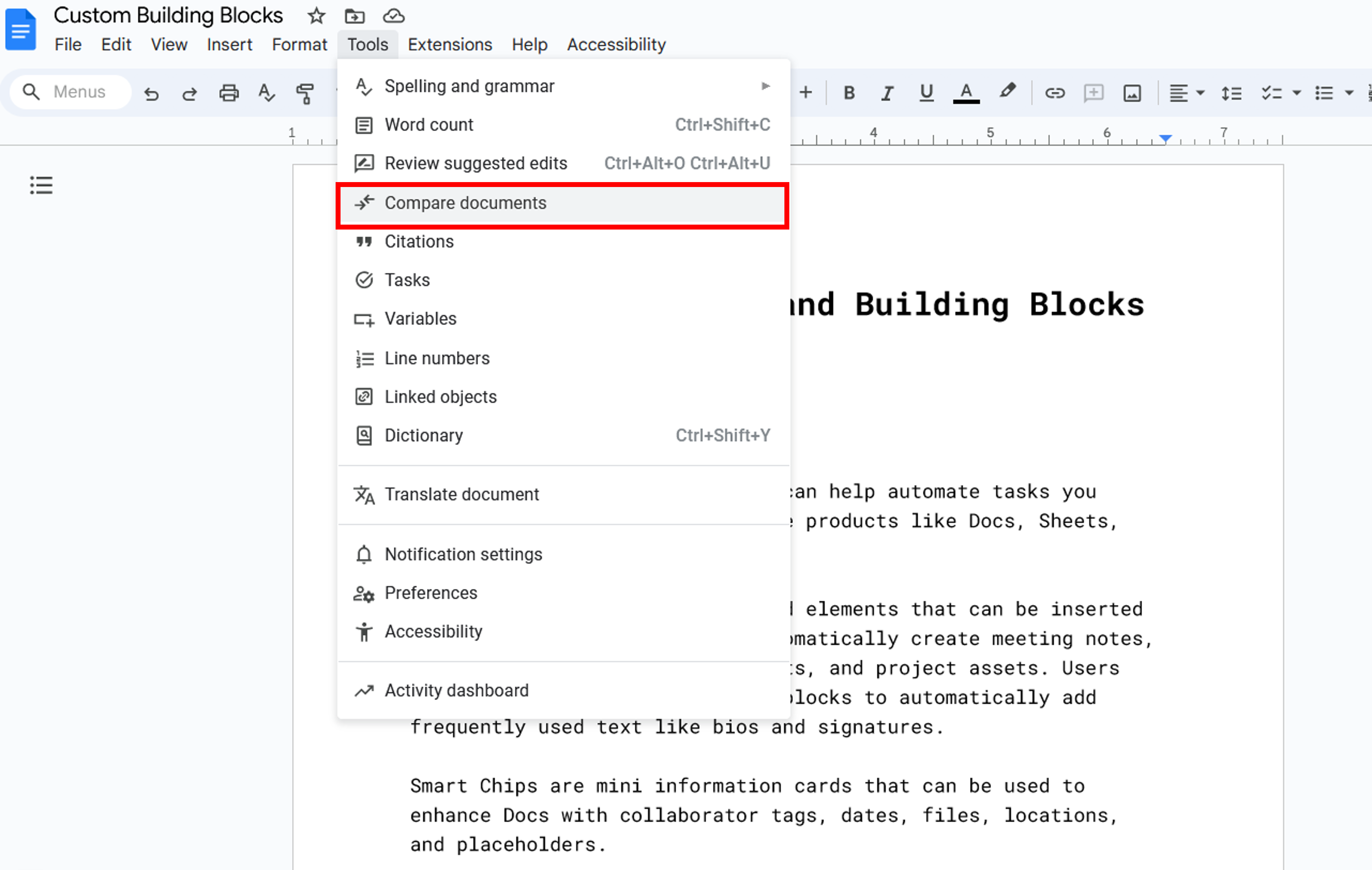
- Open one version, then click Compare documents.
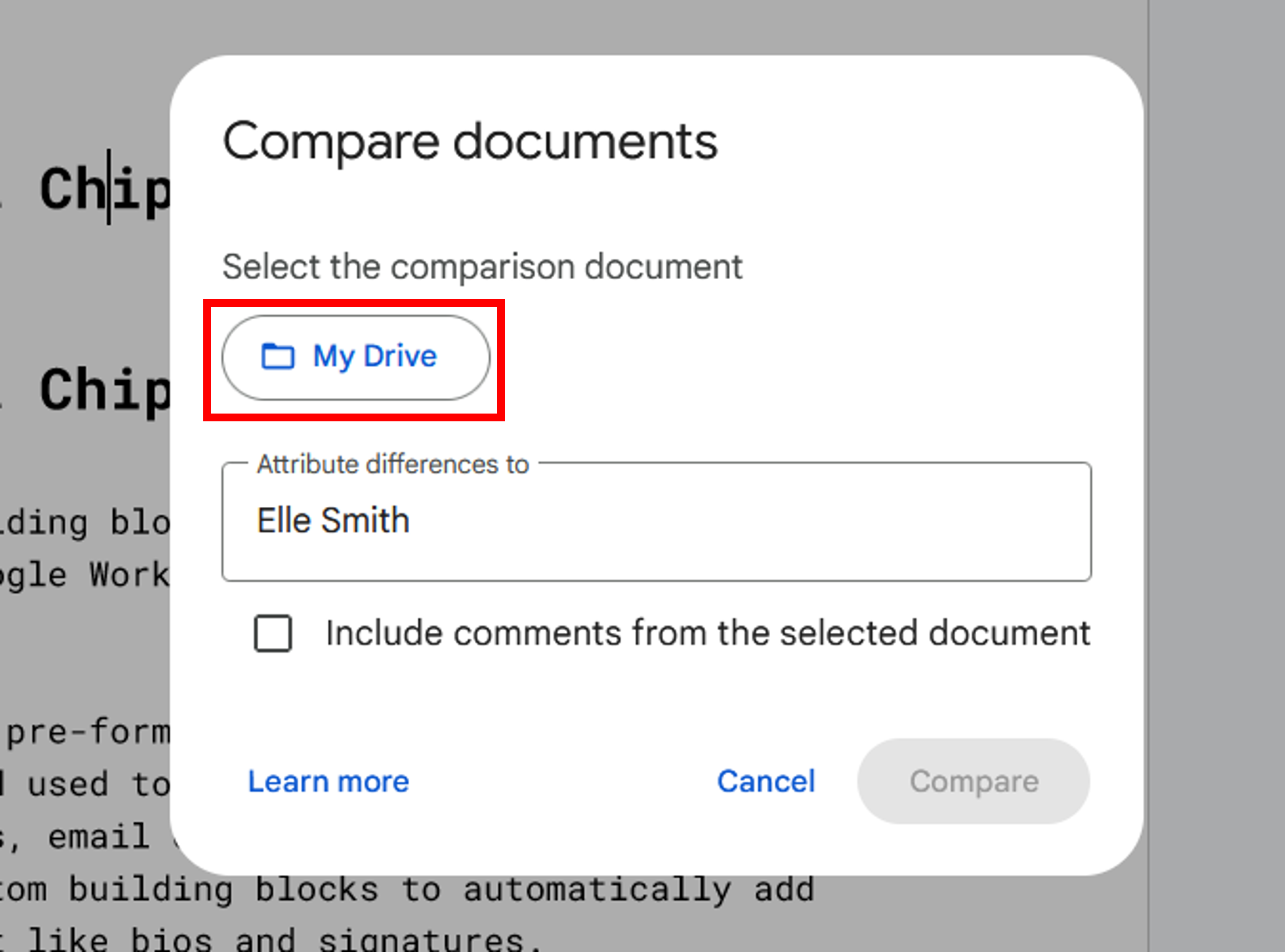
- Click on My Drive to search for the Doc you want to use for a comparison.
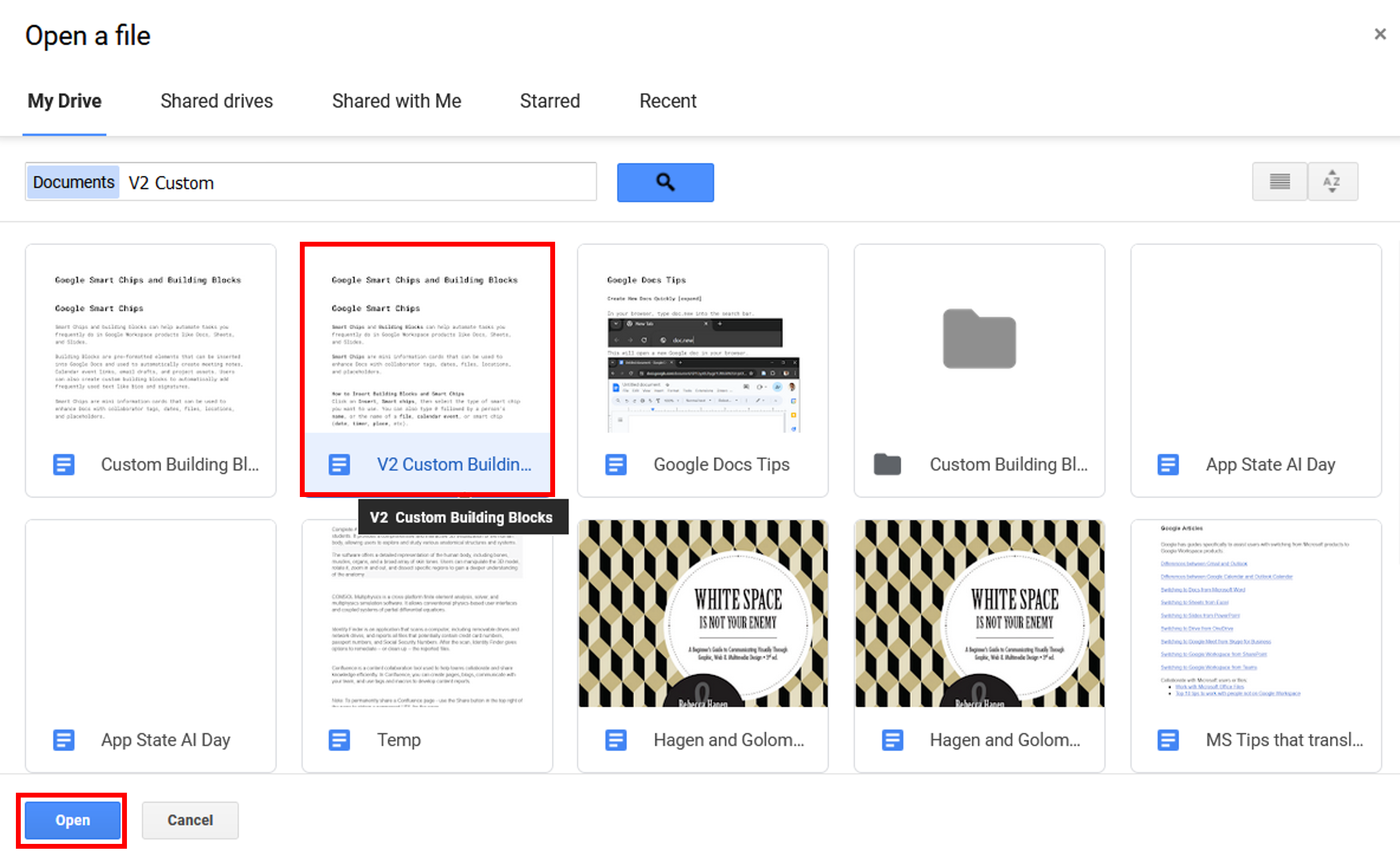
- Select the Doc and then click Open.
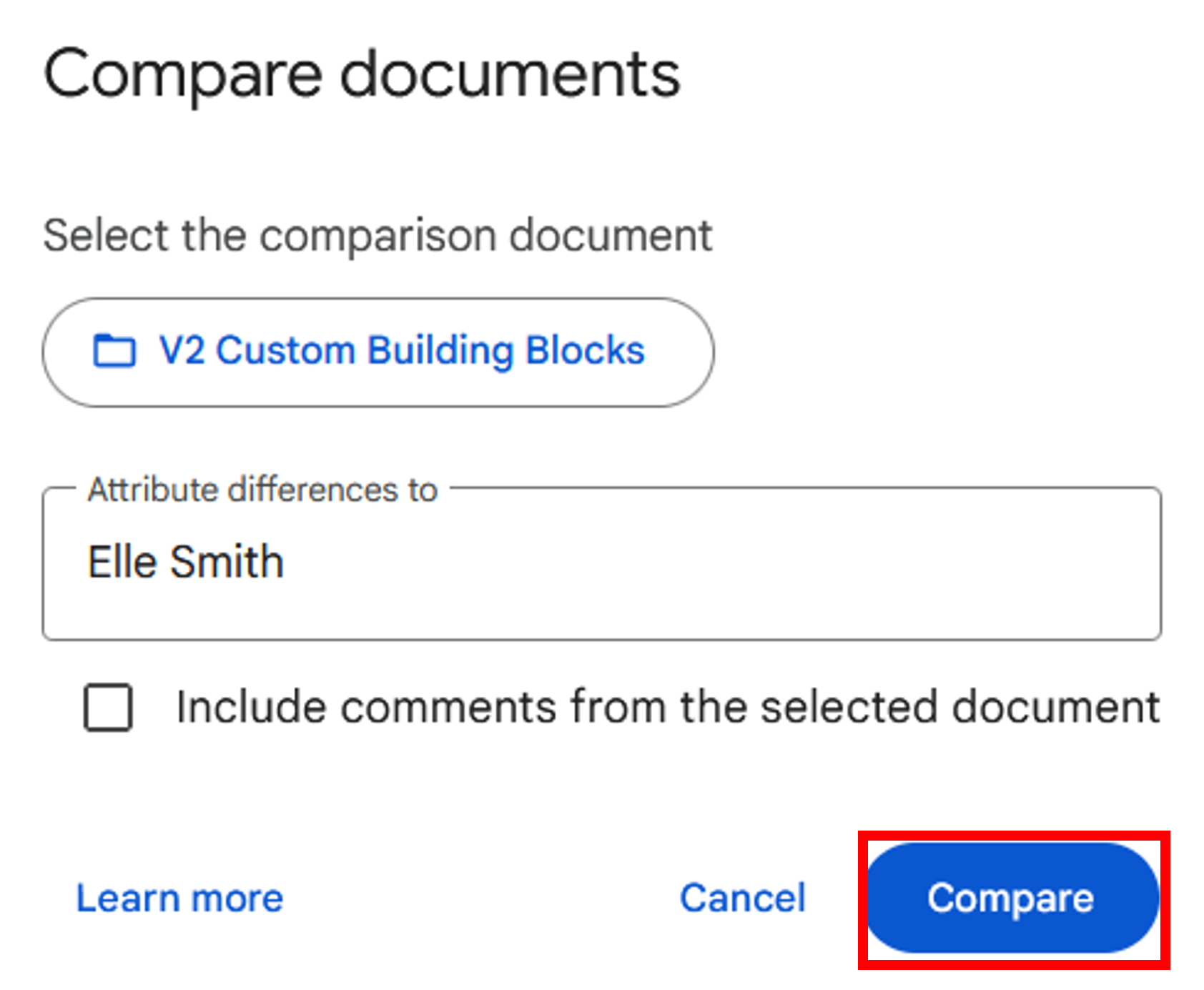
- Next, click Compare.
- Once your comparison is ready, click Open.
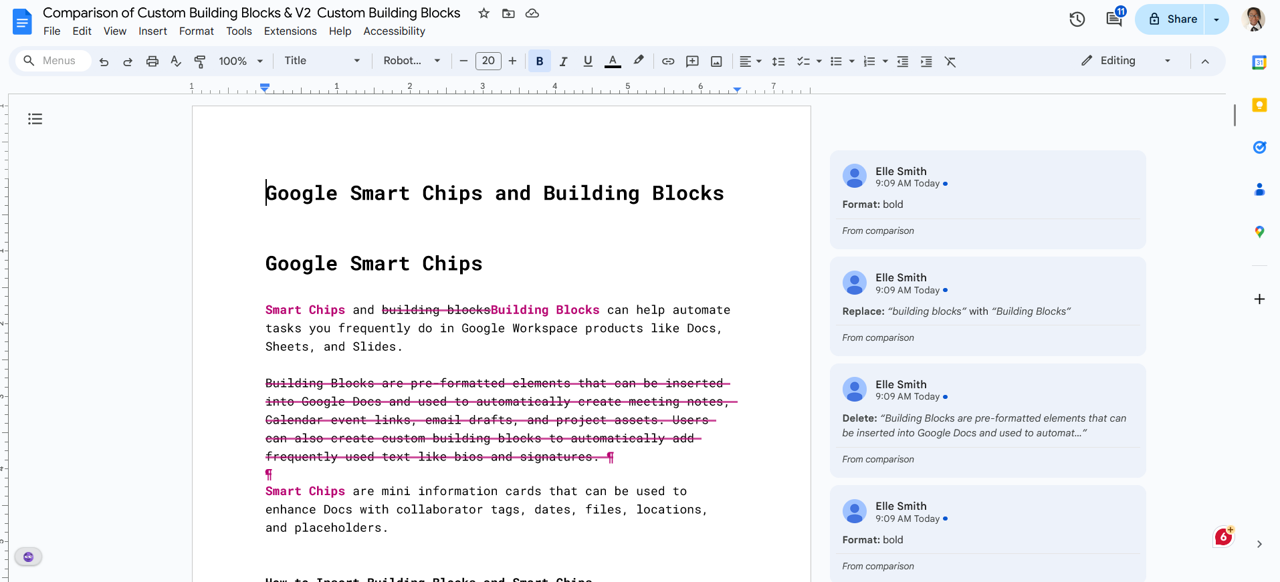
- Google will open a new Doc called “Comparison of” followed by the name of your two comparison Docs. This Doc will give you a visual view of the changes made from the first Doc to the second, along with comments outlining original elements vs the changes.
Collaboration
To send a Doc as an email rather than an attachment:
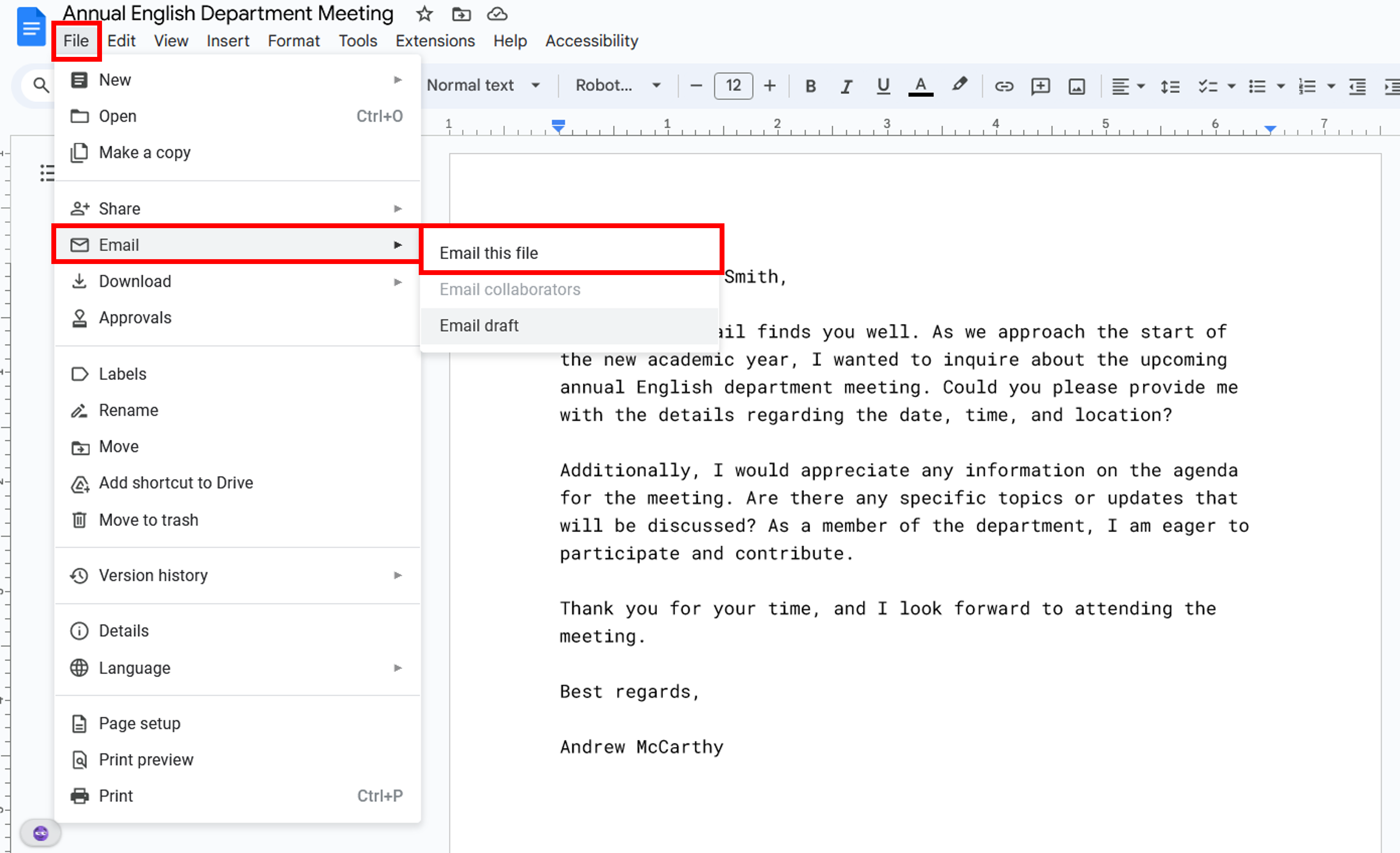
- Open the Doc, click File, Email, Email Draft.
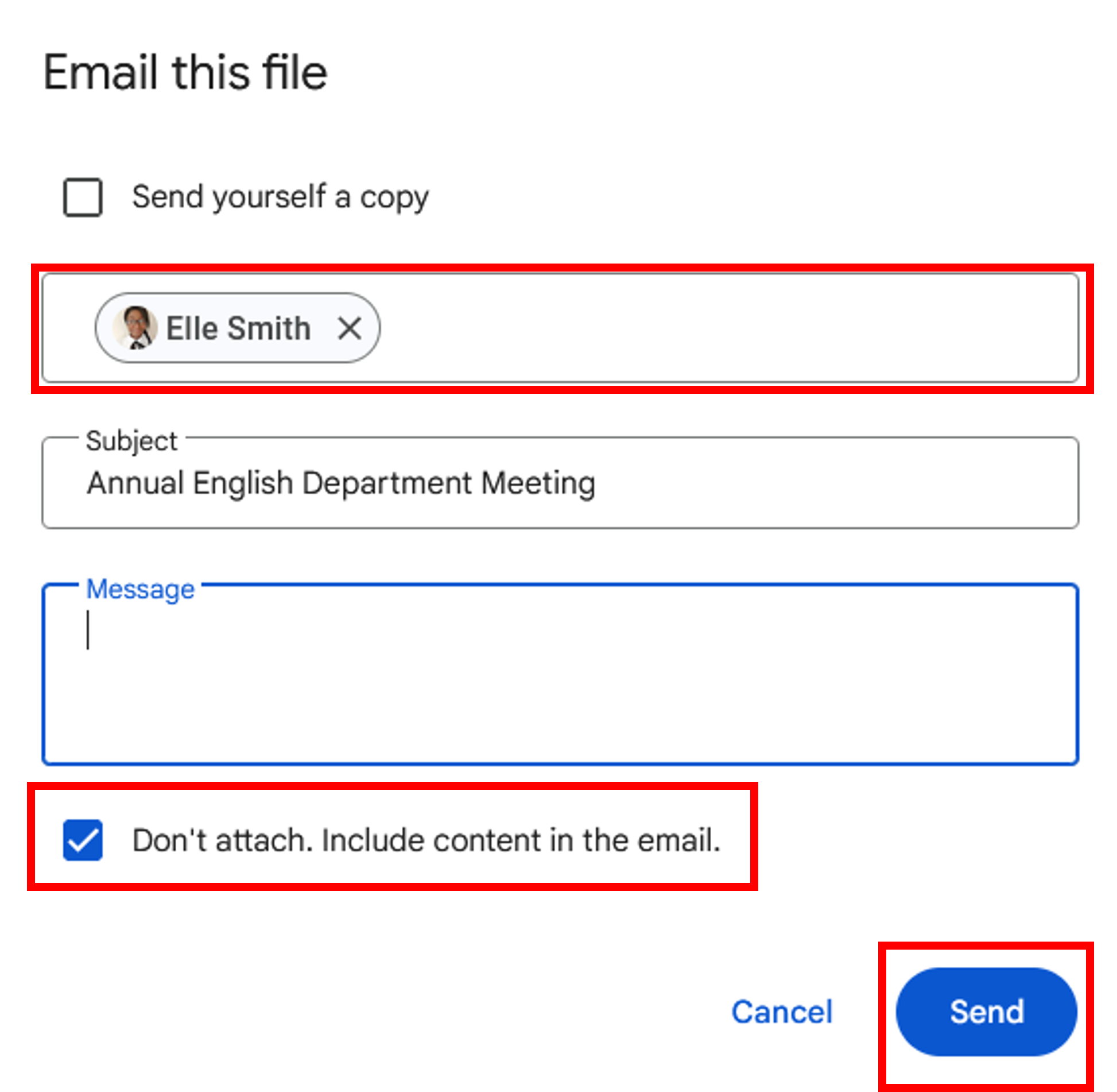
- Enter a username or email to send to, then check the box that says Don’t Attach. Include content in the email. Click Send.
If you want to share your Google Doc with more than 100 people, the easiest thing to do is publish it and share the URL.
In the Doc you want to share, click File, Share, and then Publish to the web.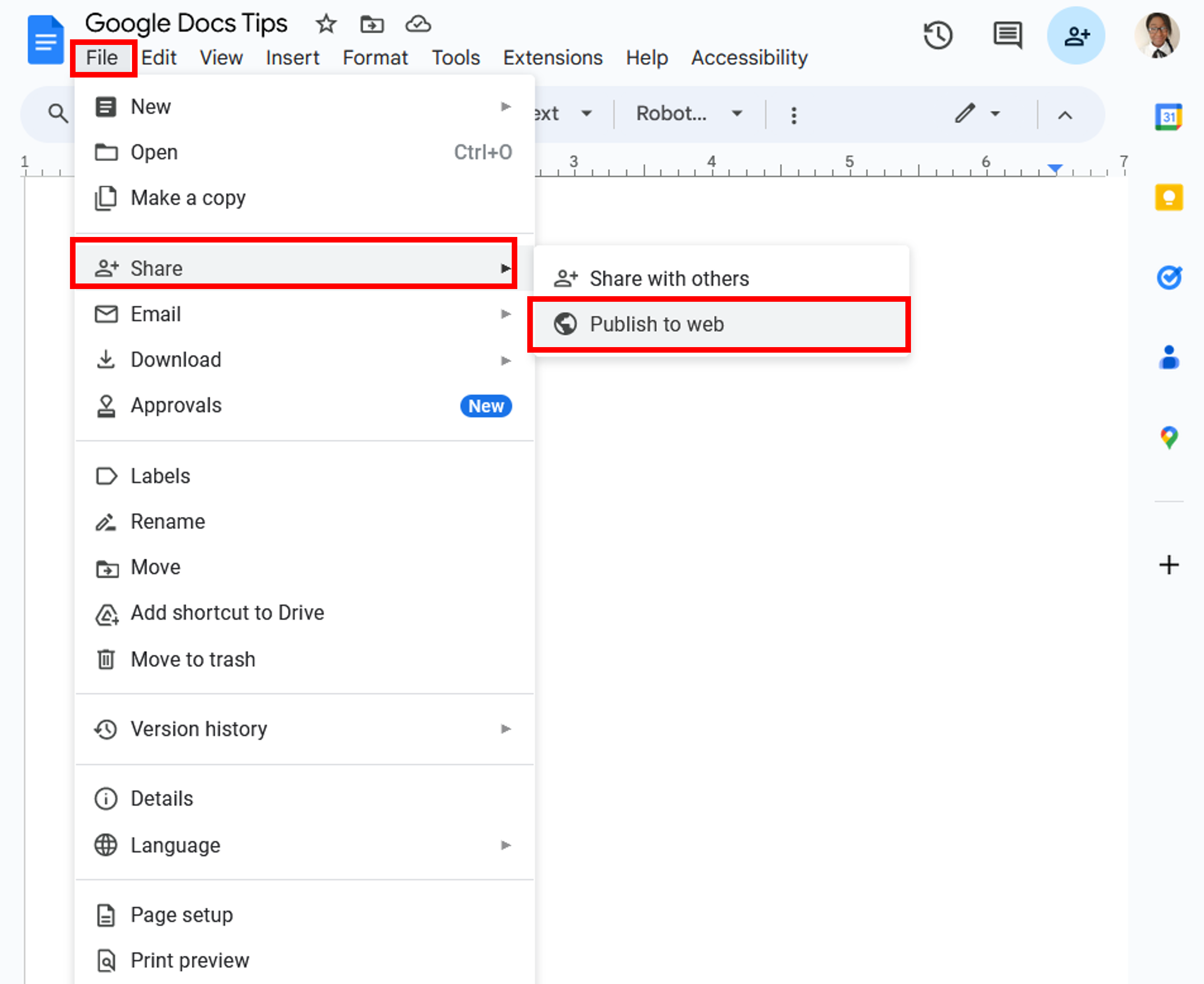
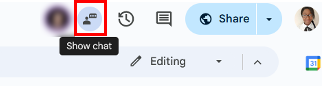
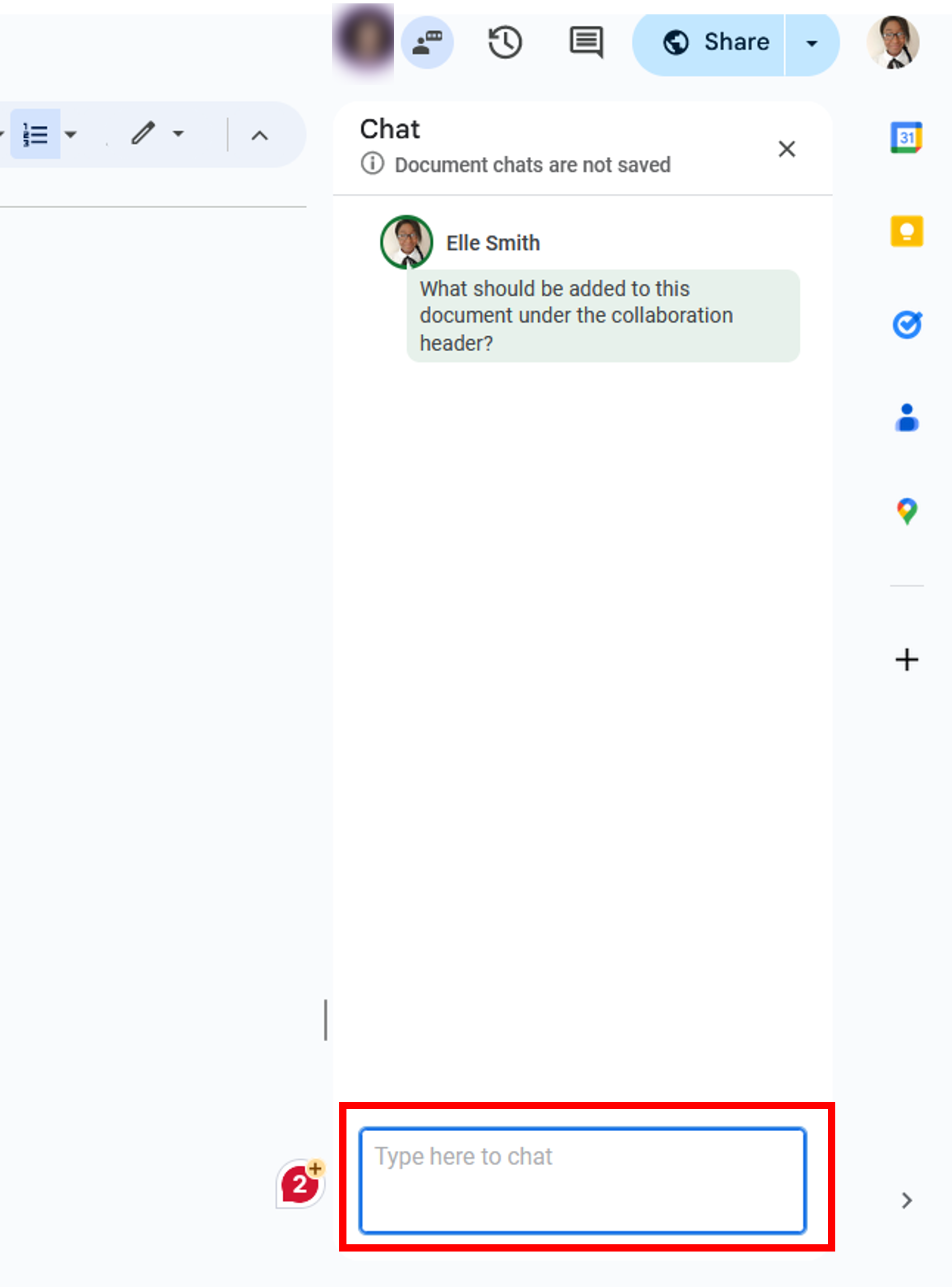
When there is more than one person in a Doc, users can collaborate through the Doc Chat.
- Click the Show Chat icon at the top right of the Doc.
- Send messages to the Doc Chat by typing in the chat box.
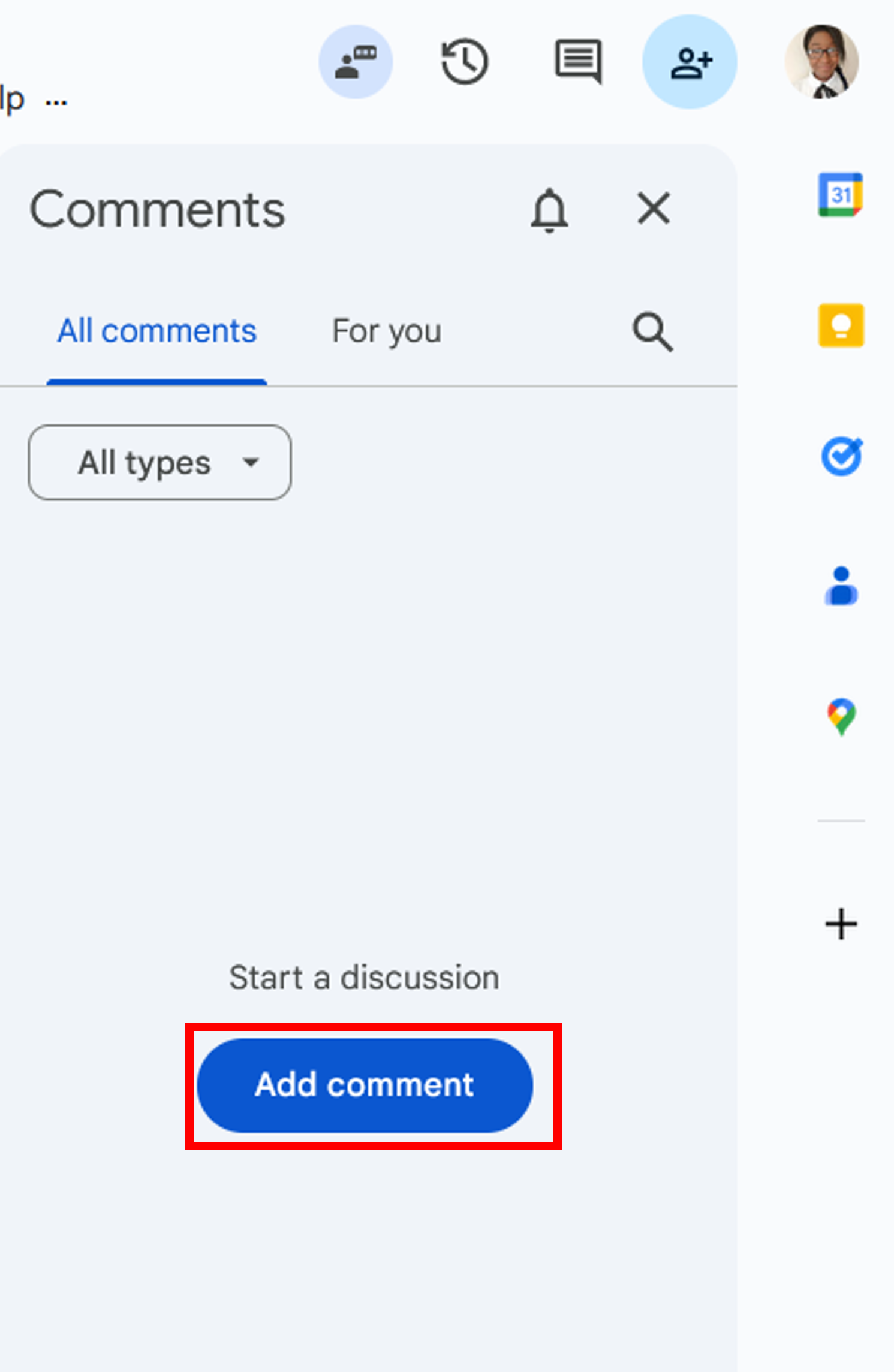
Users can add comments to a Doc, which can be viewed by all collaborators by clicking the comment icon at the top right of the Doc and then clicking the add a comment button. 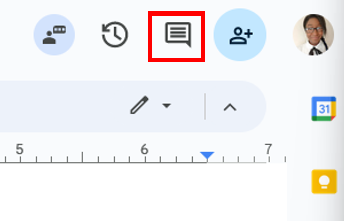
Additionally, users can add new comments by clicking Insert in the top menu bar, and then clicking Comment. Comments are located in the location where the cursor rests when the comment is made.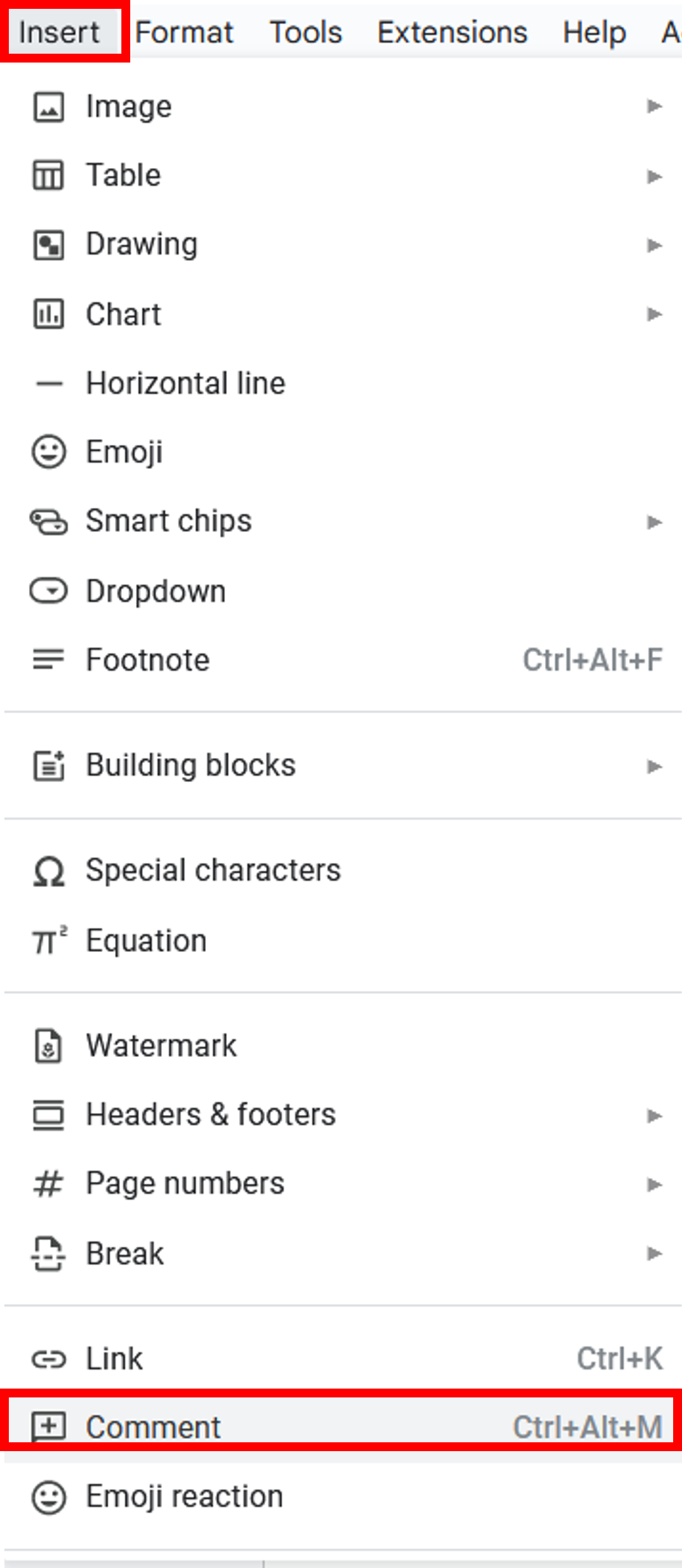
Rather than directly editing a Doc, users can opt to suggest edits to other collaborators.
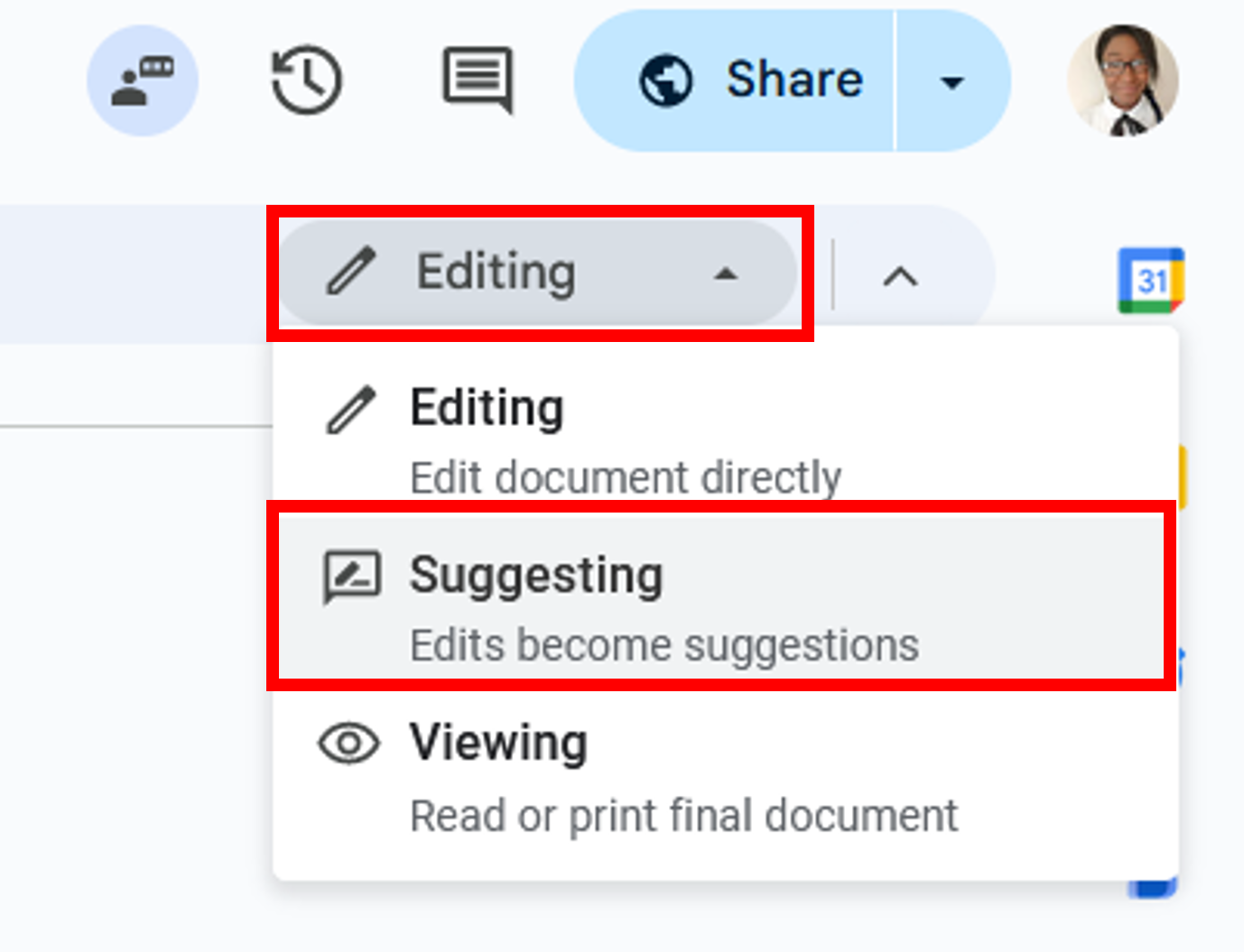
- Turn on suggesting mode by clicking the Editing drop-down menu at the top right of the Doc and selecting Suggesting.
- Any changes made to the Doc will show up as suggestions in Comments.
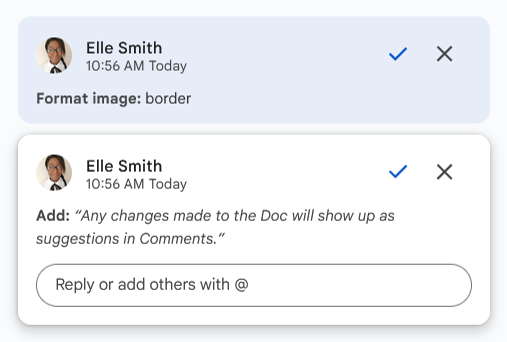
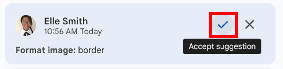
- The owner of the file will get an email about your suggestions and can decide whether to keep them. Changes can be accepted by the editor by clicking the checkmark next to the suggested comment.