Faculty textbook resources can be found on the Campus Store website.
If you need support from the Bookstore Team related to a textbook request or issue, please use the Bookstore Support Request.
Remember!
- If you’ve imported or restored a course from a previous semester that had a VitalSource My Materials link, it will already be present and will work.
- If you add the VitalSource link to your course well in advance of the semester, it will not connect to your materials until the texts are provisioned by the Campus Store, which generally happens approximately two weeks before the first day of the term. In advance of this date, there is no need to open a support request.
The Campus Store strongly encourages faculty to review their submitted course adoptions for an upcoming term, at the Campus Store website Textbook Faculty Resources tab:
- Under the heading “Viewing Adopted Materials”, click on the“Course Adoptions Search page” link.
- Use the drop-down menus to choose the Term, Department, Catalog/Course # and Section #.
- Click on the yellow “Begin Shopping” button to view the selected course adoptions.
Adding the VitalSource Digital Materials External Tool to your AsULearn Course
- Proceed to your course homepage in AsULearn
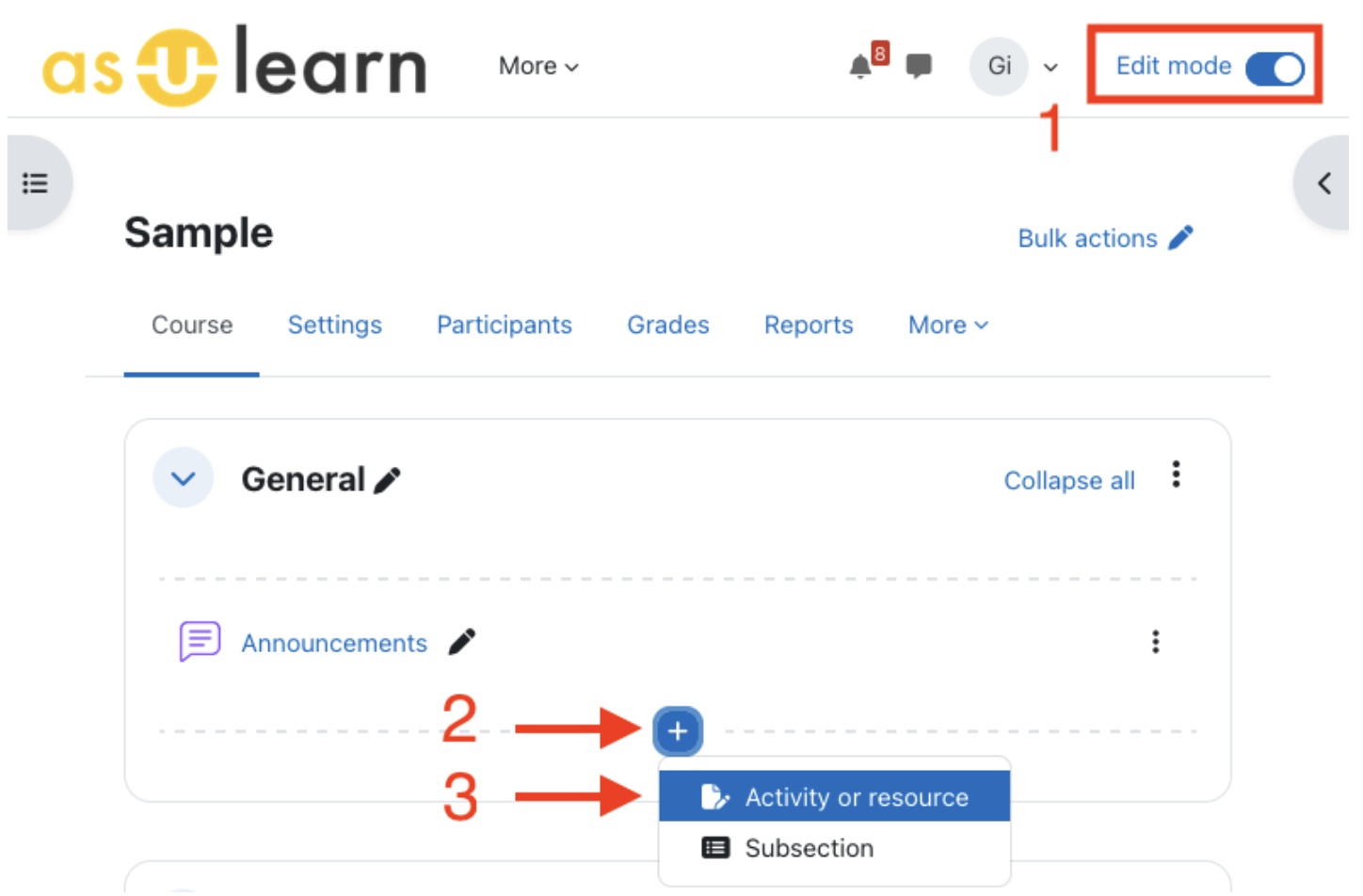
- From the course homepage, enable editing at the top right, then click the + icon where you wish to place the link, then Activity or resource:
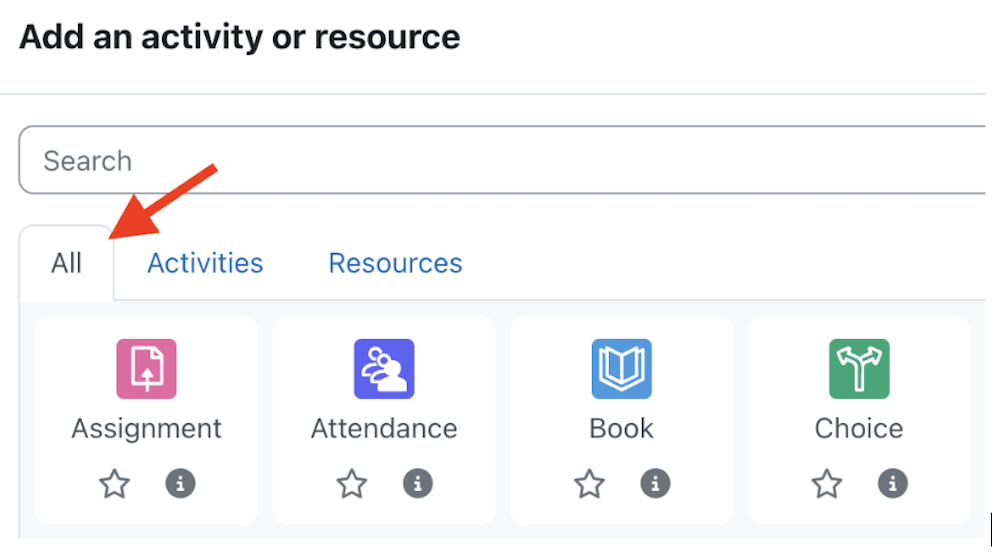
- Make sure you have the All tab selected in the activity chooser to show all activities/resources:
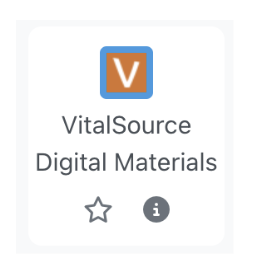
- Scroll down and select VitalSource Digital Materials::
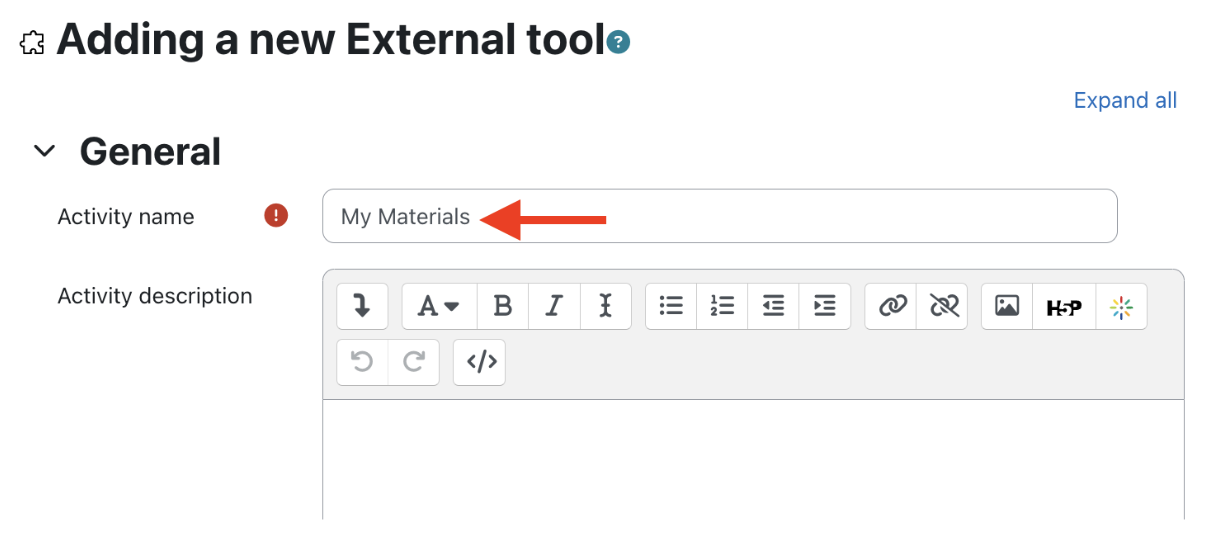
- On the Adding a new External tool page, use My Materials as the Activity name. This will provide consistency across all courses for our students:
- Click Save and return to course at the bottom and the tool will appear in the topic in which you added it. With editing enabled, the resource can be easily dragged/dropped to another position or topic.

Video: Adding the VitalSource My Materials Link in AsULearn
Related Articles
Search Knowledge Base
Submit a Service Request
Submit a Service Request for Canvas