Canva is an online graphic design tool that can be used to create presentations, posters, videos, digital signage graphics, social media posts, and more. Canva for Campus, which includes the same features as Canva Pro, is free and available to all students.
Canva offers hundreds of templates and elements that can be easily customized. It also offers the ability to create Teams for real-time collaboration. It is a browser-based application that does not require a download, can be accessed from any device, and is free to use for App State users.
For a Faculty/Staff License
*A limited number of licenses are available for faculty and staff.
Faculty/staff may request a Canva Teams account if they:
Use Canva in teaching (course projects, branded class materials)
Create student-facing resources (advising guides, program info, support materials)
Produce official university communications (marketing, outreach, event promotion)
Require brand templates/assets for consistent materials
To inquire about a license, submit a Service or Software Request. If licenses are unavailable at the time of your request, you may purchase them at the departmental level using established procurement procedures.
- Open a Service or Software Request Ticket at support.appstate.edu.

- In the Service or Software drop-down menu, search for Canva and select it from the drop-down menu.

- Type in a description and click Create.

Troubleshooting login
If you are being logged into your personal Canva account instead of your App State account:
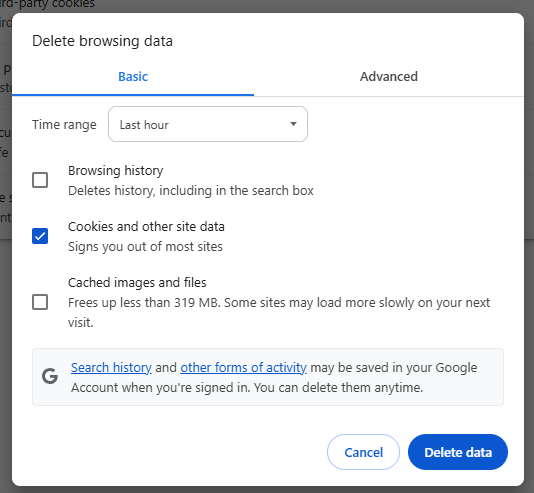
- Click the three-dot icon in Chrome and then click settings.

- Search for Delete browsing data.

- Select Cookies and other site data and then click Delete data.
Resources for Getting Started
Personal or Previously Created Canva Accounts
If you have existing designs in a previously created Canva account, those designs will remain with the original account but can be transferred to another account:
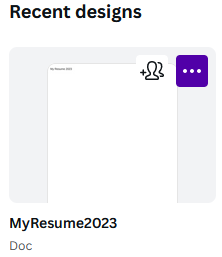
- Hover over the file you want to transfer to your new account and click the three-dot icon in the upper right corner.
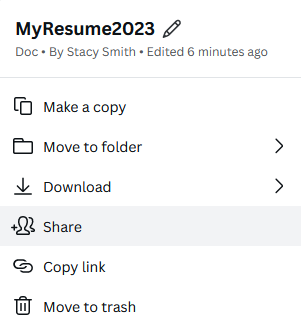
- Click Share in the drop-down menu.
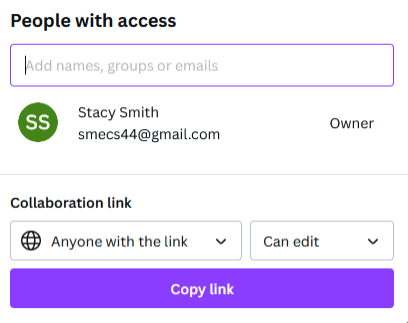
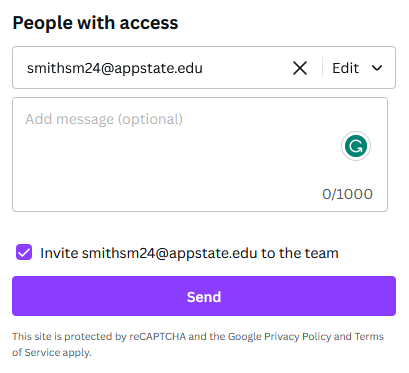
- Change the Collaboration Link setting to Anyone with the Link can access this design, make sure Can edit is selected, and type in the email address you want to share the design with (This is where you would put in the email address associated with your other Canva account.)
- Check the Invite box and click Send.
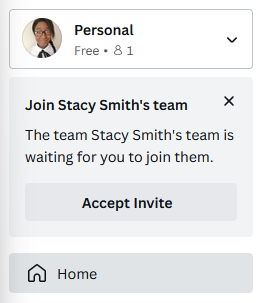
- Sign out of that account, then sign into the account with which you shared the document. Click the Accept Invite button at the top of the screen under your account drop-down.
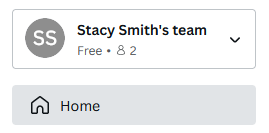
- You can now share files between the two accounts by putting them into your Team account.
- Click on the three-dot icon at the top right of the file you want to transfer.
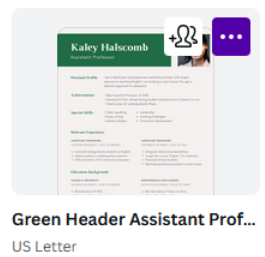
- Click the Copy to Another team drop-down menu.
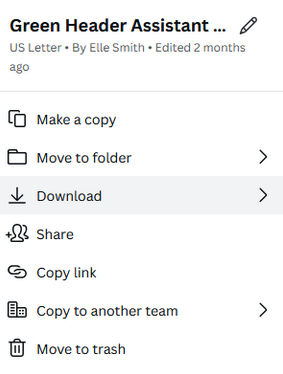
- Select the team you want to copy to and then click Copy.
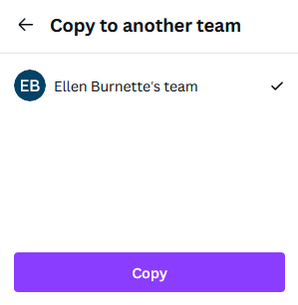
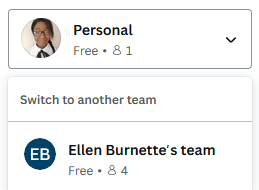
Canva accounts cannot be merged, but users can switch from their personal accounts to a Team account by clicking on the account drop-down menu and switching to another team: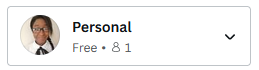
Alumni
- Create a personal Canva account using your personal email address.

- From your university account:
- Go to Projects and find the design you want to move

- Hover over the design and select Share

- Invite and add your personal email with Editor access

- From your personal account:
- Open the design and select File and Make a copy

- You now have ownership of the file

*These steps need to be followed for each design you want to keep. This ensures the design lives fully in your personal Canva space.
You can also download any designs you no longer need to edit.
Resources
Create professional designs with Canva. Try the LinkedIn Learning Canva Essential Training.
For more information on how to use Canva or for troubleshooting information, visit Canva’s Help Center.