Beginning of Semester Class Setup
Creating the App in App Store Connect & Giving Student Access
For a student to begin work on an app, an entry for the app must be created in App Store Connect. This app entry will only be visible to you and Admins by default, so be sure to add the necessary students to the app as well.
- Navigate to App Store Connect and click the + by Apps
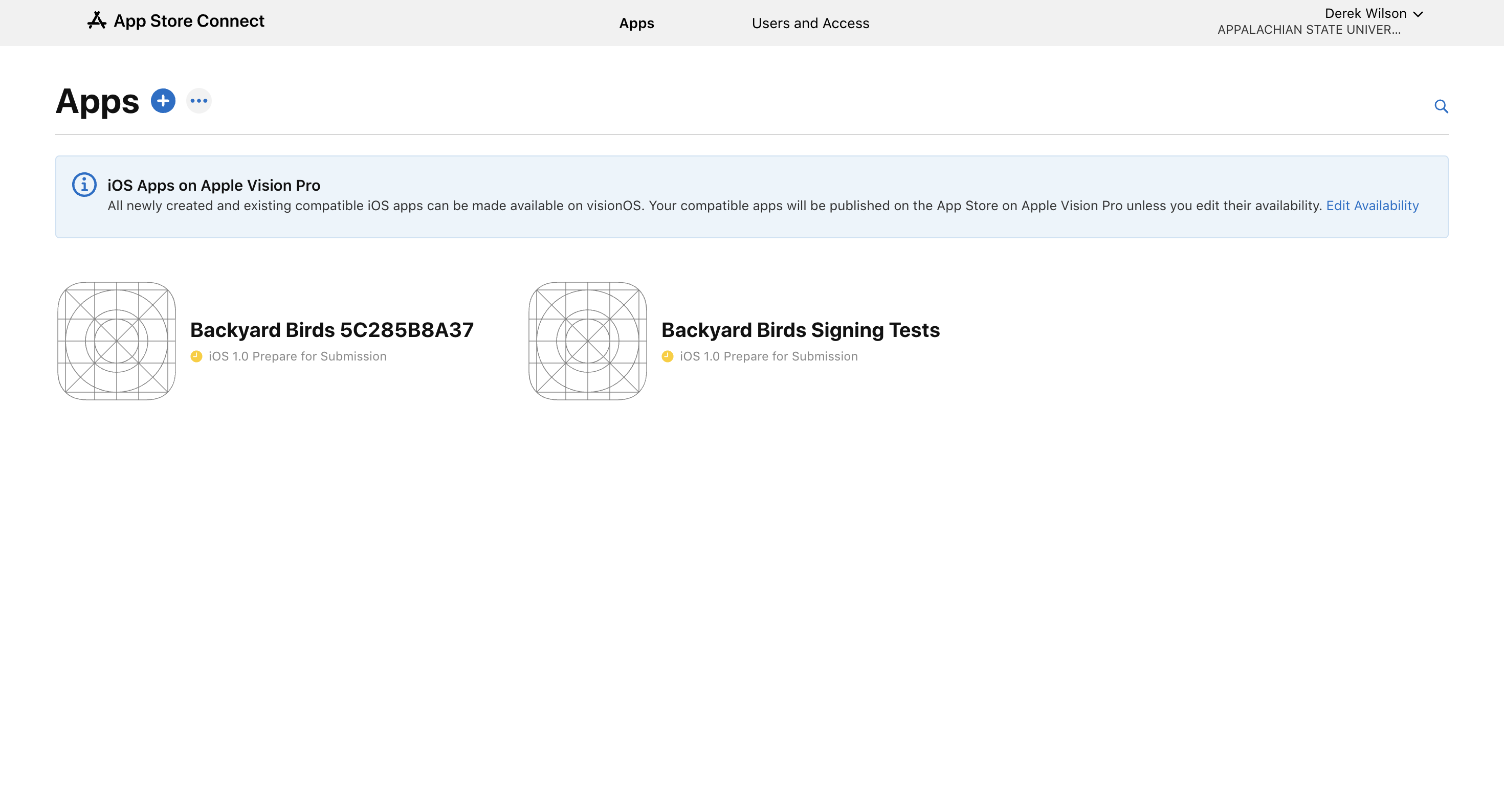
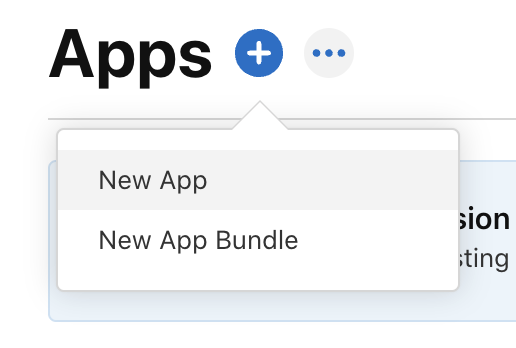
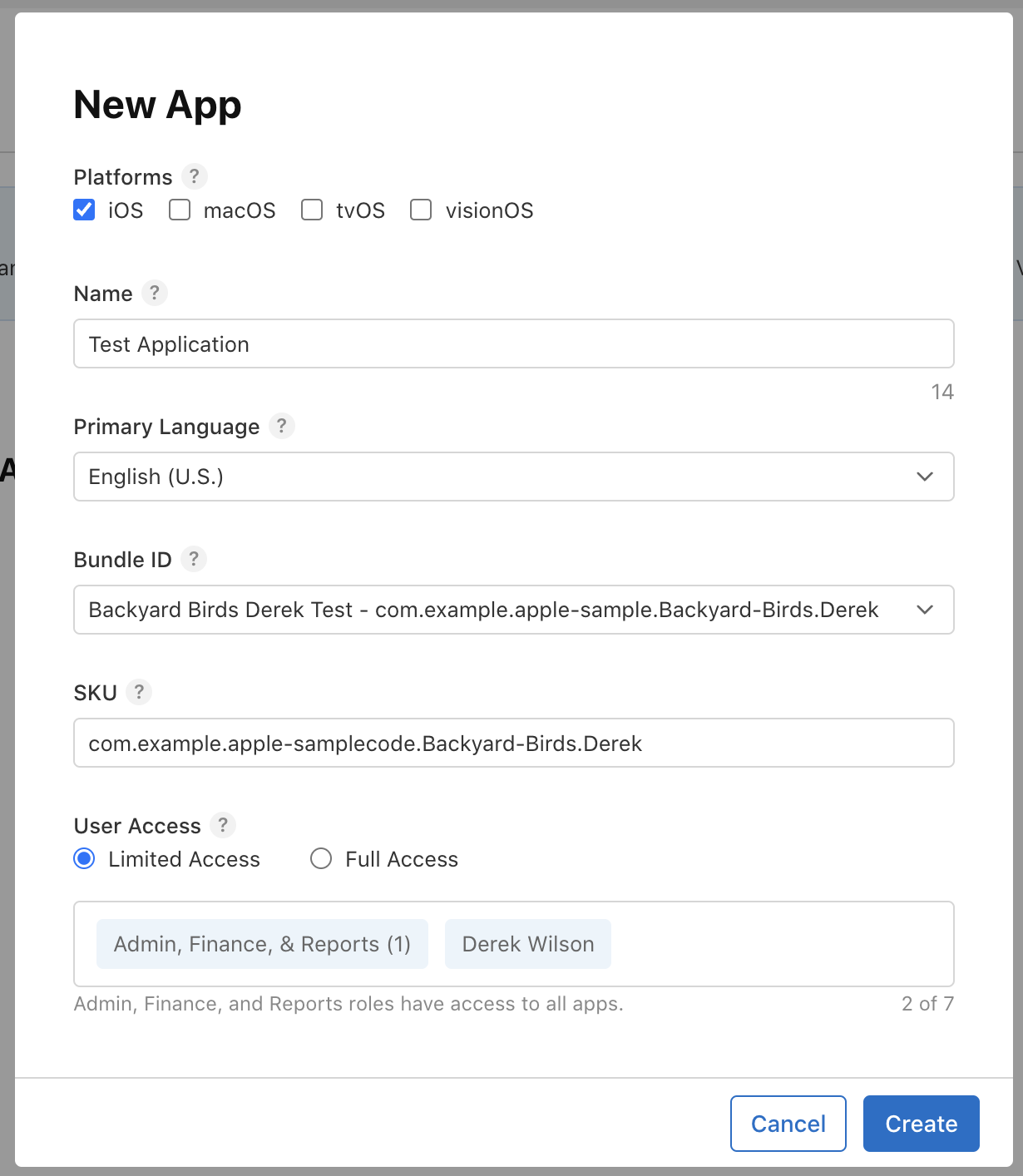
- Fill out the information for the application:
- Platform: The type of devices that will be using the application (e.g. iOS)
- Name: Identifiable human-readable name for the application that you used for the support ticket in Beginning of Semester Class Setup
- Bundle ID: Select the ID given to you from submitting your ticket in Beginning of Semester Class Setup
- SKU: The unique identifier name for the app. Typically will be the reverse-domain name included in the Bundle ID (edu.appstate.202404.AppNameHere) and match what is in the dropdown.
- User Access: Select Limited Access and choose the users that should have access to submitting builds to the App
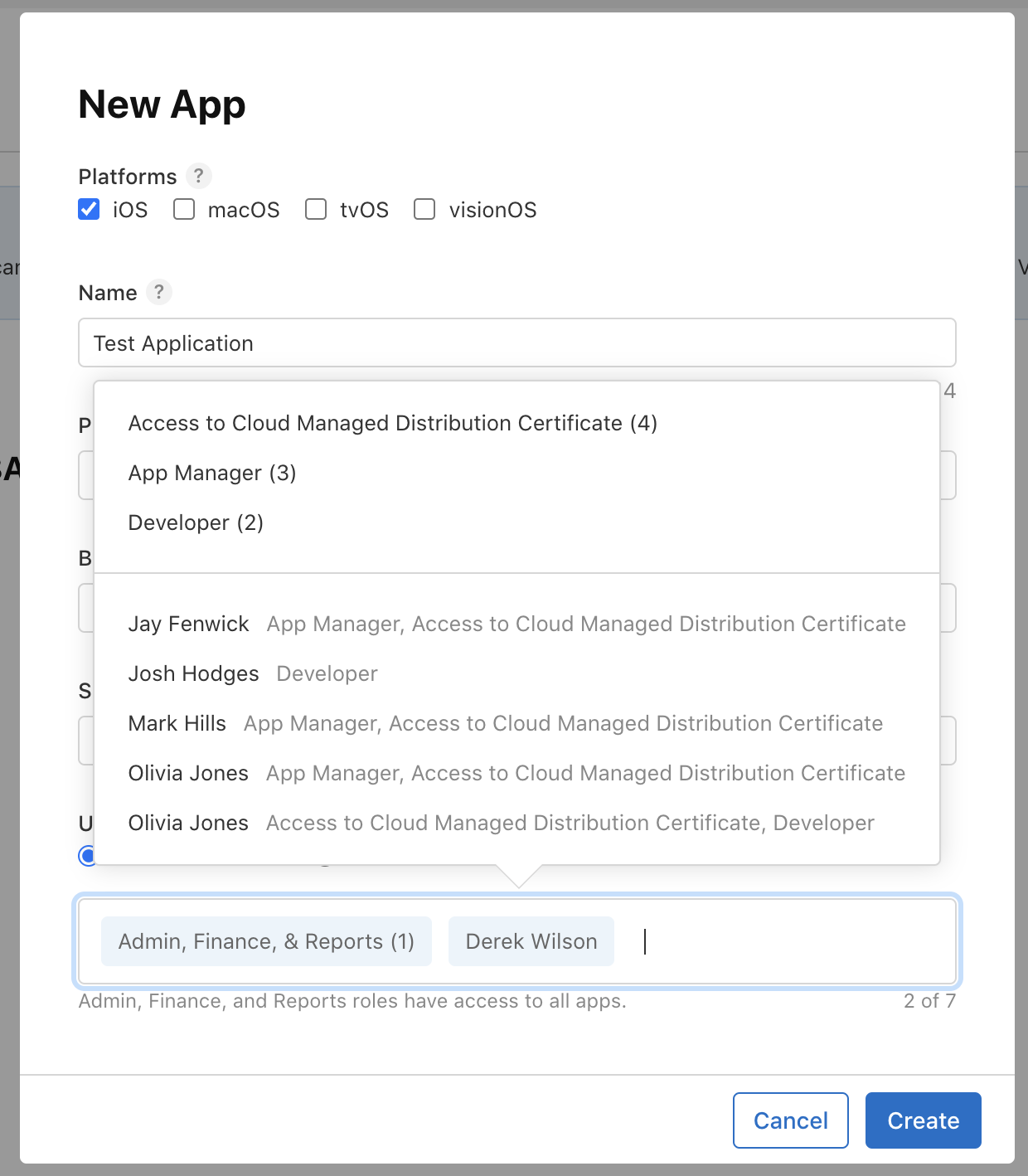
- Click Create to finalize the app creation
- Share the Bundle ID, certificates, profile, private key, and password to private key received at Beginning of Semester Class Setup with students added to the app
- Students can now begin development and testing with the app.
Testing Student Apps
After a student has created an app, there may be a need to run the app on your end to make sure it is working appropriately. There are currently two options available to do this: Xcode's Simulator and TestFlight. Please see the linked documentation to learn how to test these apps.
Upload Example Apps
You may want to create an example app and upload it to App Store Connect for use in the classroom. Please see the linked documentation to learn how to test these apps.
End of Semester Offboarding
- Students will be deleted by Systems once per year at the end of the Spring semester (unless a prior exception is given due to capstone/thesis work)
- Faculty members do NOT get removed going through University offboarding
- Once an App no longer has any students assigned to it and is determined not to be needed by faculty, it will enter an archived state.
- Apps may be recoverable within a certain time frame. Submit a support ticket to see if the app could potentially be recovered.
Resources
- How to set up certificates for uploading into App Store Connect: Adding Certificates and Keys for Apple Development Account
- How to upload an app into App Store Connect: Uploading Apps to Apple Developer Program for Academic Courses
- How to test an app built in Xcode: Testing Apps In the Apple Development Account for Academic Use
Troubleshooting
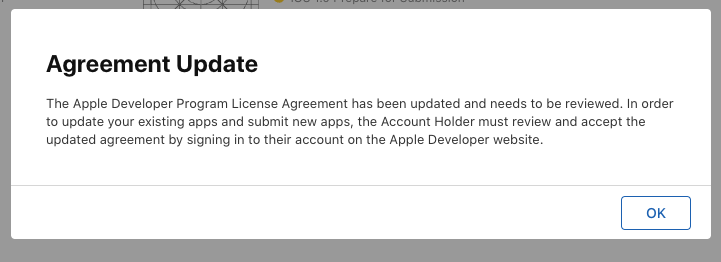
Submit a support ticket to SRC to have the agreement signed
- Service or Software: Apple Developer Program for Academic Courses
- Summary: Accept New Agreement Update
- Description: Please accept the new agreement update for the CS Developer account
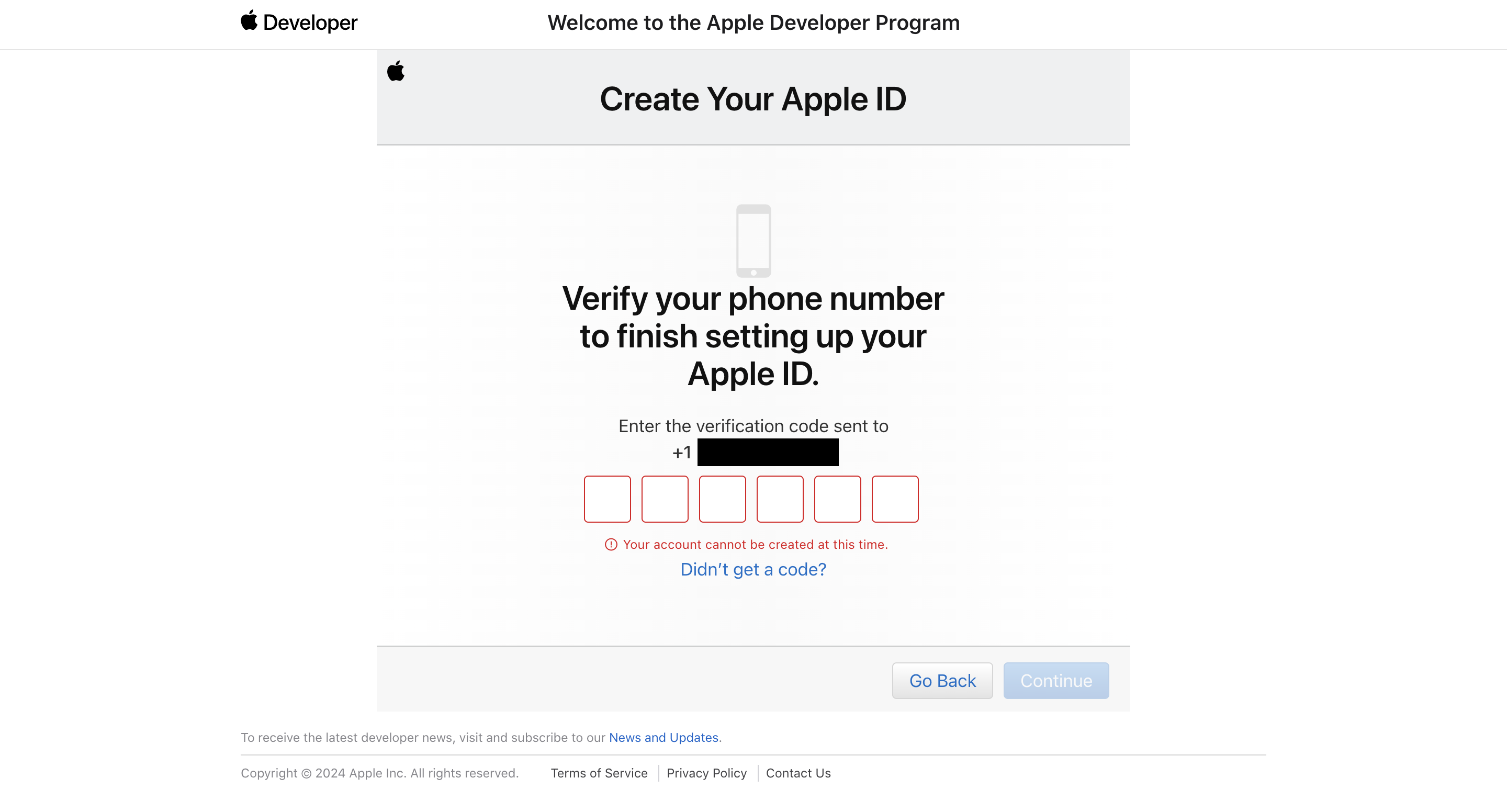
Sometimes Apple's servers are unable to create a new account due to them being down. If possible, wait a while before trying again.