Introduction
This page is to help you set up your DTEN/Zoom Conference Room for meetings.
Before starting this process, you must request access to the Google calendar for the room that you want to book. After requesting access to the calendar, you will receive an email to confirm you have been added.

Make sure you click the Add this calendar link to add it to your Google calendar. Without this step, you will not be able to book the room and set up the Zoom session.
Room Contacts:
XXXXXXXXX
Step-by-step guide
- Open your Google Calendar. Click the + Create button in the upper left corner and select Event.

2. On the Create pop-up screen, click the More options button in the lower right corner of the screen.
3. On the More options screen, be sure to put the correct Class and Section for the course you are teaching as the title for the event where is says Add title.
4. Use the Does not repeat pulldown menu to select the custom... option at the bottom. We suggest making the event follow your class meeting times. 
5. On the repeat event custom screen set Repeat every to 1 and week. Set the Repeat on the match the days of the week that this class meets. The example below is set to repeat on MWF. Set the Ends to the On option and set the last class meeting date.
Exam Times
Don't forget to add the meeting time for your final exam.
6. Select the Add Google Meet video conferencing dropdown menu and select Zoom Meeting. If you do not see Zoom Meeting here as an option you will need to install the Zoom Meetings add-on.
7. Select the Rooms tab on the right side of the window.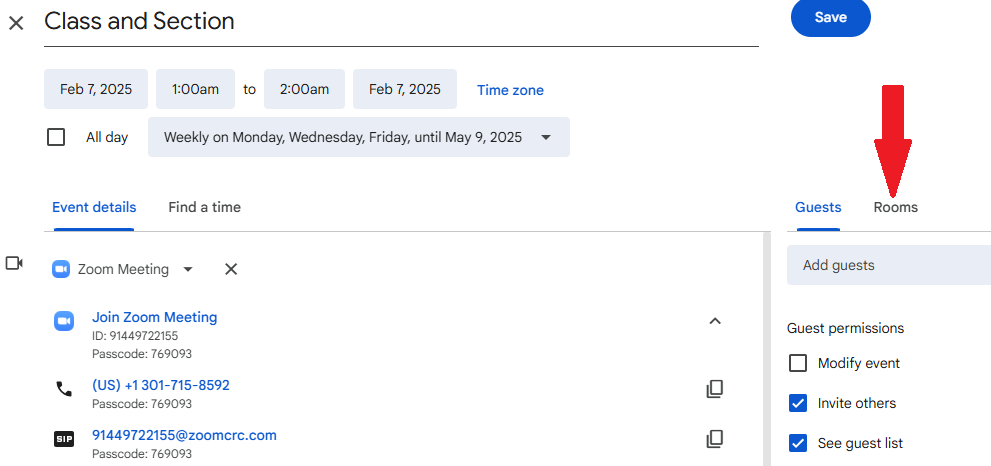
8. You will need to open the correct building for your room. For most, it will be the App State Hickory Campus Building. Rooms that are available for you to reserve will be listed at the top and have an open door icon  . Rooms that are not available will be listed under Unavailable rooms and have a door icon with a slash across it
  . Click on the room name to connect it with this event and Zoom room.
9. Click the blue Save button at the top of the window. If you go to your Google calendar, you will see the events listed.
Adding zoom session to AsULearn
Adding a link to the DTEN/Zoom Conference Room that you just created to AsULearn.
- Open the event from your Google calendar and copy the Join Zoom Meeting link. Make sure you get all of the link when you copy it.

2. Go into your AsULearn course and add the link to whatever resource you want the students to access it in. We would recommend adding it using the URL tool. 
When your students click on the link, it will open the room for them.