Introduction
NEW! As of Fall 2025, the Hypothesis External Tool in AsULearn has been updated. It now allows for annotation of many more resources, including VitalSource eTexts, and will recognize groupings from within your AsULearn course, making group annotations much easier.
Hypothesis now allows for collaborative annotation of various online resources:
- Webpages/PDFs,
- Files and pages in your online course
- Google Drive assets
- YouTube video transcripts
- VitalSource eTexts that are associated with your course via adoption from our Campus Store
Using Hypothesis
Before you can use the Hypothesis LTI External tool, you must first enable it, which adds it to the Activity chooser in that course. See Enabling an External LTI Tool article for a step-by-step and video tutorial if needed.
1. Open the More menu in the Course Menu at the top of your course homepage.
2. Select "LTI External Tools" from the list. 
3. Enable the toggle across from "Hypothesis" in the "Show in activity chooser" column.
The new Hypothesis tool also allows for annotations of your online VitalSource eText. Once you have added the VItalSource Digital Materials External Tool to your course to provide your students with access to the eText, you can set up annotation assignments/activities using your eText.
Important!
VitalSource before Hypothesis! FIRST, students must click on the VitalSource link in your course, then click Read Now. That adds the text to their VitalSource Bookshelf. Only after that will they be able to annotate the text via Hypothesis. Remember, VitalSource BEFORE Hypothesis! When a student tells you they "can't annotate the textbook" - chances are they have never clicked the VitalSource link you added to the course.
Best practices to pass on to students when annotating VitalSource texts in Hypothesis
Make students aware that they’ll need to launch the text in VitalSource in order to claim their VitalSource license, and then they can launch the text in Hypothesis. They don’t need to do this every time, they just need to get the VitalSource license that’s assigned to them by going into VitalSource proper. So, click the VitalSource link first, then Read Now, BEFORE attempting to annotate with the Hypothesis tool.
Finding the URL to your VitalSource eText
To add a Hypothesis activity to annotate your course's online textbook, you'll need to find the book's URL in the VitalSource Bookshelf. Once you go and find it, save it for future use. Here are the steps:
- Click on the link to the VitalSource tool in your course. If you named it 'My Materials' or something else, it will look similar to:

- On the Campus Store page that appears, click on the Instructor Portal tab along the top:

- On the next page, click on Launch Bookshelf:

- On the VitalSource Bookshelf page, find your adopted text, open the 3-dot menu, and select Book Details:
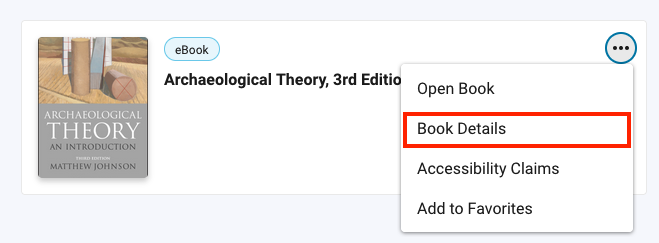
- On the Book Detail sidebar, click the Copy icon to copy the URL to your device's clipboard. This is the URL you will use to add a Hypothesis text annotation to your course.

- Later, when you attempt to add a Hypothesis activity and you select VitalSource Book as the source to annotate, you'll paste in that URL:

Save it for later!
Additional resources
- Appstate's Hypothesis - Annotation for Students support page
- How to grade Hypothesis annotations
- Hypothesis new Auto Grading option
- Introduction to Hypothesis for Students
Related Articles
Search Knowledge Base
Submit a Service Request
Submit a Service Request for Canvas