With uDesk, you can access a custom-built Windows operating environment from any internet-connected device.
Faculty and staff can access enterprise campus software and services. Students can access university-licensed software (including those requiring Graphics Processing Unit (GPU) support) found on campus computer labs.
For students, access to GPU uDesk resources is granted by instructor-approved request only. Standard Student Labs are accessible to all students but GPU resources that are course-specific (AD and STBE labs, Geography and Planning GPU, Apparel Design GPU) will not be visible until you have been approved for access by your instructor.
Connect
- On any Mac or PC, open a web browser such as Chrome, Firefox or Safari, go to: udesk.appstate.edu
and select Login to uDesk.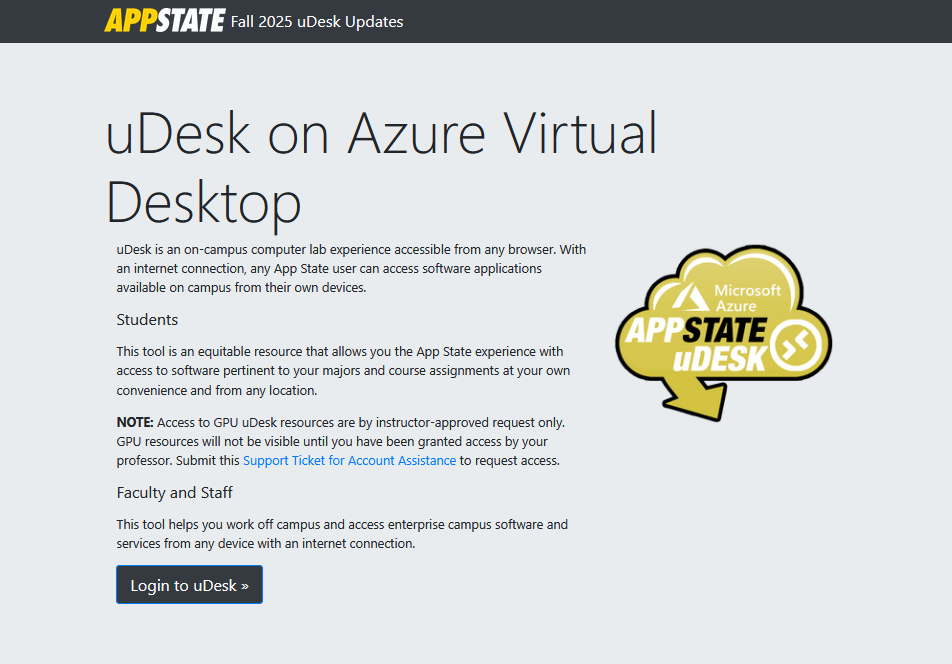
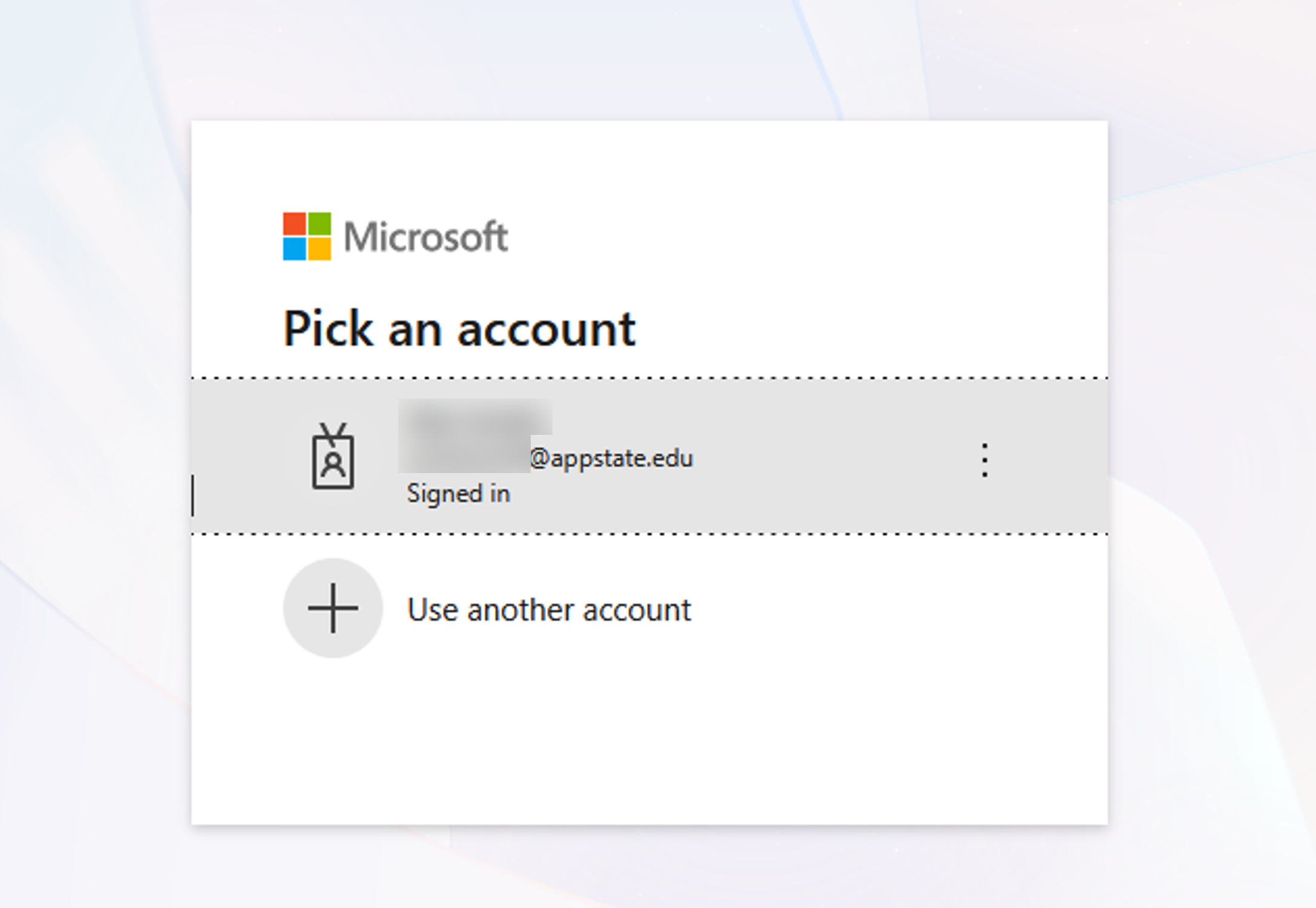
- Sign in with your App State email and password then authenticate with Dup.

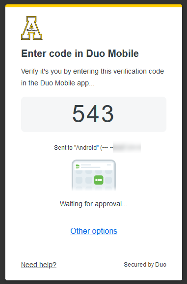
- Click on your App State account.
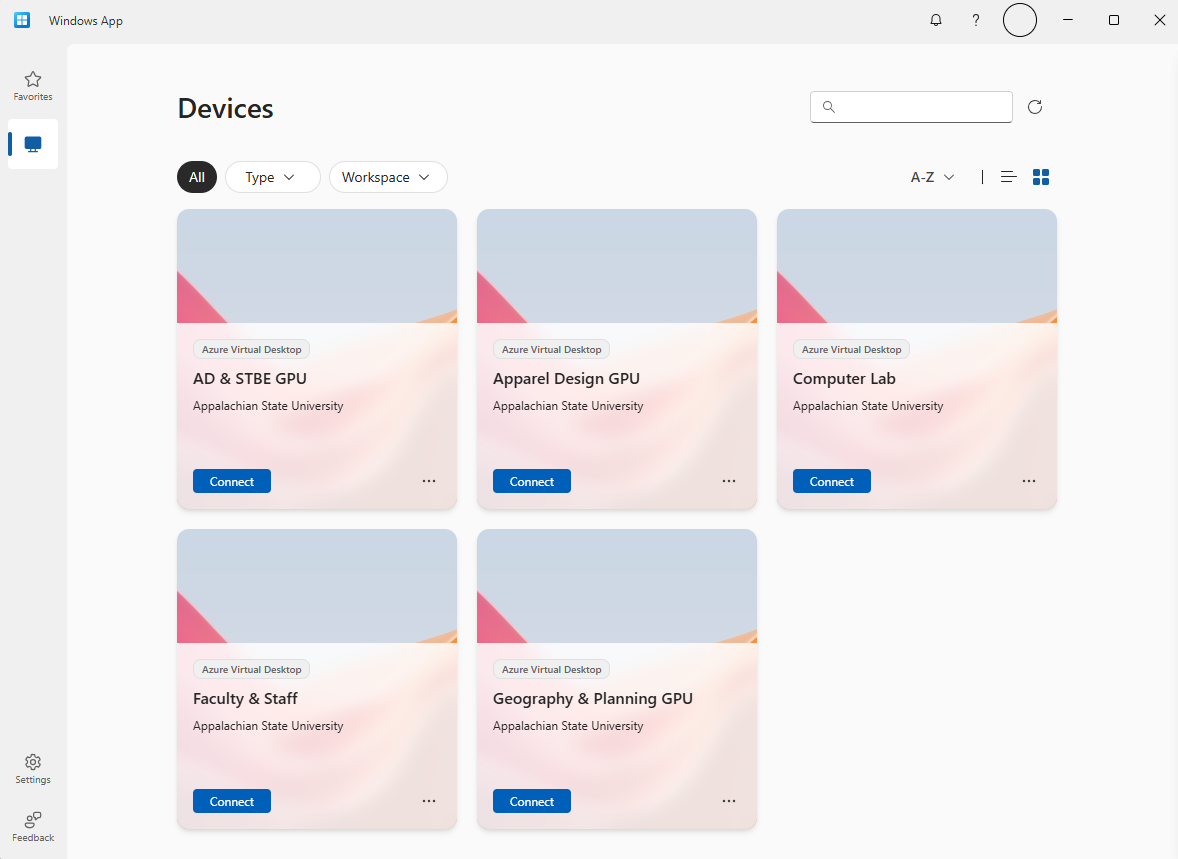
Choose a virtual machine from the list and click Connect.
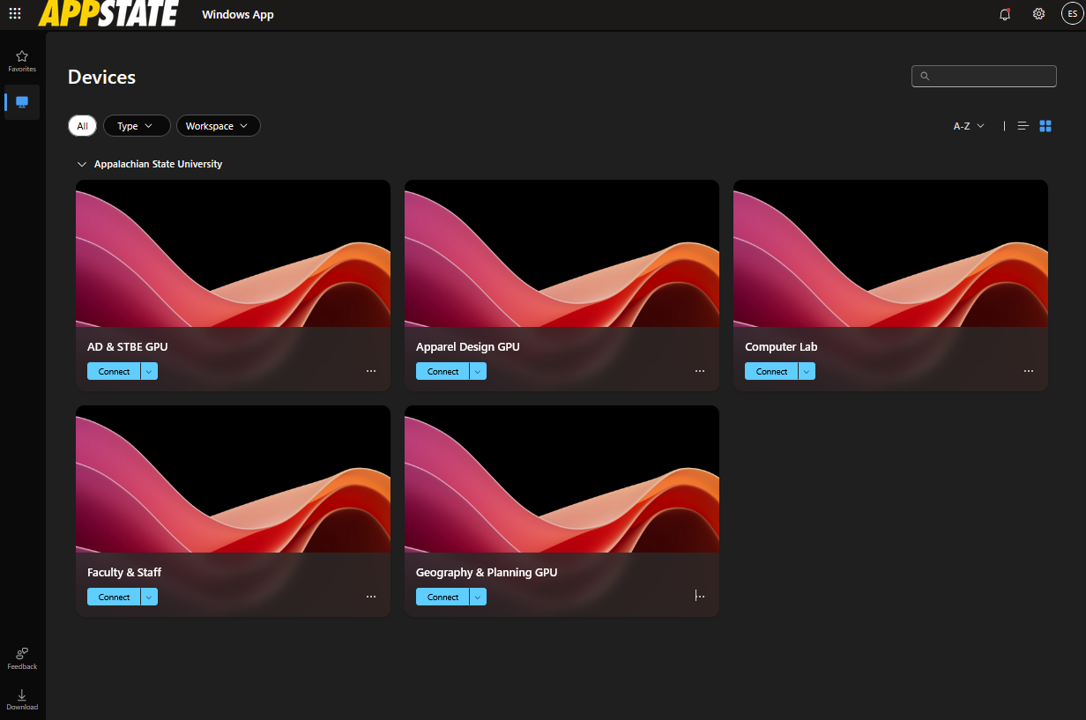
You will only see the virtual machines that you have permission to access.
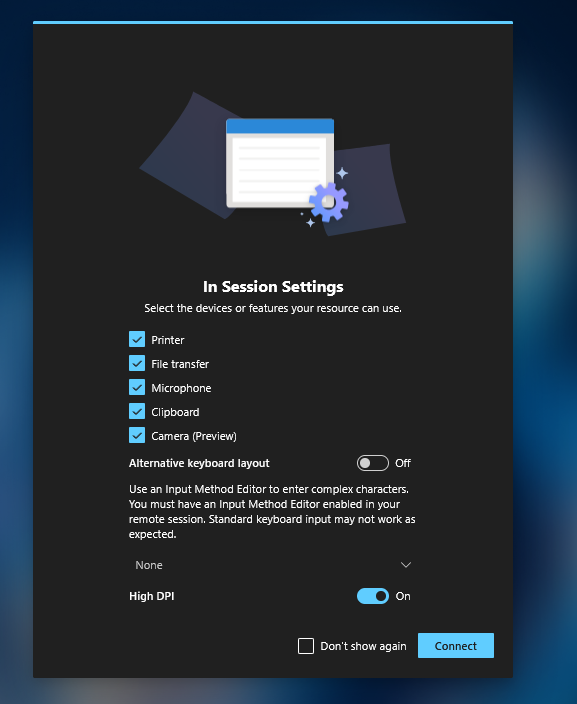
- If applicable, select the devices or features you want access to in your session, then click Connect.
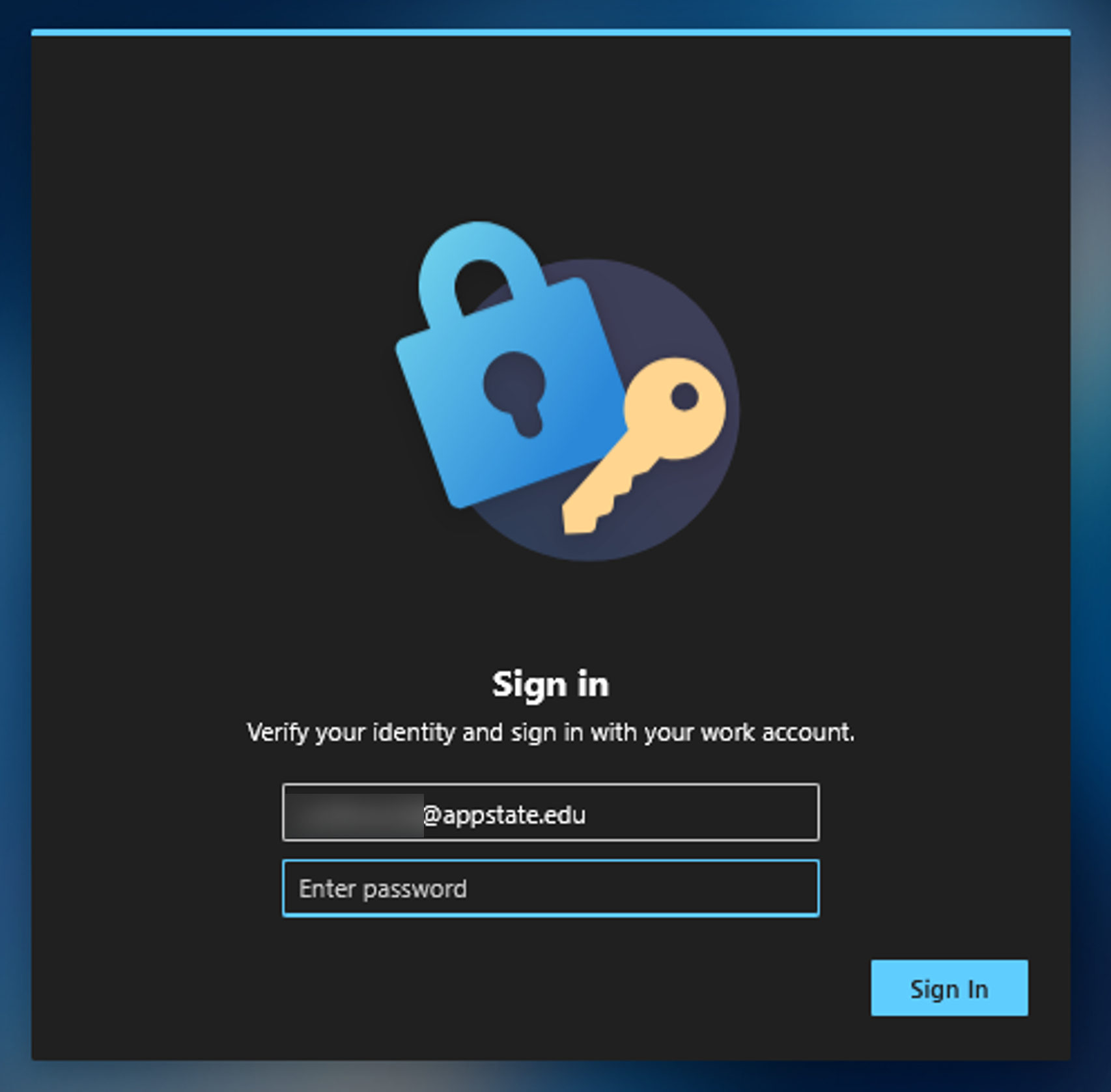
- Enter your App State password and click Sign In to start your virtual Windows session.
When finished, click on your username initials in the top right to log out. Closing your web browser while the uDesk HTML Portal is active or failing to use the Shut Down command could result in data loss.
Transferring Files
Your remote desktop session will not be saved. Follow the steps below to transfer your files.
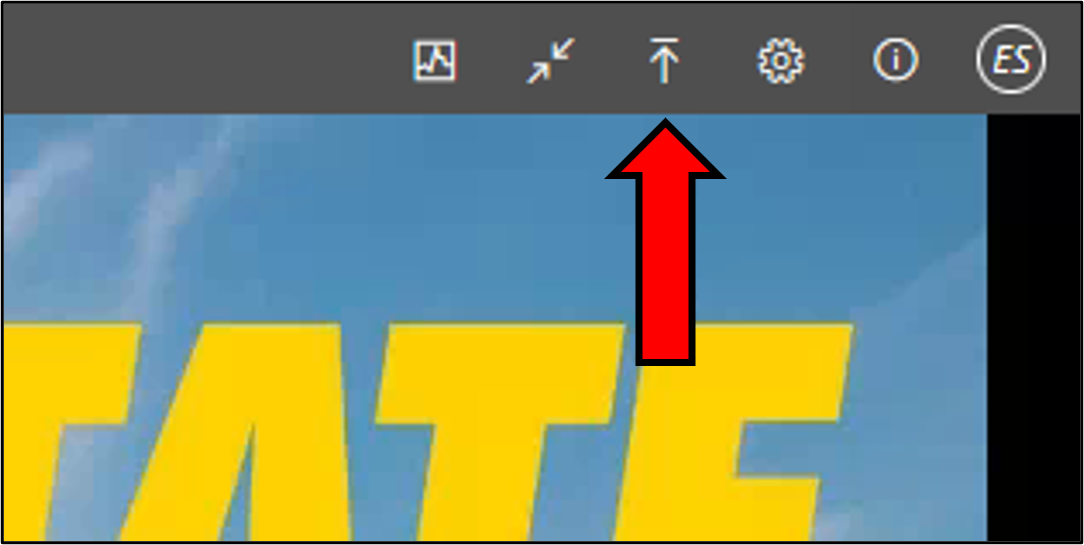
- Click the upload files button in the top right corner of your virtual session.
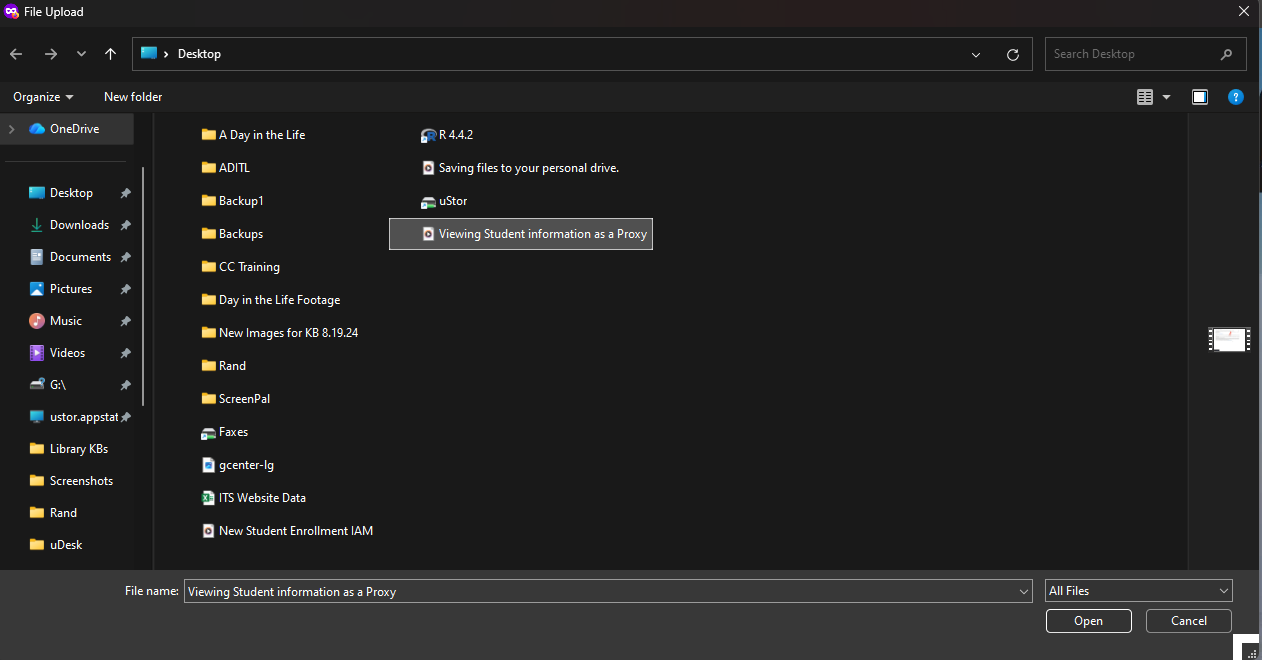
- Choose a file from your device and click Open.
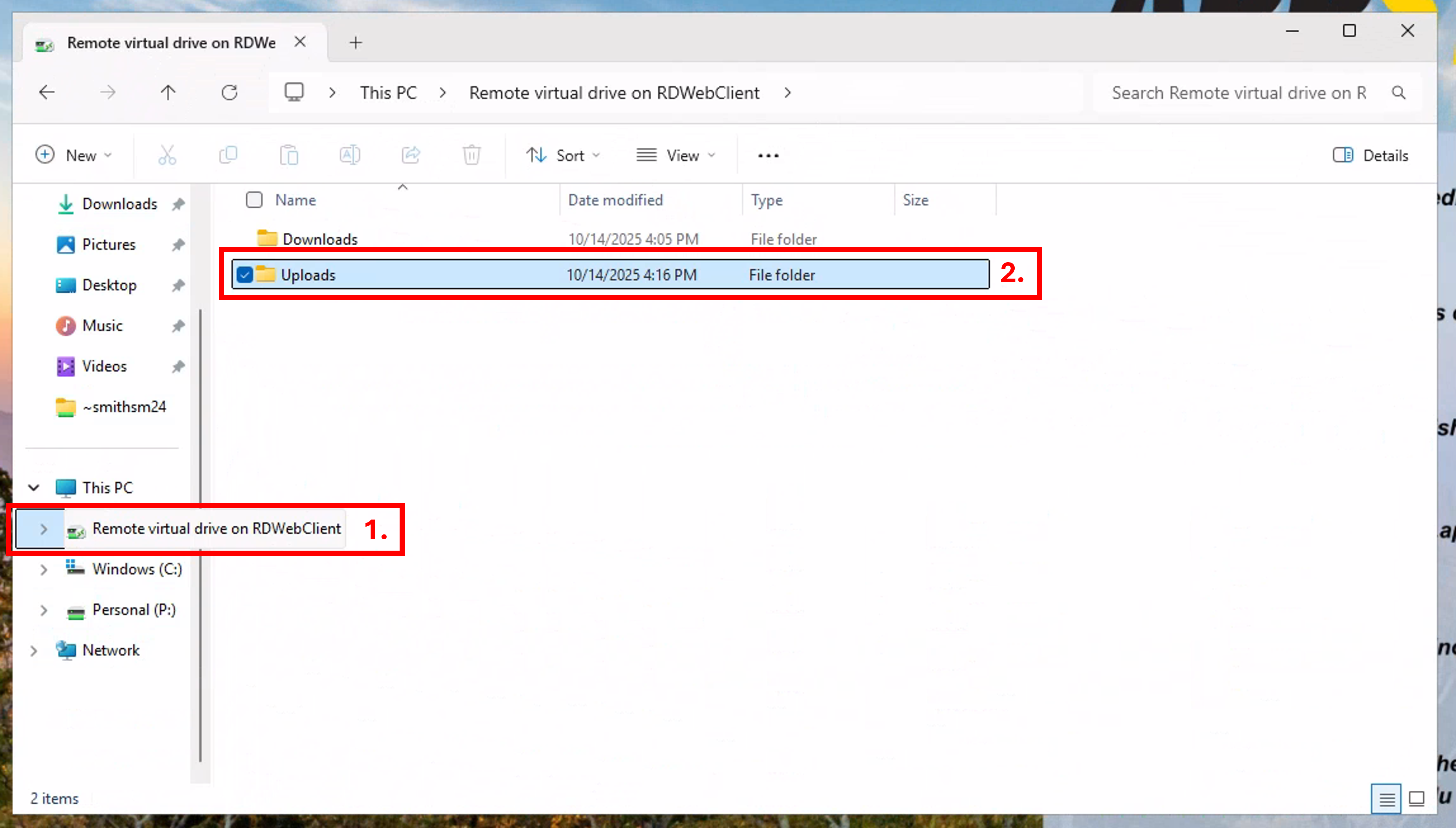
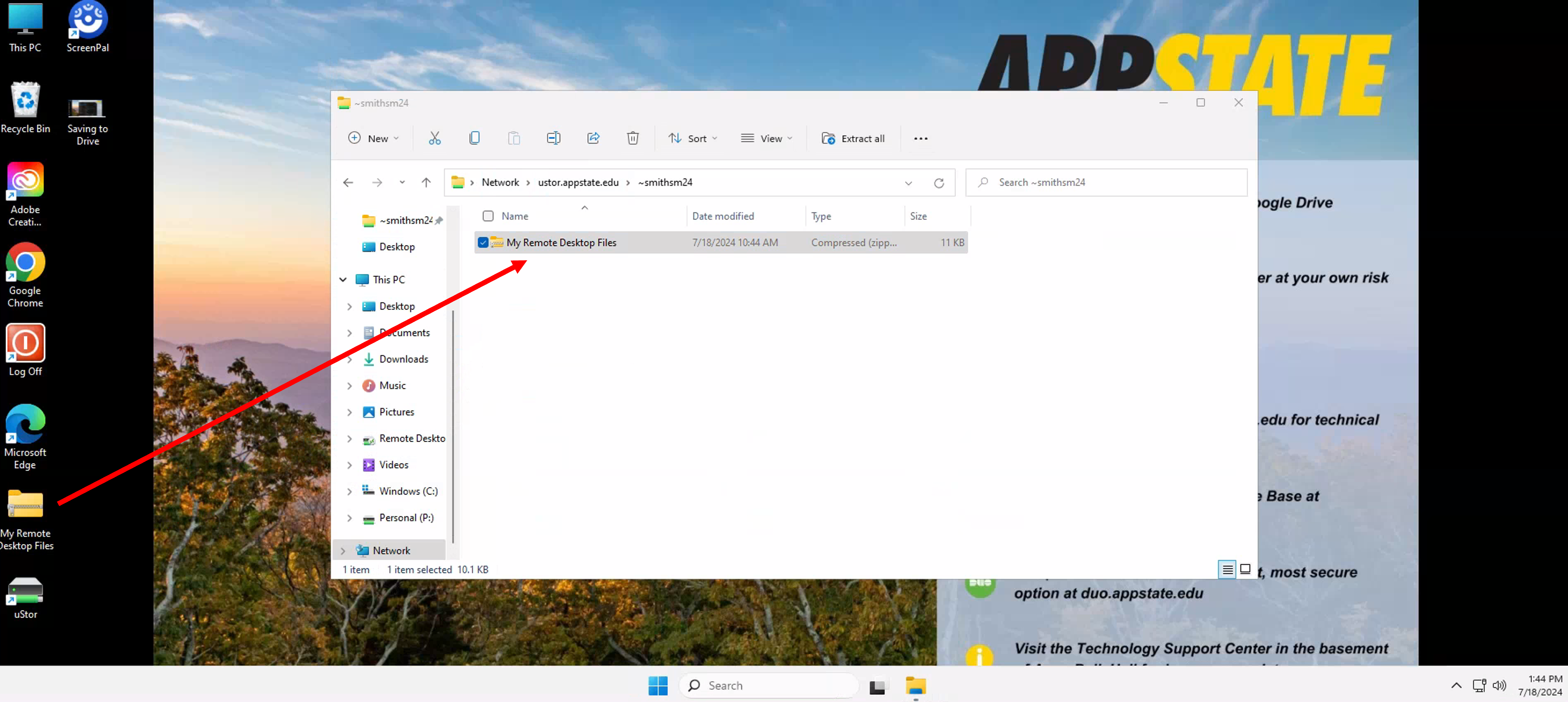
- Open File Explorer. Click on Remote virtual drive on RDQebClient in the navigation pane, then open Uploads, to access your file.
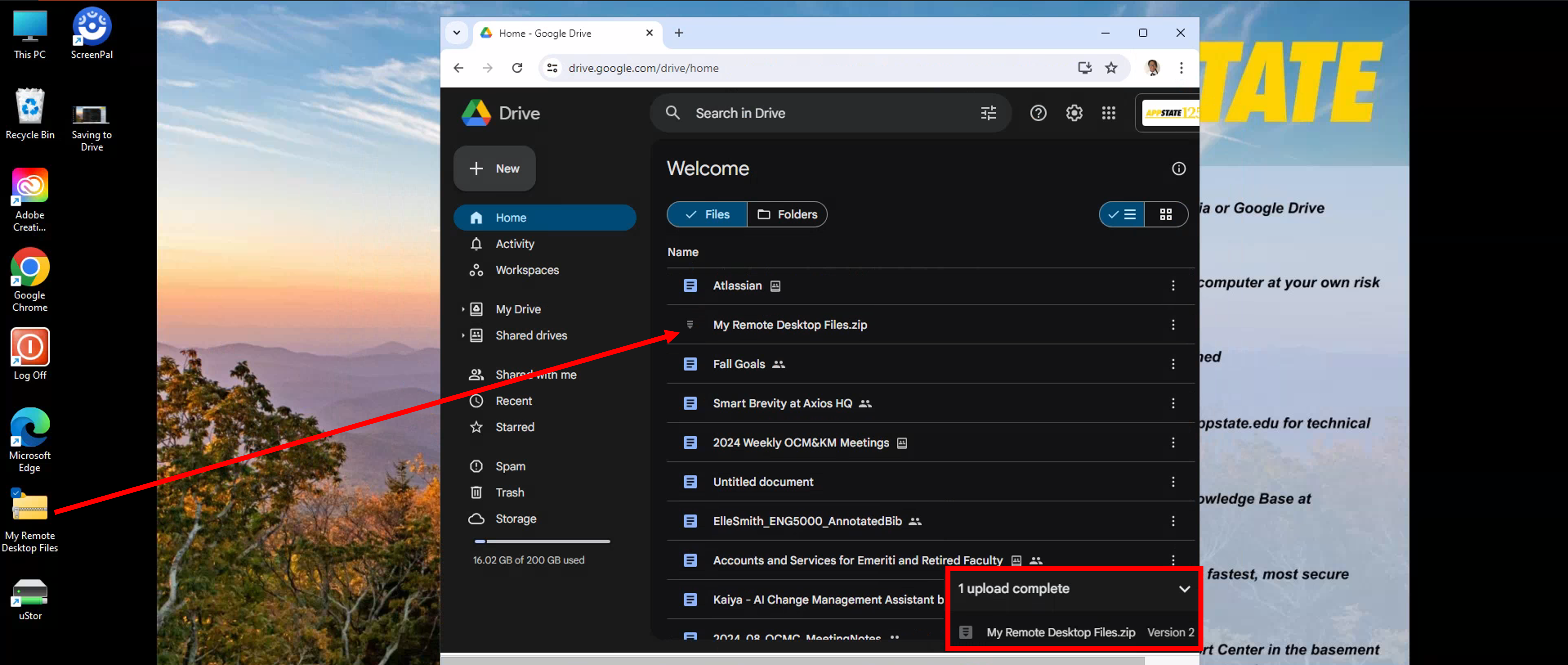
- Zip any files you have created in your virtual machine.
- In a browser, navigate to Google Drive and drag and drop your folder into Drive.
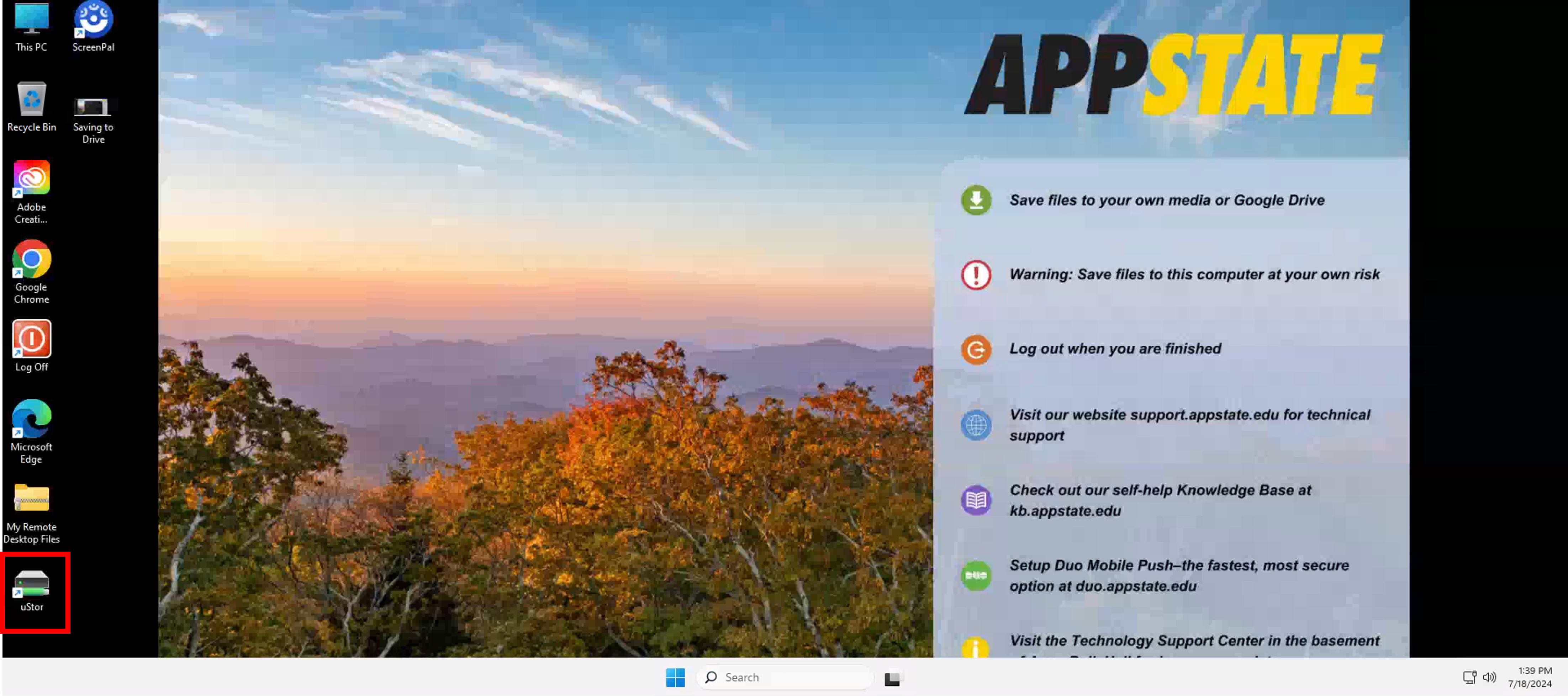
- Open uStor in your Remote Desktop.
- Find and open your user folder.
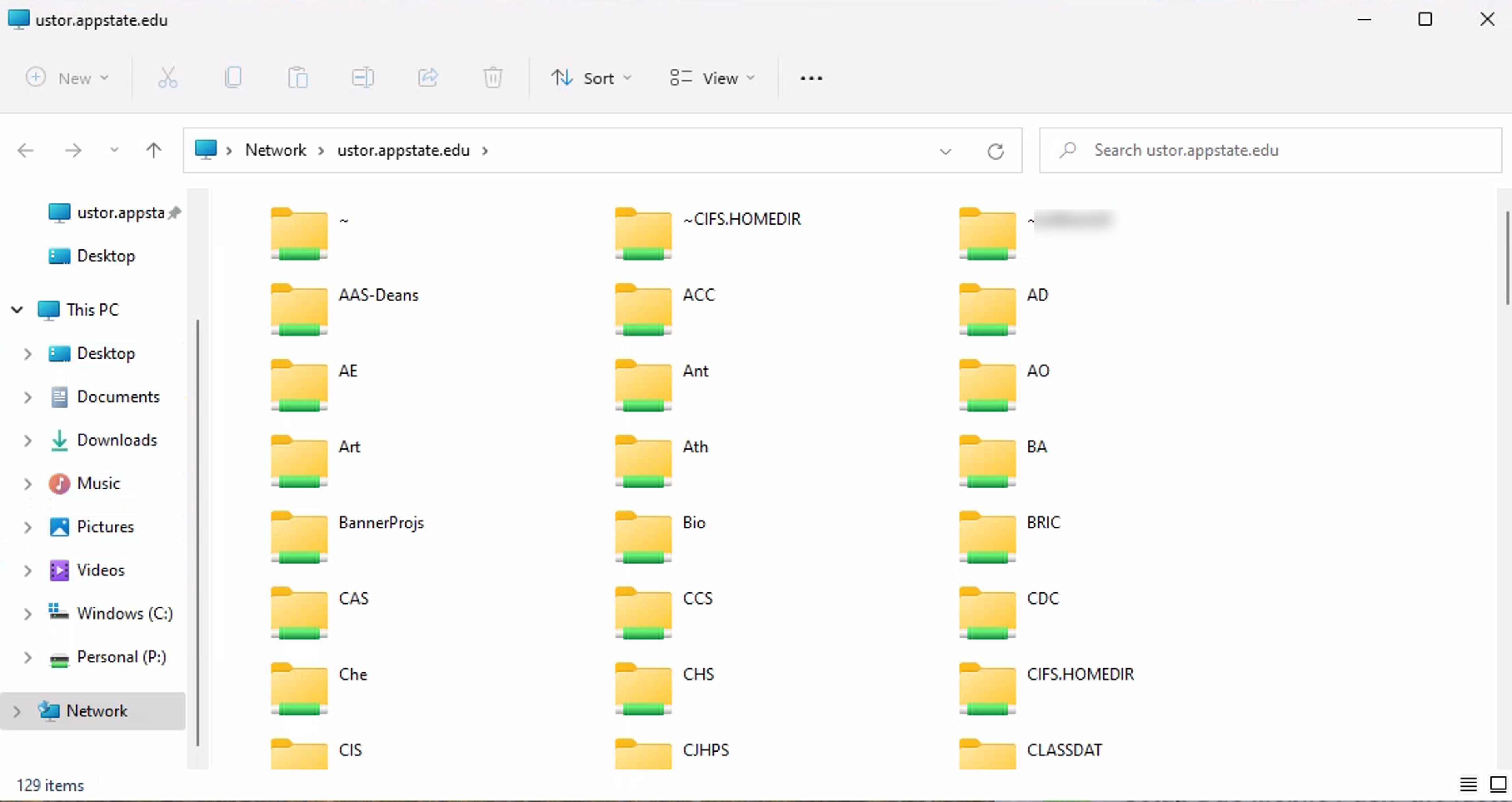
- Drag and drop your files into your uStor folder.
Accessible Software
The following are software that are accessible in addition to the standard Windows software (MS Suite, Chrome, etc.)
Windows App for Windows Virtual Desktop (WVD)
Alternatively, Faculty and staff can download the Windows App for WVD.
- Open Software Center on your desktop and search for Windows App.
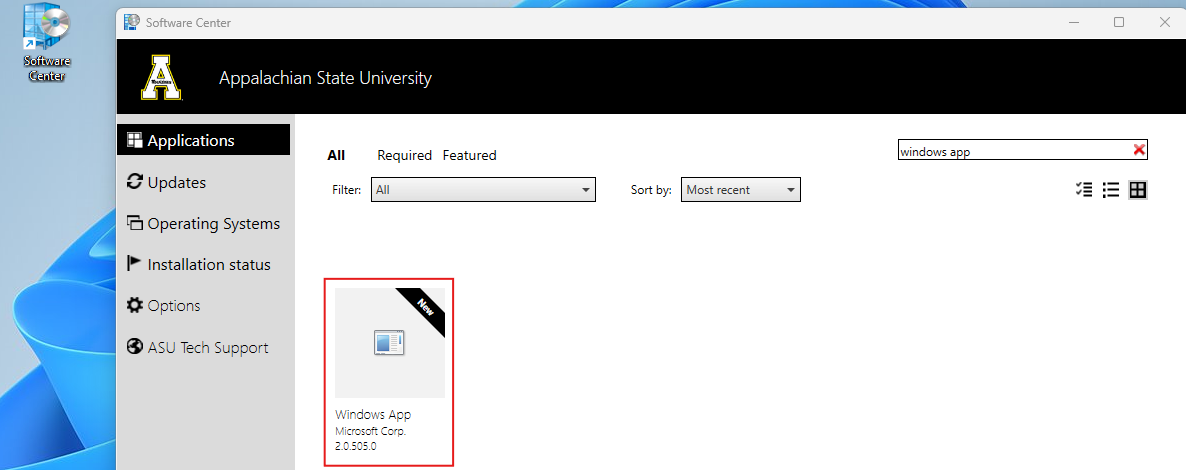
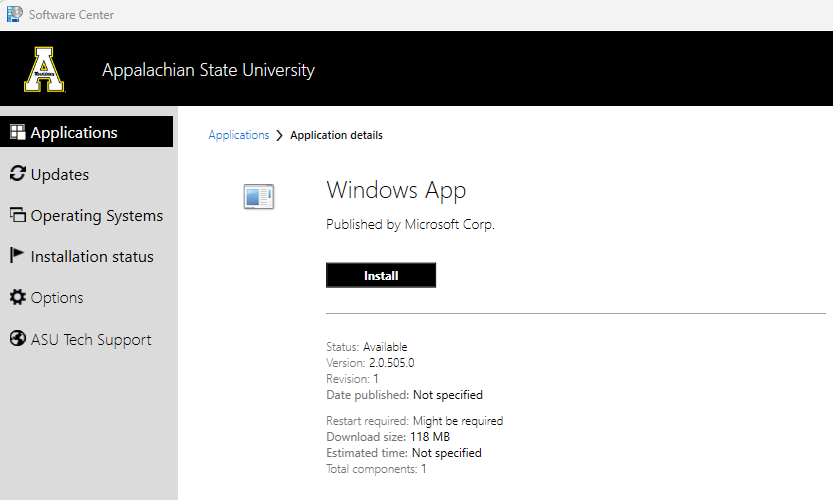
- Click Install.
- Open Windows App and click connect to access your virtual machines.
If you have any questions, submit a support request at support.appstate.edu, or call the Help Desk at 262-6266.