uDesk is Appalachian's virtual desktop infrastructure (VDI) solution. You can access a custom-built Windows operating environment from any device with an active internet connection. uDesk allows faculty and staff to work from home just as if they were in the office, and allows students to access university-licensed software found in campus computer labs. You can connect via a web browser or with a desktop app.
Accessible Software
The following are software that are accessible in addition to the standard Windows software (MS Suite, Chrome, etc.)
How to Connect with the Web Client
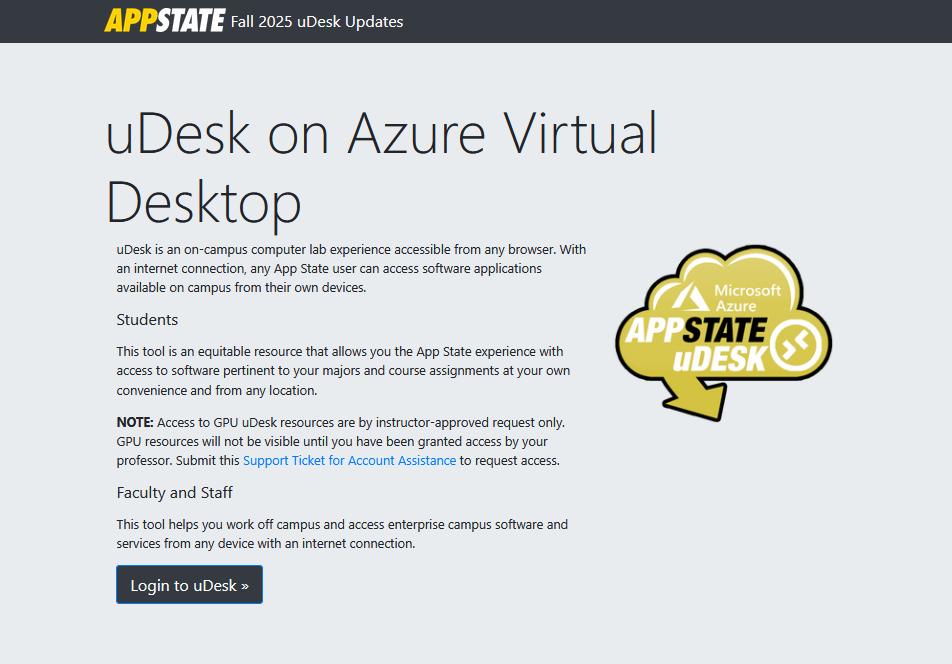
- In a web browser, go to udesk.appstate.edu and select Login to uDesk.
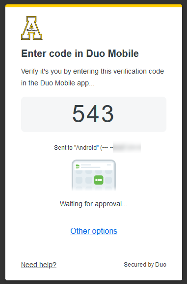
- Enter your App State email address and password in the Microsoft sign-in window.

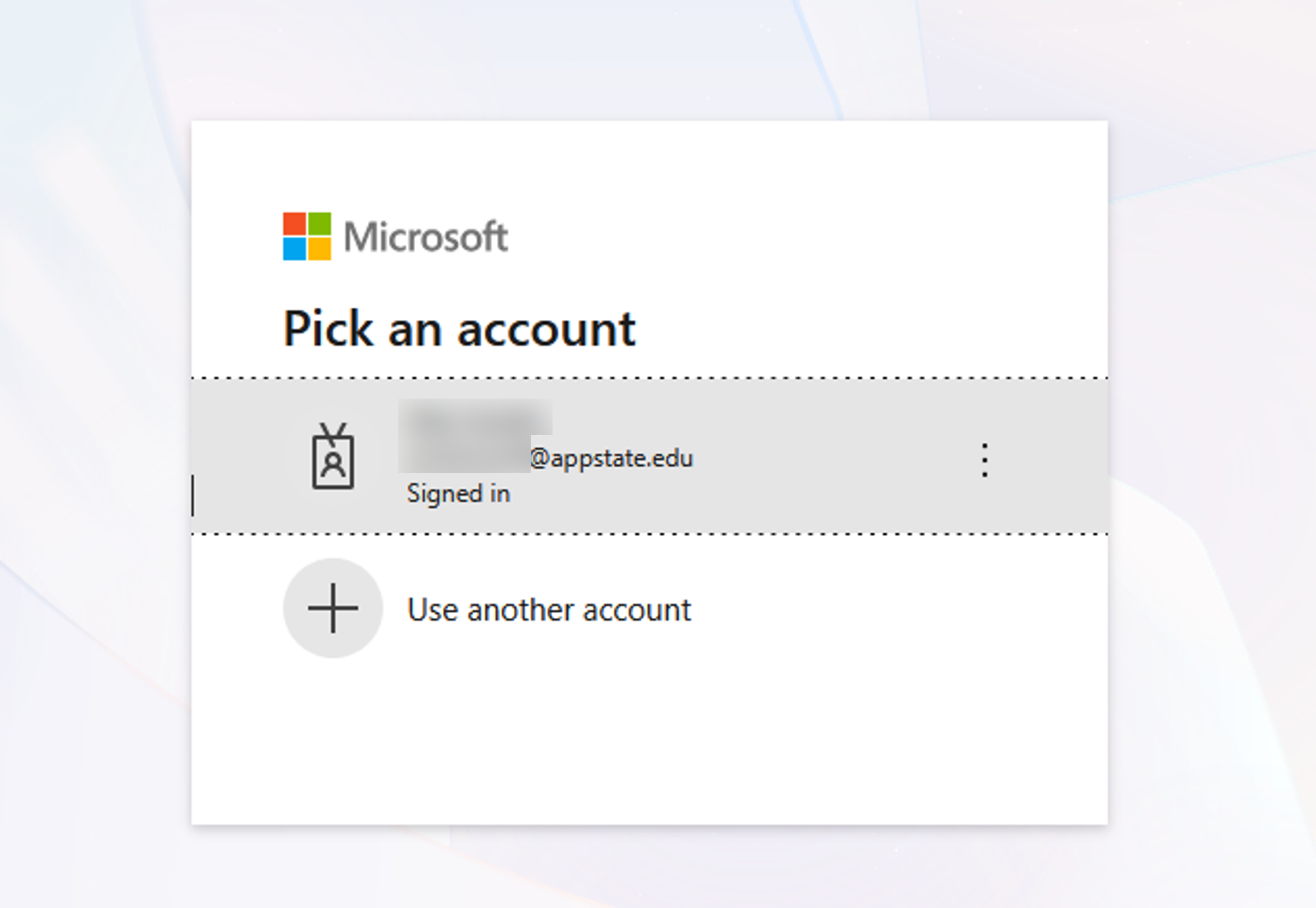
- Click on your App State account.
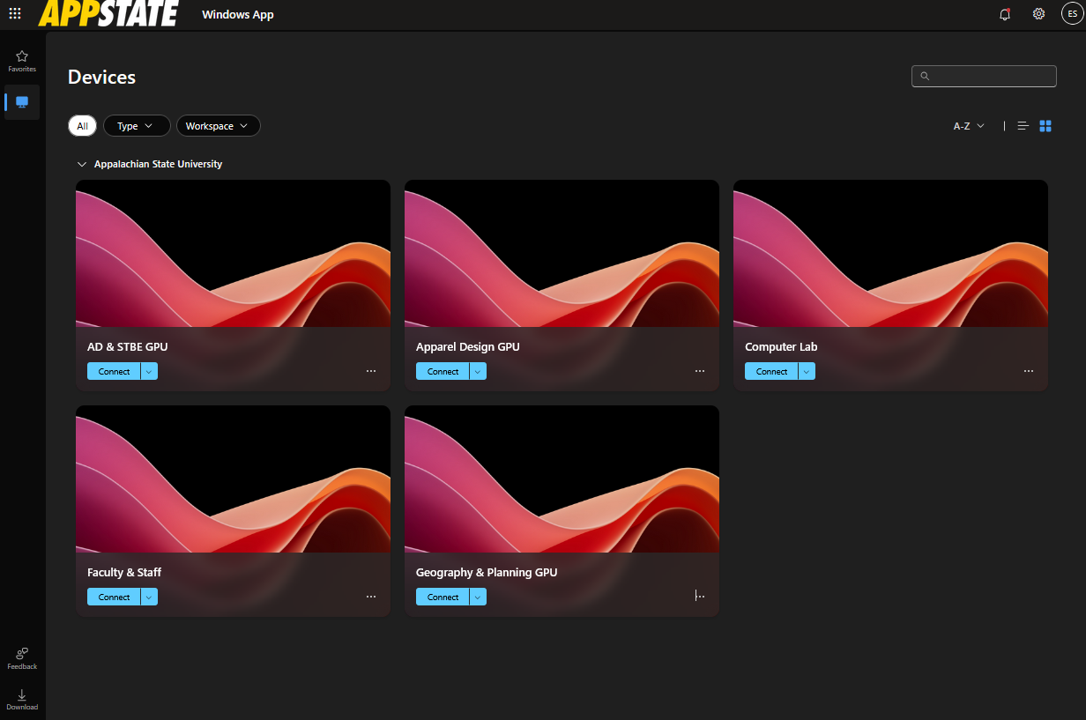
- Choose a virtual machine from the list and click Connect.
Connect via the Windows App Desktop Client
First, download and install the right app for your operating system.
- Windows 64-bit
- Mac (OS 12 or later)
Windows Instructions
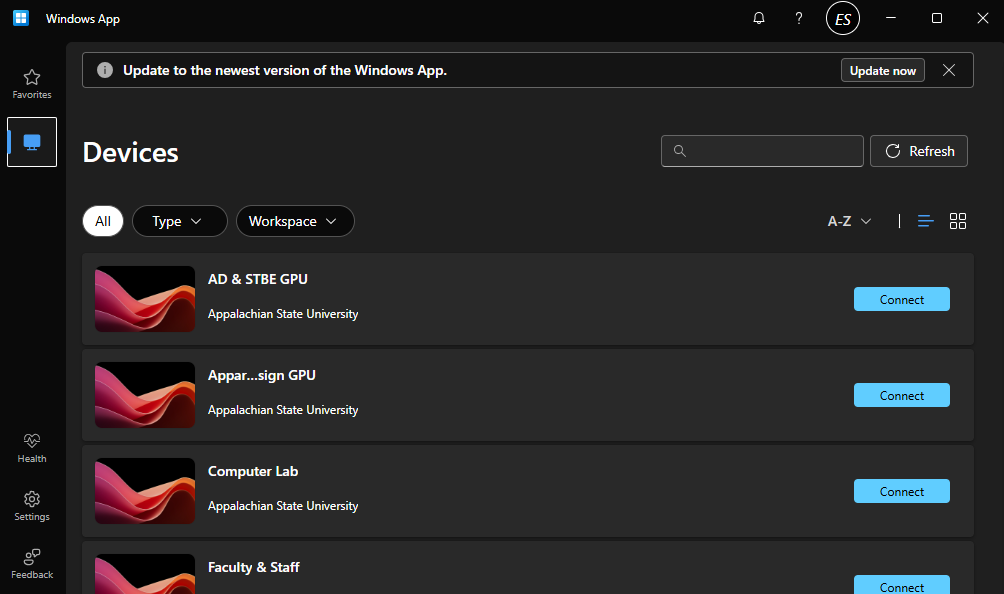
- Open the Windows App and log in with your App State credentials to access your available uDesk VMs.
- Select the appropriate virtual computer. Most students will use the Computer Lab option, while some students may see additional options related to their major.
Mac Instructions
- Open Windows App.
- Enter your App State email address and password in the Microsoft sign-in window.
- Select the appropriate virtual computer. Most students will use the Computer Lab option, while some students may see additional options related to their major.