Appalachian State University offers OpenVPN to students to access on-campus resources from remote locations. You would need this to access services that are physically located on campus from home. Below are instructions for installing the program and our profile.
Instructions and Installers
You must use Duo Mobile push notifications or a phone call. SMS (text) codes are not supported.
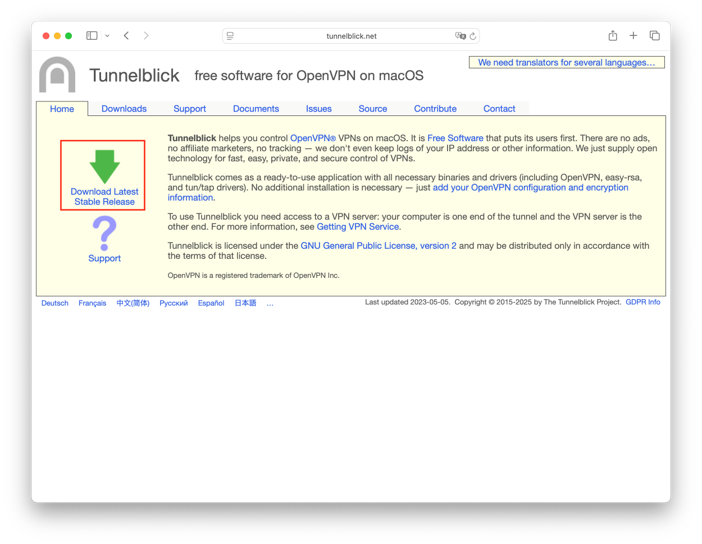
- Go to tunnelblick.net and download the latest version from the front page.
Open your Downloads folder, open the DMG file, and double-click the Tunnelblick application to install it.
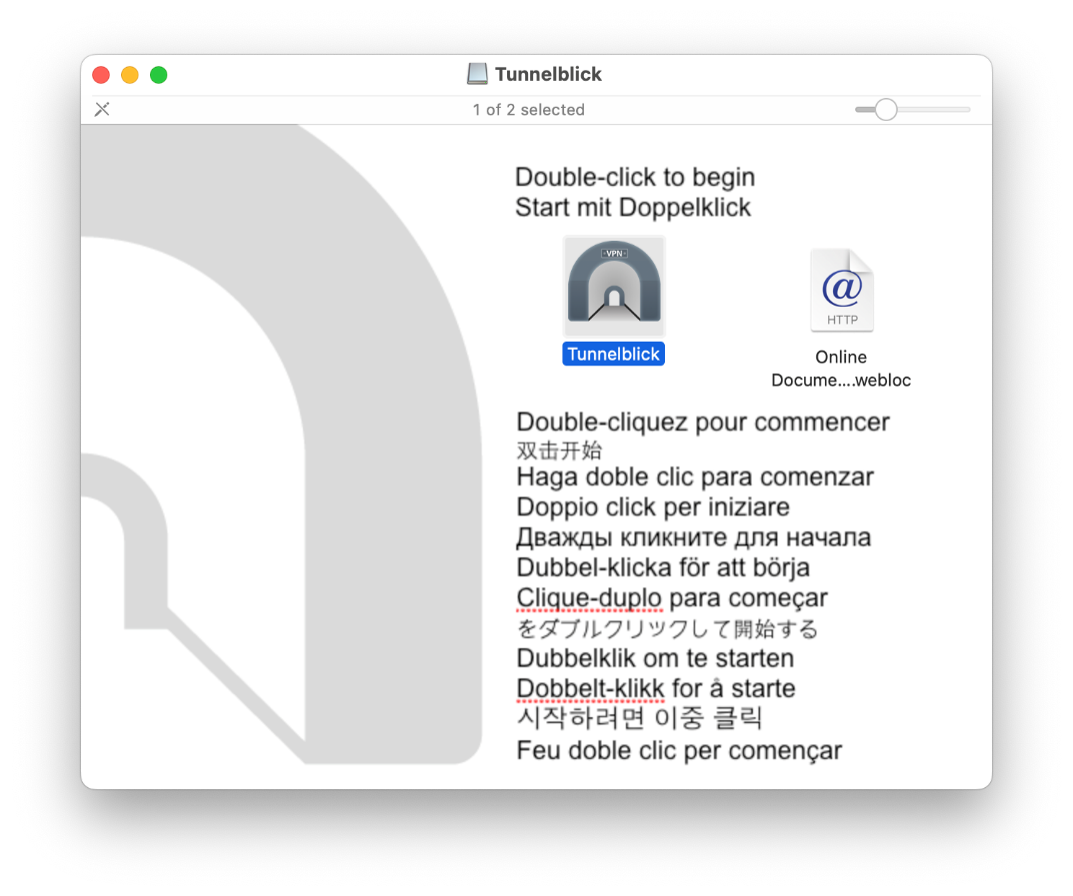
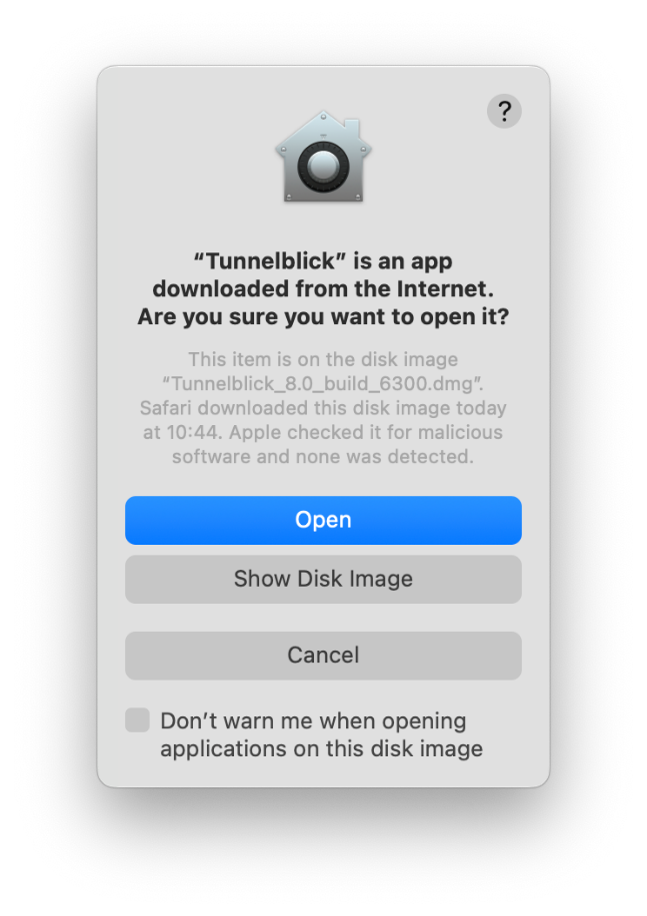
- You'll be asked if you want to allow the program to run; click Open. Then you'll be prompted for your computer password. Enter your password.
- Download the ASU Student VPN configuration: ASU Student VPN Download (Zip)
- In your Downloads folder, double-click the file to unzip it.
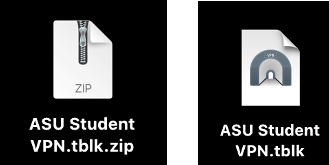
- Once you have a file with the .tblk extension and the Tunnelblick icon, double-click it.
- Once prompted, enter your password again and install the profile.
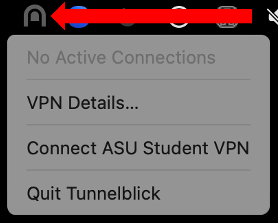
- You can connect to the ASU Student VPN from your menu bar.
Instructions for Windows
Student OpenVPN for Windows
You will be unable to log in to the Student VPN unless you’ve enrolled your account in Duo 2FA.
- Download the OpenVPN Student Windows installer below.
- Locate the zip file in your Downloads directory and extract all files.
- Next, run the openvpn_appstate executable file. It should run with administrative privileges and might prompt you for credentials if the user account on your computer is a standard-level user.

- The installer will take a few moments to run. You will see a notice on your screen telling you that it is putting the files in the appropriate places. After that notice disappears, you will see an OpenVPN GUI icon on your desktop.

- Double-click and run that program.
If you prefer, you can delete the desktop icon, as there is also a shortcut in your Start menu for launching the OpenVPN GUI application.
- Double-click and run that program.
- There should now be a new icon in your system tray (bottom right-hand side of your monitor). It looks like a computer with a padlock over the top. Highlighted in red here:
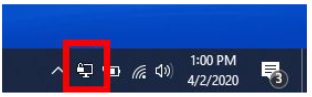
- If you do not see this icon, right-click on the up arrow in the system tray and select Taskbar Settings from the menu.

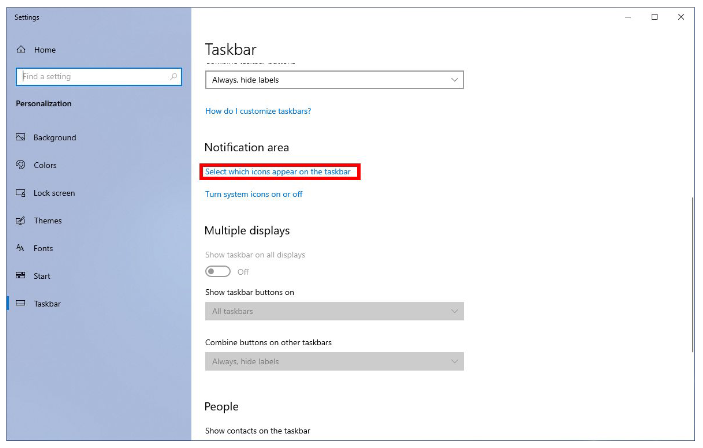
- In the taskbar settings window, click on Select which icons appear on the taskbar link.
- In the next window, you will see a list of applications that appear in your taskbar. Find OpenVPN GUI in that list and switch it on.
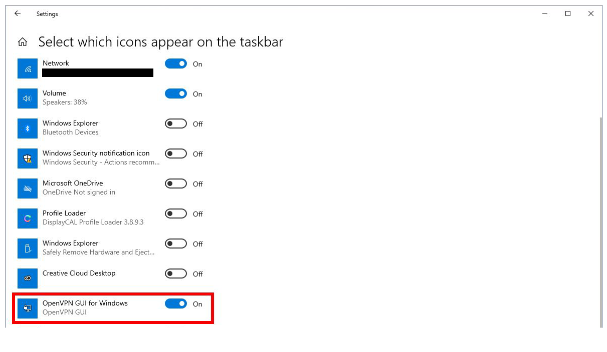
- Now the icon will appear near the clock in your system tray.
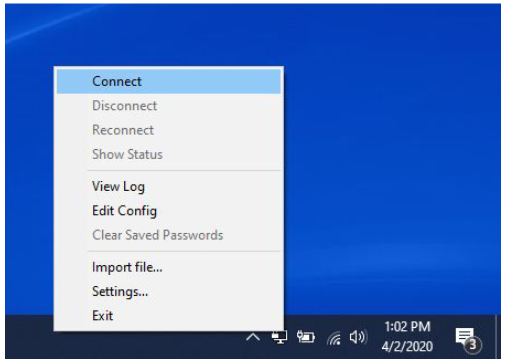
- Next, right-click on the OpenVPN GUI icon in your system tray and select “Connect.”
- You will be prompted for your App State user ID and password.
- You may store or save them if you wish.
- Please note: With Duo two-factor authentication enabled, you’ll receive a push notification via the Duo application on your mobile phone or a phone call via the primary phone number you set up when you enrolled in Duo.
Alternatively, you can use a Duo authentication token in the password field by putting the six-digit code after your password and a comma. (For example: password,123456) Any of these methods works for using Duo with OpenVPN.
If you do not have Duo enabled on your account, you can ignore this paragraph and log in normally.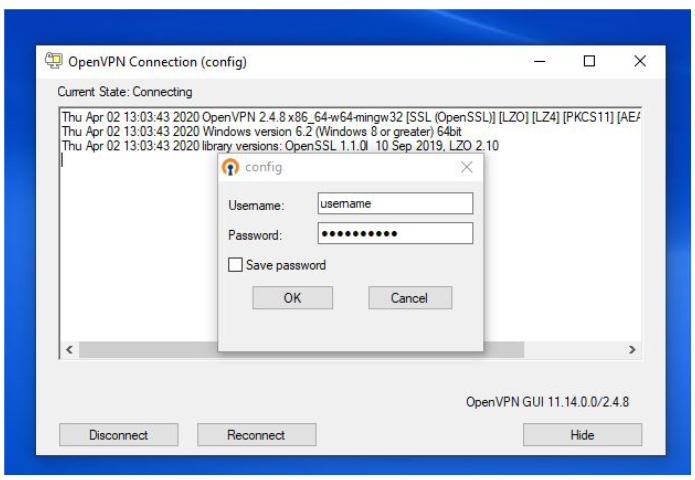
- If everything goes as planned, you’ll see the icon in the system tray has turned green. This means you are connected and can access campus resources.
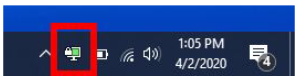
- If you want to disconnect, you can do so by right-clicking on that green icon and selecting “Disconnect” from the options.
- Student VPN for Windows
openvpn_student.zip