Follow the guide below to learn how to get Google Apps on an iOS device (iPad, iPhone, iPod Touch) from the iOS App Store.
Google has individual apps that need to be downloaded separately for each of its different services. Sign in with your Apple ID and download any of the following apps you wish to use. Alternatively, you can search for the following apps individually:
- Gmail
- Google Calendar (iPhone only)
- Drive
- Sheets
- Slides
- Docs
- Chat
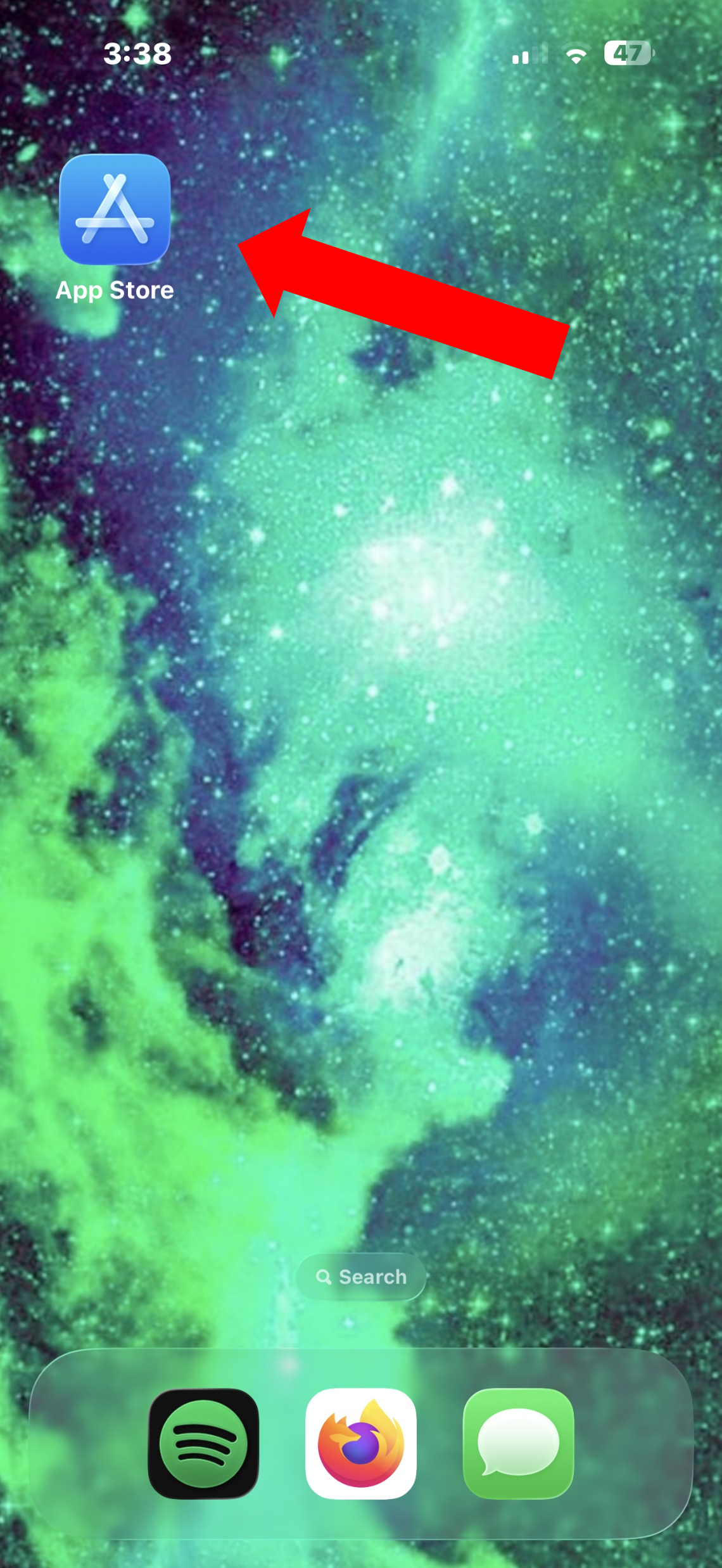
- On your iOS device, open the App Store app.
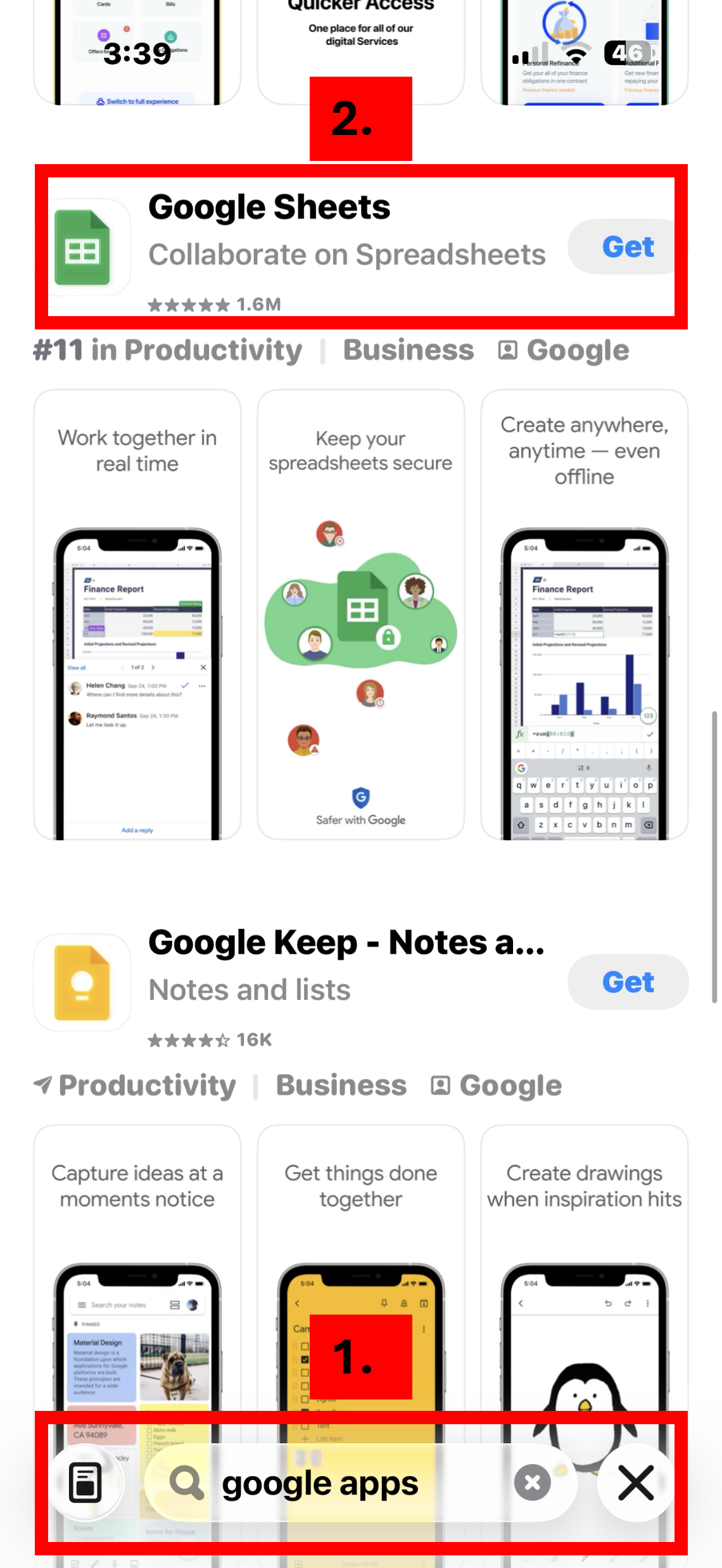
- Search for (1) Google Apps then (2) tap Get to download.
- After the download completes, open the app, and tap Sign in.

- If asked to sign in with your App State email, tap Continue As... or if asked to sign in with your personal account, tap Select another account.

- Now sign in with your App State credentials.

- As you open the other apps, you will have the option to use your App State account, tap Continue As, and it will log you in automatically.
Related Articles
Visit or call the Technology Support Center for assistance with your iOS Devices.