Periodically, Apple releases updates for mobile devices such as
- iPads
- iPhones
- iPod Touches
- and Apple TVs.
These updates are for iOS/tvOS, which can include
- updates to apps that come with your mobile device
- bug fixes
- and important security updates
What You Should Do
Software Updates are an essential part of maintaining supportability and securing your mobile device. The App State End User Supportability Standard requires mobile devices to have the latest major version of macOS or one version previous installed. We recommend you regularly check your device for any available updates and/or major upgrades and apply them as soon as possible. You can view the End User Supportability Standard in full at IT Policy, Standards & Guidelines.
The currently supported operating system versions are:
- iOS 15
- iOS 16
If your device requires an update, you may receive an iOS Update Notification. You should also understand the differences between minor updates and major upgrades for iOS:
- Major Upgrades will include new features, be a larger install, and could potentially impact the support for 3rd-party software you have installed on your device. University policy requires mobile devices to be on the latest major version of iOS or one previous from the latest.
- Minor Updates are generally smaller and typically provide bug fixes and patch security vulnerabilities. University policy requires that you install all minor updates within 7 days of availability in order to keep our systems secure from security vulnerabilities. or continue with the steps below to update the software on your mobile device
Important
If your device does not meet system requirements to upgrade to one of the supported versions, contact IT Support for further steps.
Follow the steps below to either update or upgrade your Apple mobile device. To keep things simple for most users, we recommend that you upgrade your Mac as soon as possible whenever a major iOS/tvOS upgrade is available.
For Managers of Groups of Devices
If you have multiple iPads that you need to update at once, see the guide for Using Apple Configurator to Update Multiple iPads at Once
Before You Begin
- Back up your data: While generally very safe, updates run minimal risk of data loss. Ensure your data is regularly backed up to another location to avoid risk. Our Desktop Support Team is available to assist with this process. Visit tech.appstate.edu and submit a request for Computer Support.
- Stay connected to power and Wi-Fi: Ensure your devices are connected to power and on a Wifi network.
- Free up space if needed: Updates will need storage space to be installed. You may need to free up storage space in order to keep your iOS device up to date.
Check for Updates
Open the Settings app, tap General, and then tap Software Update.


Software Update will show you both the latest minor updates and major upgrades available to your mobile device (as allowed by ITS). By default, the latest version will appear, and we recommend you complete that upgrade/update as soon as possible.
Important:
When you initiate an update, your mobile device will download the necessary components and will need to restart to perform the installation. Before proceeding
- Save your current documents
- Quit any open applications
- Back up your data
- and connect to a charger (This process may take some time, and your mobile device will be unavailable during the installation.)
Install Updates
Depending on the availability of software updates for your mobile device (and whether you are ready to install the major upgrade or just the minor updates), you will follow the different steps outlined below, which are listed in order of recommendation (e.g., ITS recommends installing the latest major version of iOS, which is why it is listed as the first step. If the latest major version cannot be installed at this time, proceed to the next step to install the required minor updates in accordance with University policy.
To upgrade to a major version:
- Tap Download and Install then follow the installation process.

- If there is a minor and major upgrade available, tap on Upgrade to iPadOS *version number* and follow the installation steps there.
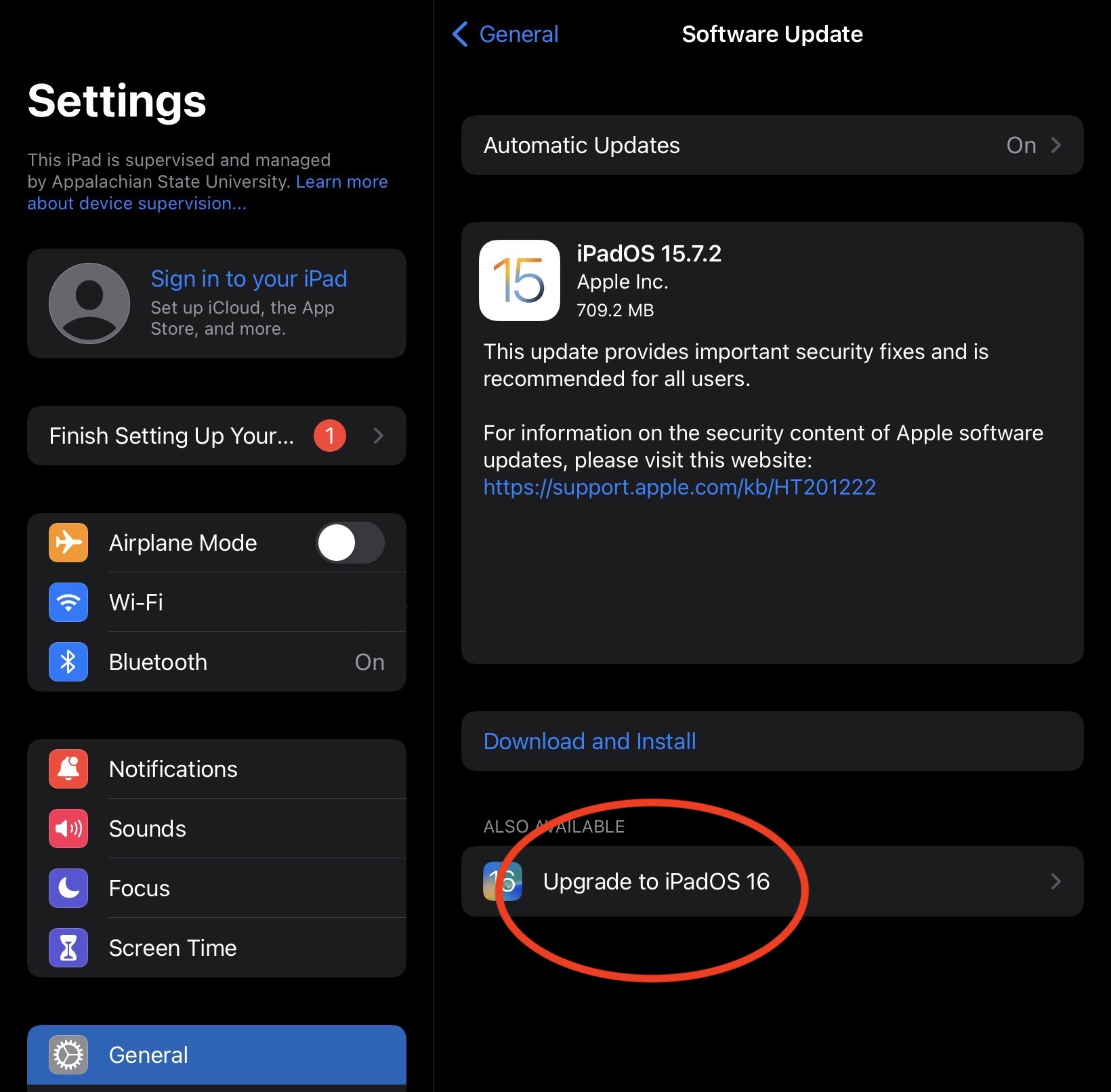
- If you are not ready for the major upgrade, tap Download and Install under the minor update.

- If your mobile device is not eligible for the major upgrade and only has the minor updates available, click Download and Install and follow the installation process.

Final Step
It may take some time to download the update before it can be installed. When the download is complete, return to Settings and tap Install Now to initiate the upgrade/update process.
Related Articles
Visit or call the Technology Support Center for assistance with your iOS Devices.