After you change your password at iam.appstate.edu, your Mac may have trouble reconnecting to the ASU wireless network. Follow these steps to resolve this issue and connect to ASU wireless again.
Running "Remove ASU Wifi Network" in Self Service+
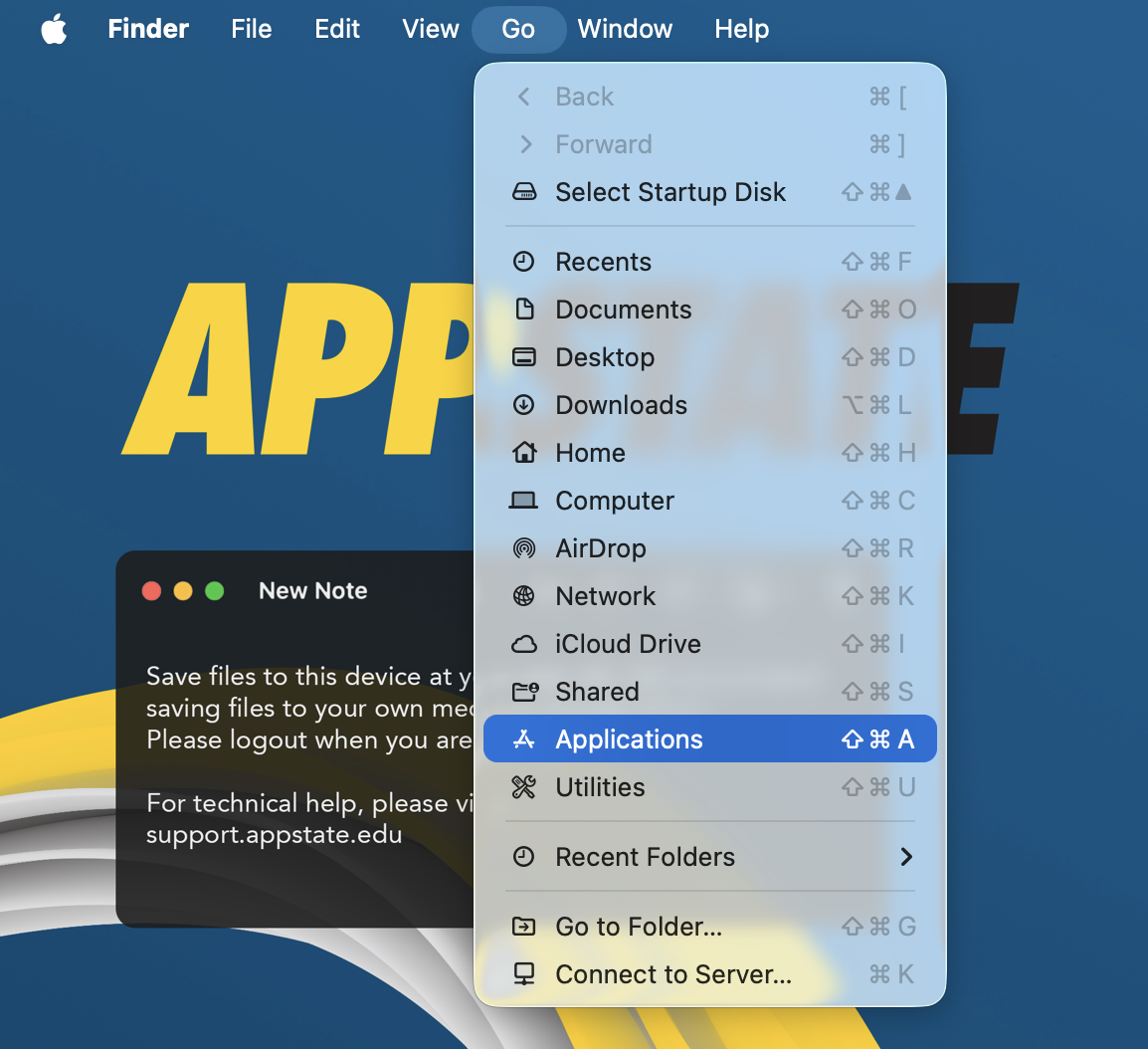
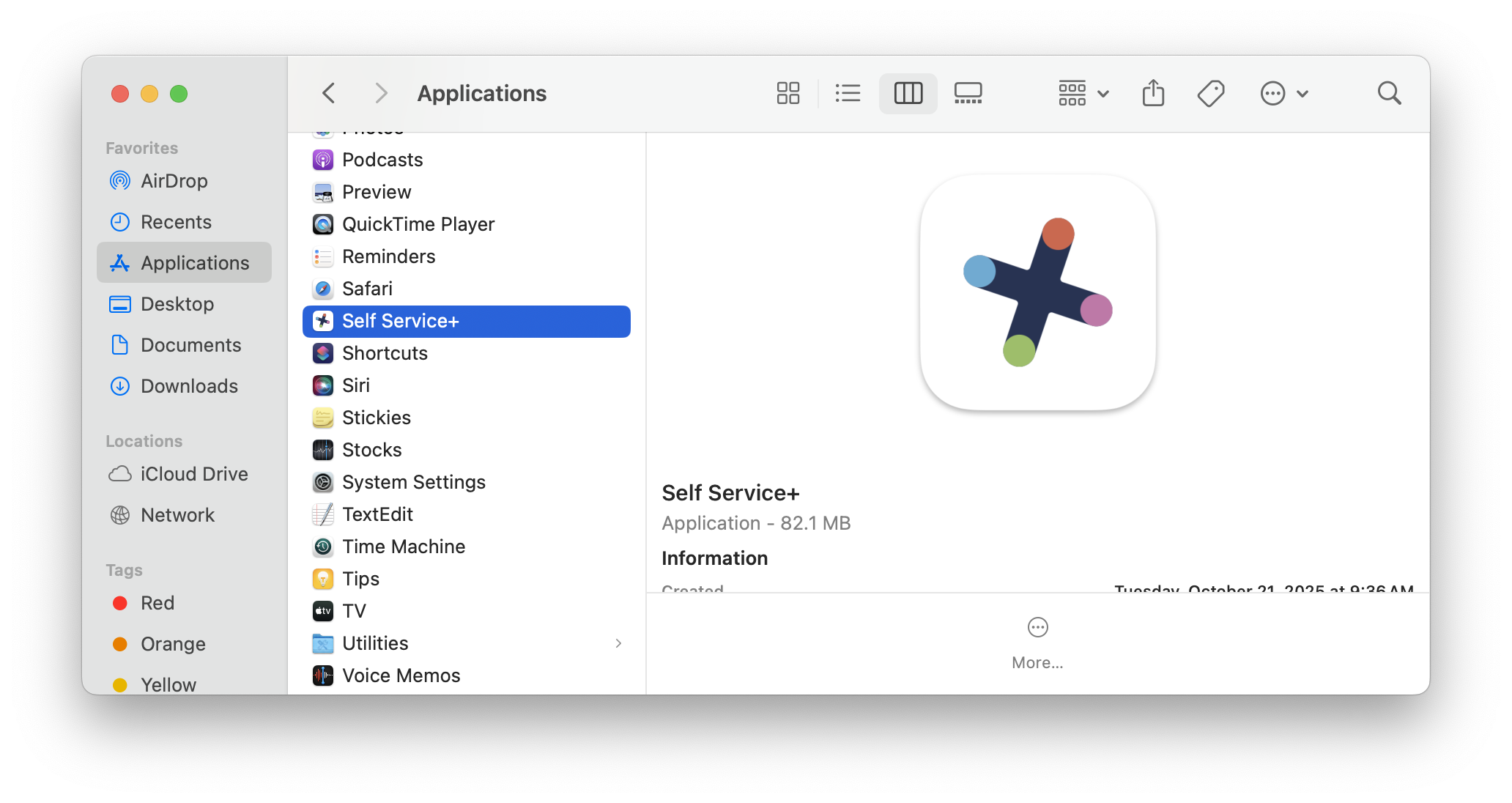
- Open the Self Service+ app (found in your dock or the Applications folder) and log in.
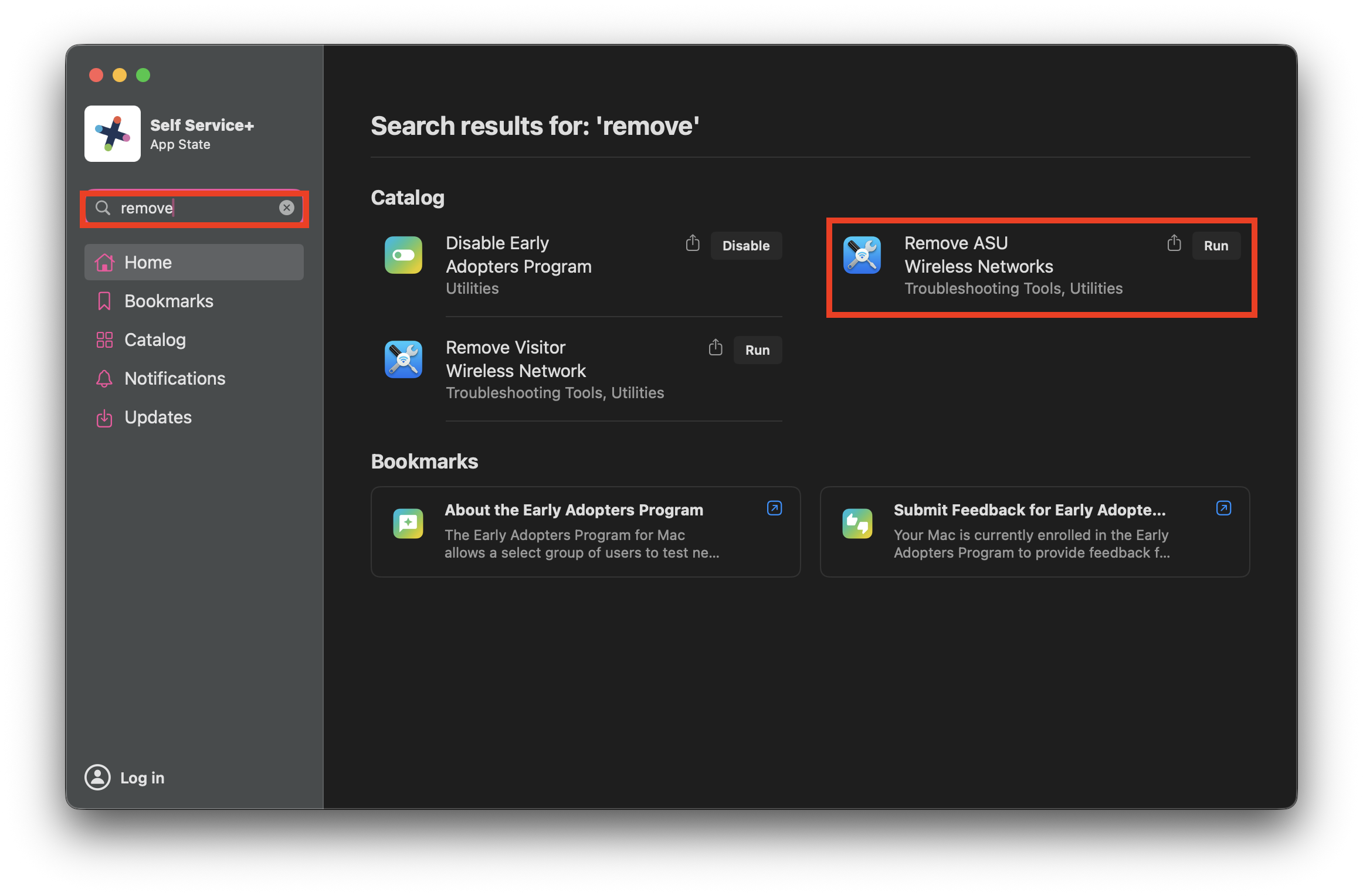
- In the catalog, you'll see the option to run or reinstall the Remove ASU Wireless Networks script.
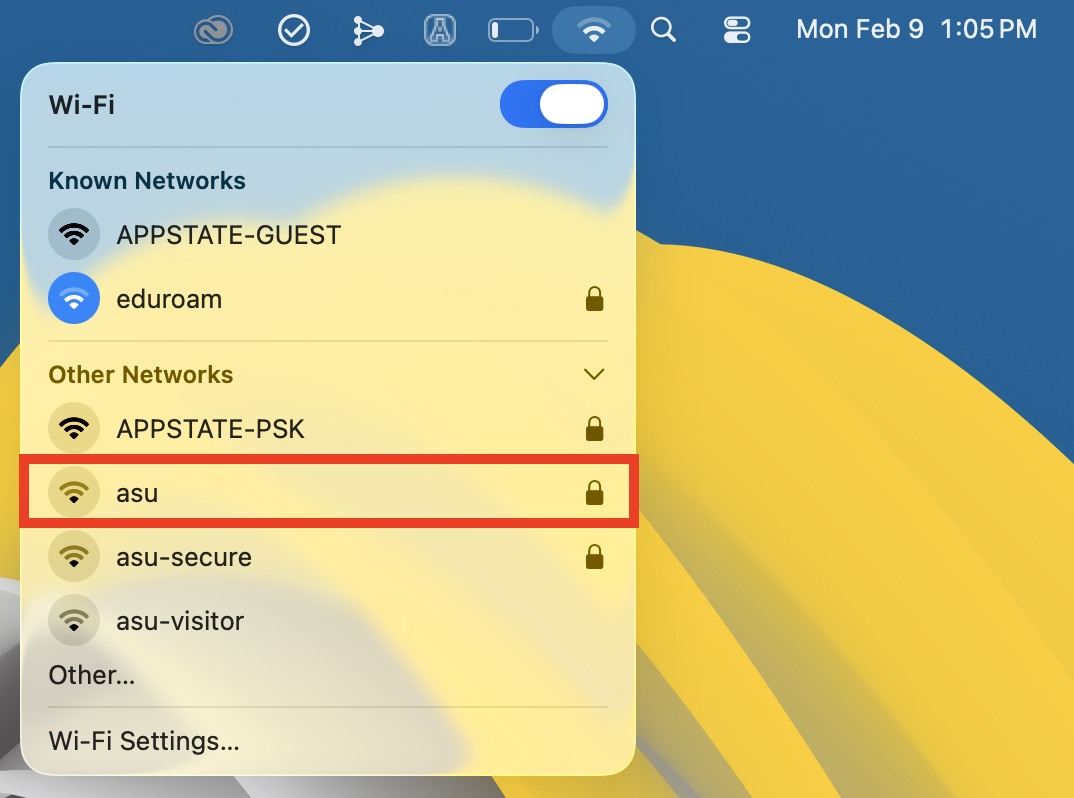
- Once complete, select the Wifi option from the upper right menu bar of your screen, select Other Networks, and then select asu
- Next enter in your credentials.
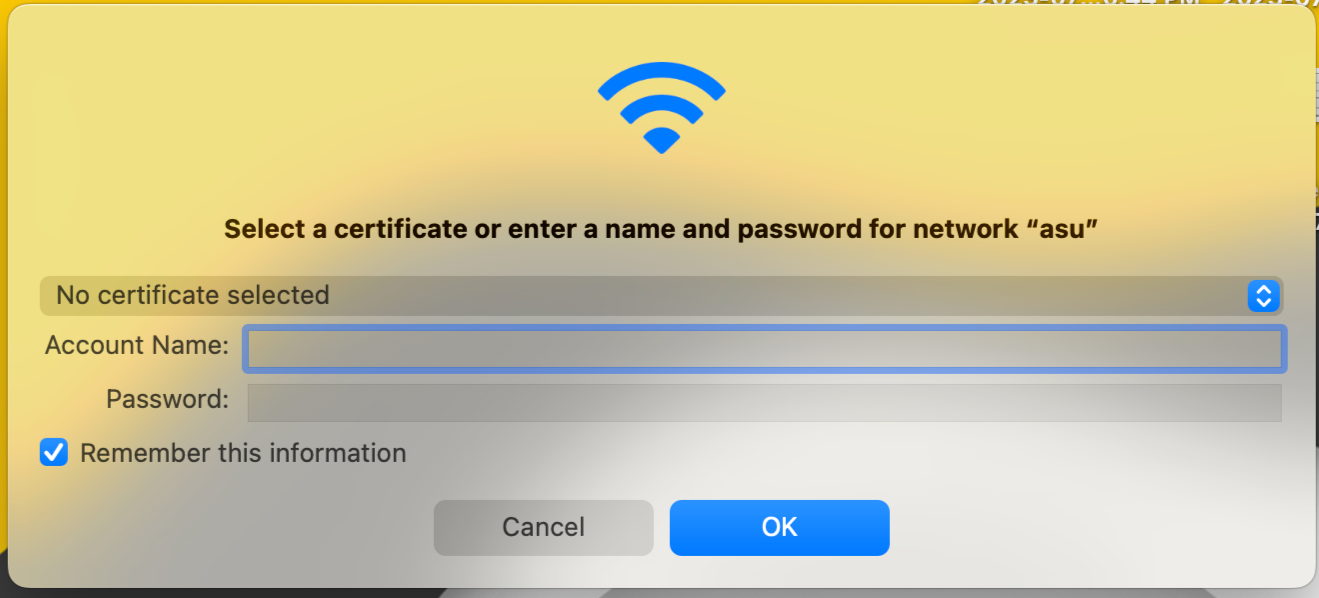
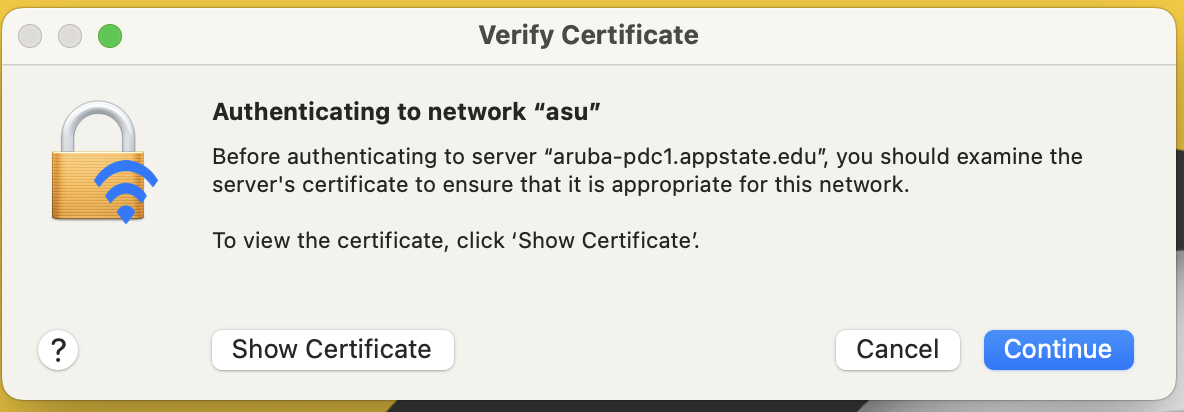
- Click Continue to verify the certificate if prompted. You should now be successfully reconnected to the asu wireless network.
Note
If having trouble accessing a site and/or you get a netreg prompt:
- Run Admin By Request by clicking on the circled check-mark icon in your menu bar and selecting Request administrator access from the drop-down menu (Admin By Request can also be found in your Applications folder) if not already elevated.

- Open System Settings and navigate to Wi-Fi.
- Click the Circle with the 3 Dots (...) next to the asu network, then click Wi-Fi Settings...
- Under Private Wi-Fi address, select Off. This will now use the built in hardware MAC Address that should be registered in netreg.
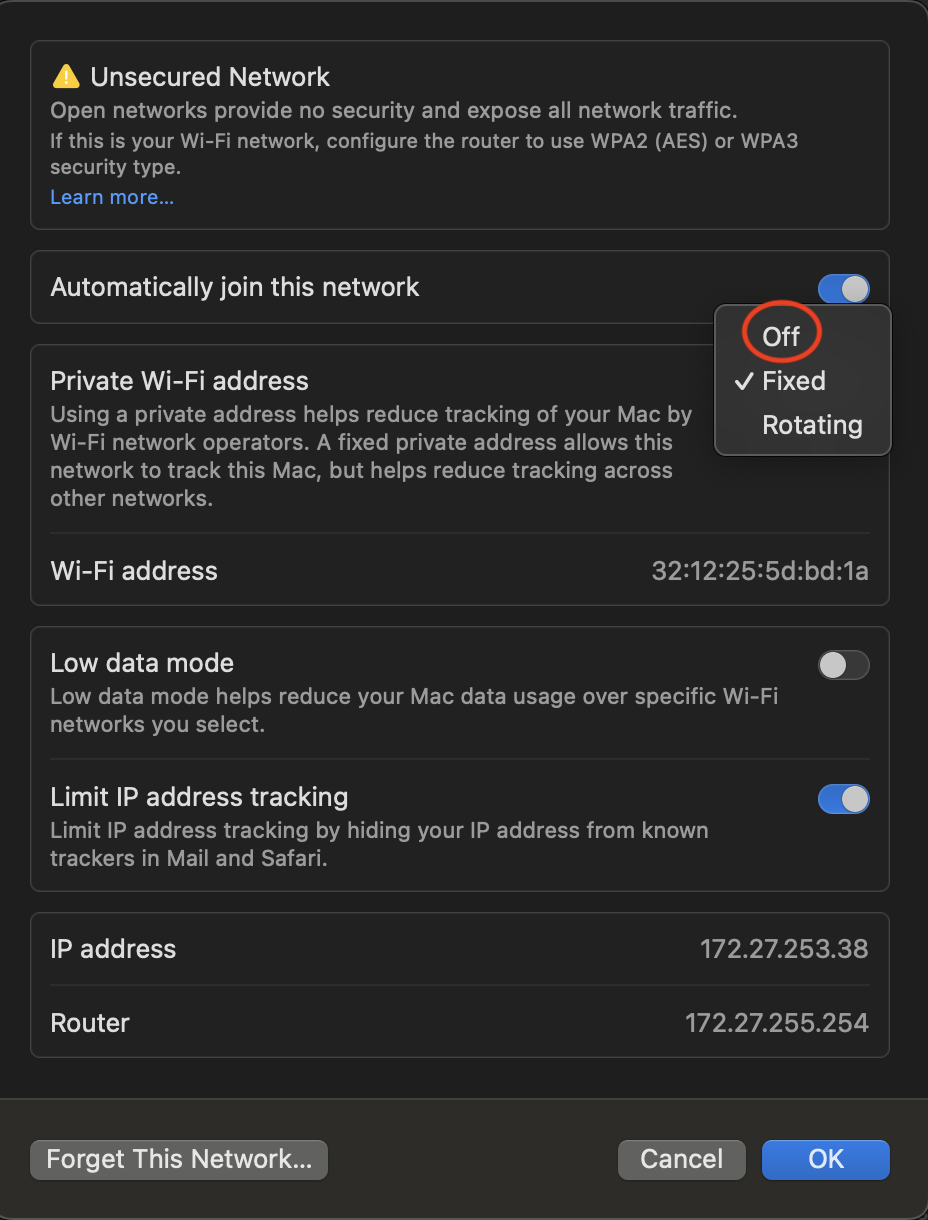
- If it switches you to a different network, connect back to asu after the change.
- Navigate back to the online resource you were trying to access and ensure you can now access it.
- Run Admin By Request by clicking on the circled check-mark icon in your menu bar and selecting Request administrator access from the drop-down menu (Admin By Request can also be found in your Applications folder) if not already elevated.