This guide shows you how to connect your Mac to the App State secure wireless network called "asu".
This does not pertain to the network called "asu-secure".
1. Click on the Wi-Fi icon in the top right corner of the menu bar, and click on asu from the list of available networks.
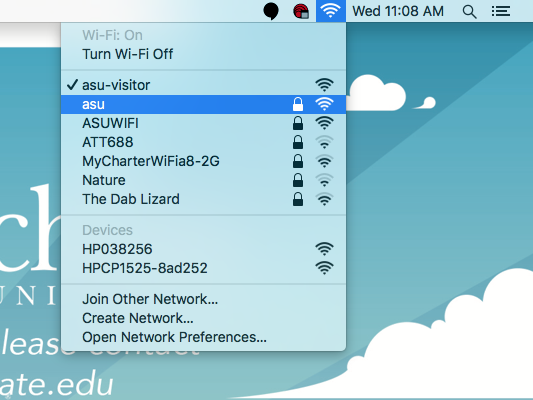
Note:
If you don't see the Wi-Fi icon, you can find the Wi-Fi settings by clicking the Apple logo in the top left of the menu bar, opening System Settings, and clicking on Network.
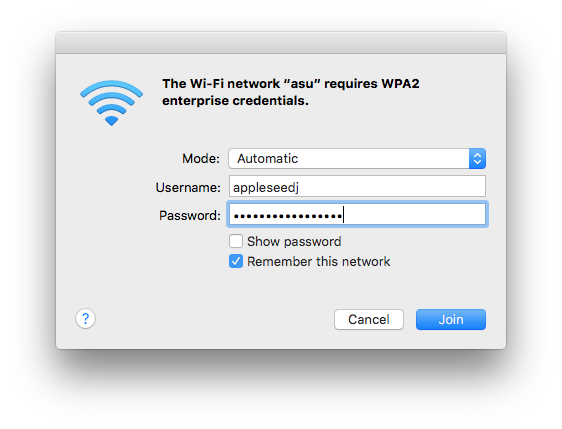
2. In the pop-up window, enter your App State username and password and then click Join. You should now be connected to the asu network.
3. If this is your first time connecting this machine to the asu network, you will need to register this device. On your device, open a web browser and navigate to netreg.appstate.edu.
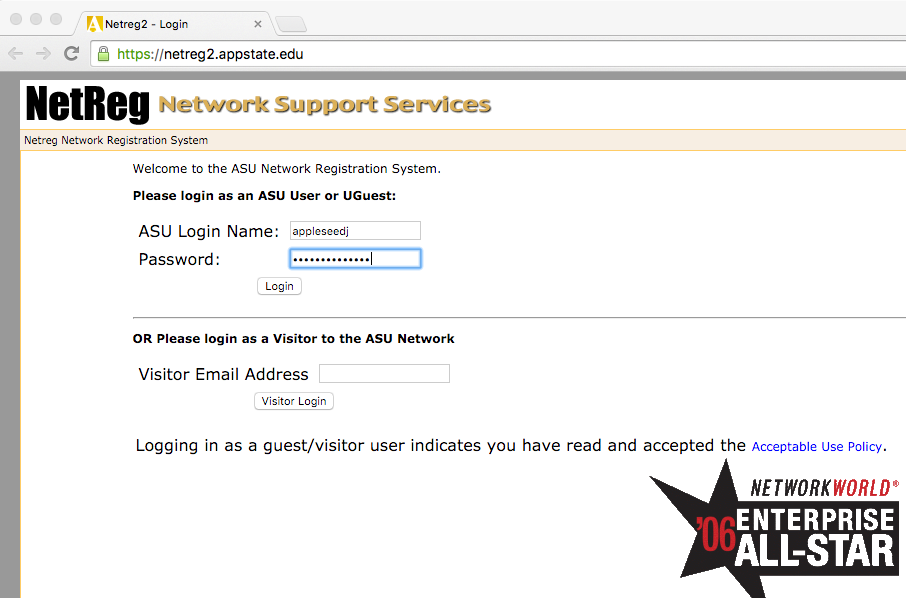
- You must wait 15 minutes for registration to take effect, and you may need to reboot your device.
- Students are allowed 4 device registrations and Faculty/Staff are allowed 5 registrations on the "asu" secure network.